Learn EVpin, one task at a time
Short, step-by-step guides with screenshots.
Getting started
Sign in, find your way around and take a site from first look to first design.
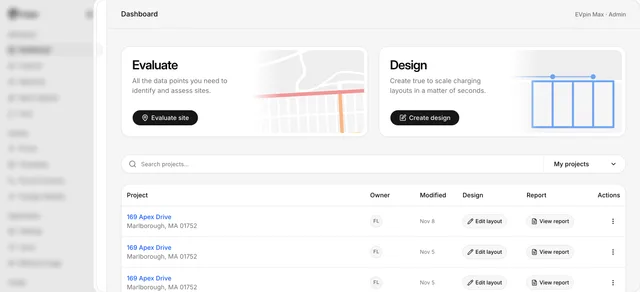
How to sign in to EVpin
Sign in with your email address and password and land on your dashboard.
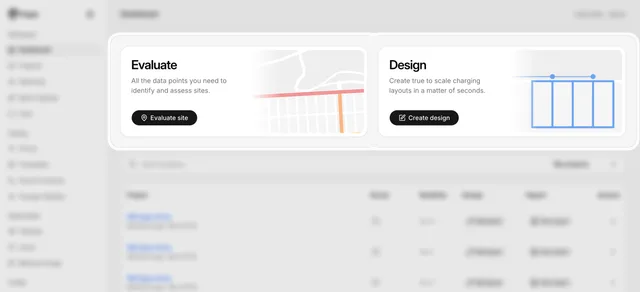
How to find your way around the dashboard
Learn what the dashboard's cards, project list and sidebar sections are for.
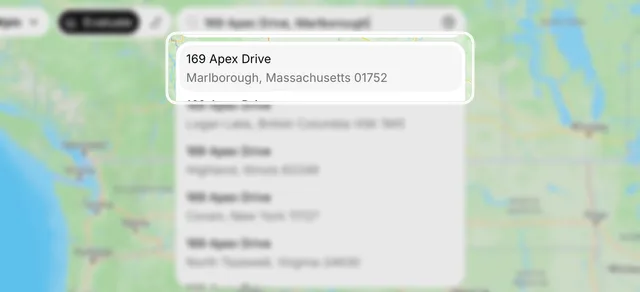
How to evaluate your first site
Look up an address on the Evaluate map, read its stats and get a utilization score.
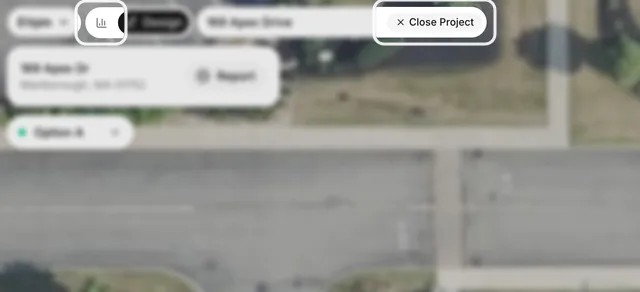
How to go from evaluating a site to designing it
Switch a site from the Evaluate map to the Design page, save it as a project and switch back.
How to open a project from the dashboard
Reopen a saved project on the Evaluate map or straight in its design from the dashboard.
Evaluating sites
Score an address, read the map layers and size up a site before you design it.
Scoring a site
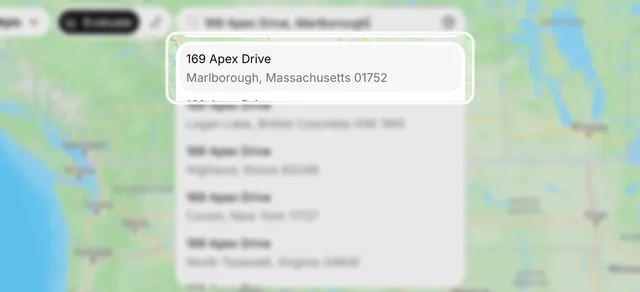
How to look up an address on the Evaluate map
Search for a site on the Evaluate map and open its panel of stats, rebates, score and forecast.
How to ask EVpin Intelligence a question
Ask EVpin's chat about charging stations, EV adoption or incentives near a site and get an answer with a map and table.
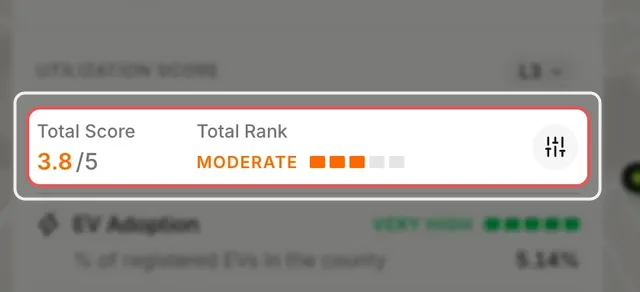
How to get a utilization score for an address
Get the utilization score EVpin gives a site for a charging level, out of 5.
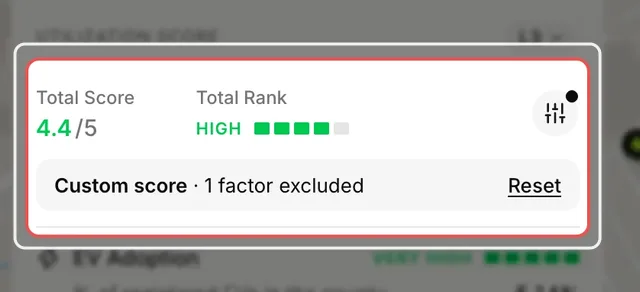
How to leave factors out of a score
Turn off the score factors that don't matter for a site and rerun its utilization score without them.
How to forecast a station's utilization
Describe a planned charging station and run a five-year forecast of how much it will be used.
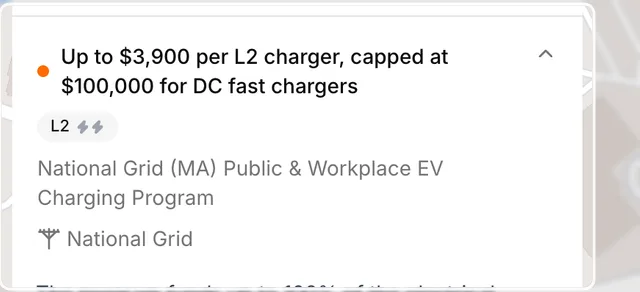
How to find the rebates a site qualifies for
List the incentive programs that could pay for chargers at a site and read what each one funds.
How to check EV registrations near a site
See how many electric vehicles are registered around a site, by type, make and area.
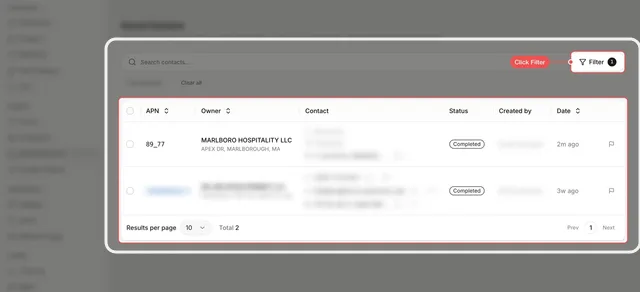
How to find a parcel's owner contacts
Look up the phone, email and business address of a parcel's owner from the Evaluate map.
Using the map

How to change the map style on the Evaluate map
Switch the Evaluate map between the street map, a grayscale map and satellite imagery.
How to open Street View on the Evaluate map
Turn on Street View on the Evaluate map and click a street to see the site at ground level.
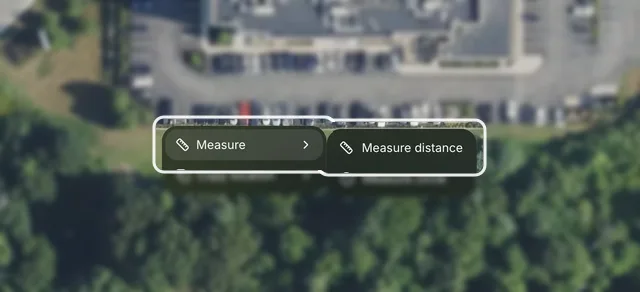
How to measure a distance on the Evaluate map
Right-click the Evaluate map to measure the length of a parking row, a frontage or any other straight run.
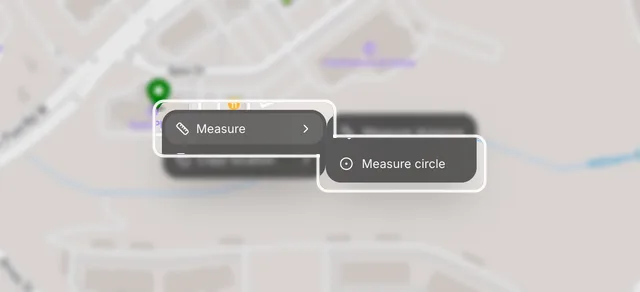
How to draw a radius circle on the Evaluate map
Right-click the Evaluate map to draw a circle around a site and read its radius, circumference and area.
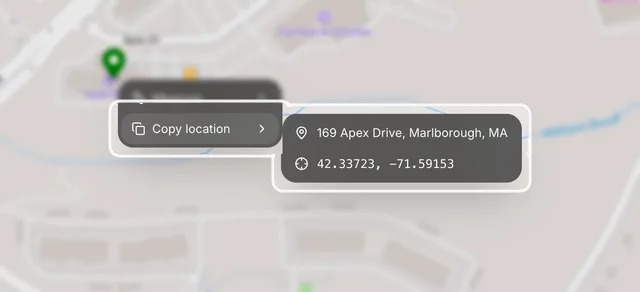
How to copy a location from the Evaluate map
Right-click a spot on the Evaluate map to copy its coordinates, or its street address where the map knows one.
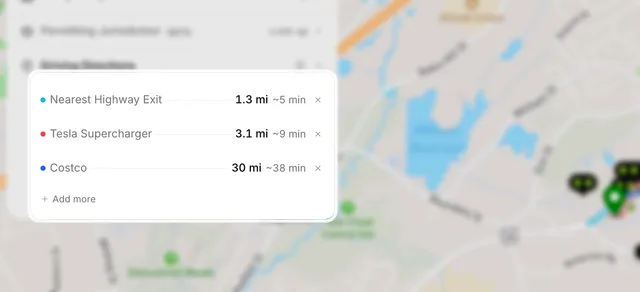
How to find the driving distance from a site to nearby places
Measure the drive from a site to the nearest highway exit, charging networks and retailers from the Evaluate map's Info tab.
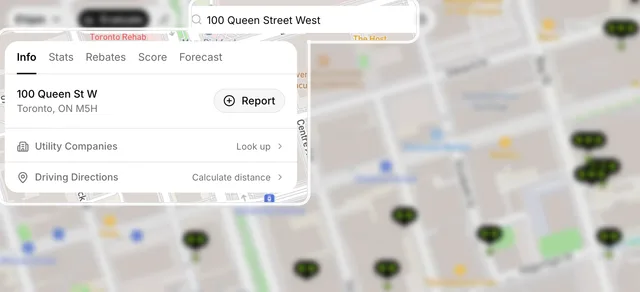
How to switch the Evaluate map between the US and Canada
Change the Evaluate map's region to Canada or the US so address search, layers and site data match the country.
Charging and projects
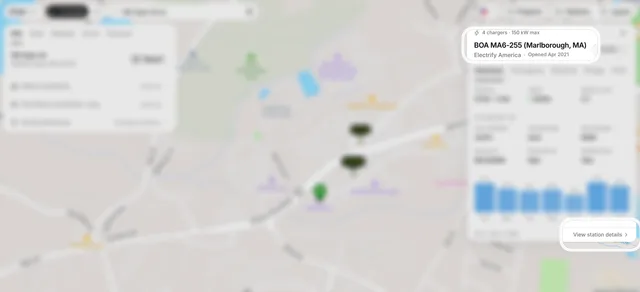
How to see existing charging stations on the map
Show the charging stations around a site, narrow them by level and network, and open one to see how busy it is.
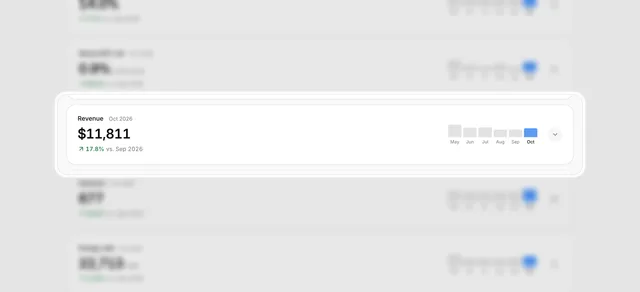
How to see a charging station's performance
Open a charging station's details page and read its utilization, revenue, sessions, energy and price month by month.
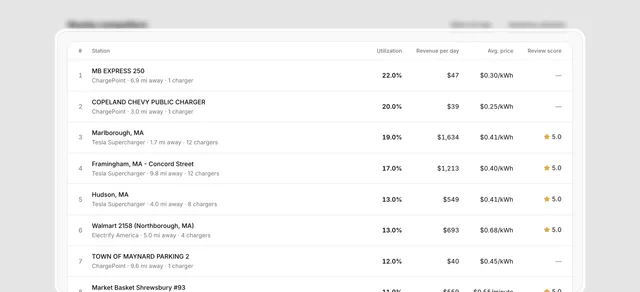
How to compare a charging station with nearby competitors
Rank the charging stations within 10 miles of a station by utilization, with their revenue per day, price and review score.
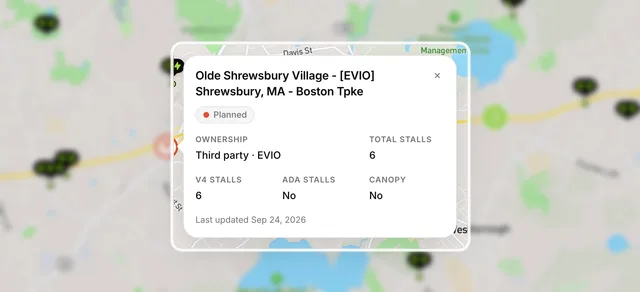
How to see planned Tesla Superchargers near a site
Show Supercharger sites that are planned or in permitting around a site and open one to see its size and owner.
How to see NEVI corridors near a site
Draw the federal NEVI alternative fuel corridors on the Evaluate map to check whether a site is on one.
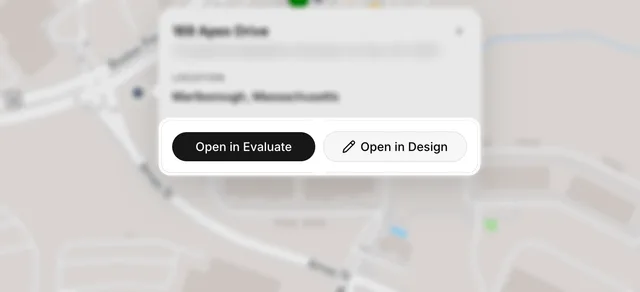
How to see your projects on the map
Show your own or your team's saved projects as stars on the Evaluate map and open one from there.
Property
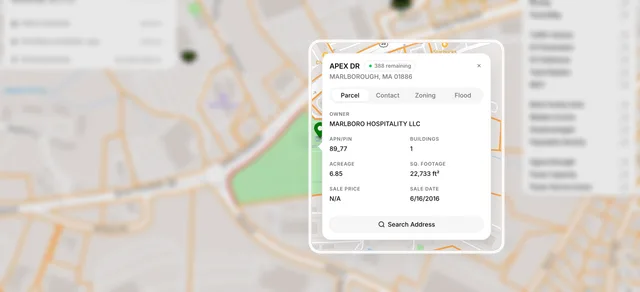
How to see parcel lines around a site
Outline property parcels on the Evaluate map, open a parcel's owner and size, and show the same lines on the Design page.
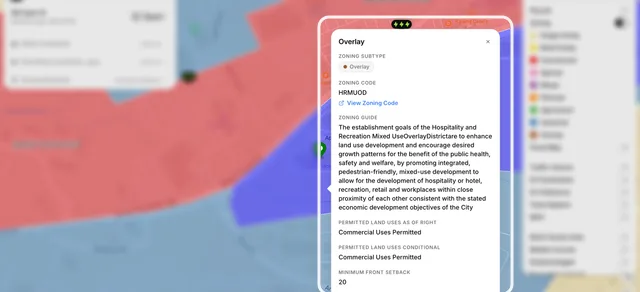
How to check a site's zoning
Color the map by zoning district and open a zone to see its code, permitted uses and setbacks.
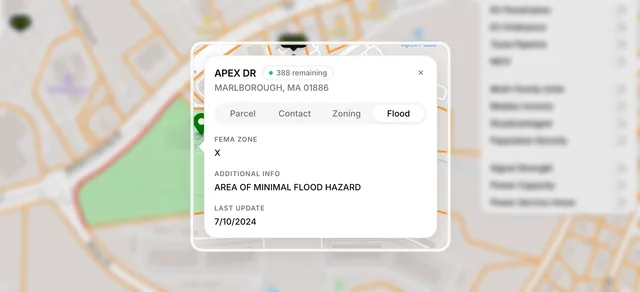
How to check flood risk around a site
Draw FEMA flood zones on the Evaluate map and read the flood zone of the site's parcel.
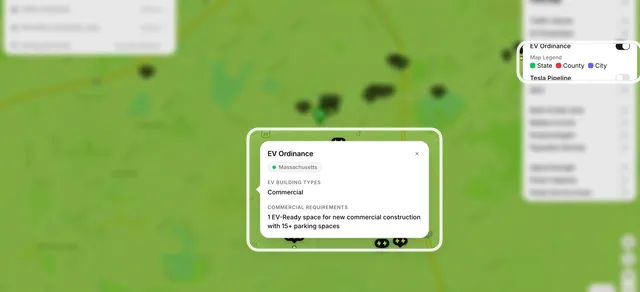
How to find EV ordinances that apply to a site
Shade the map by state, county and city EV ordinances and read the EV-ready requirements that cover a site.
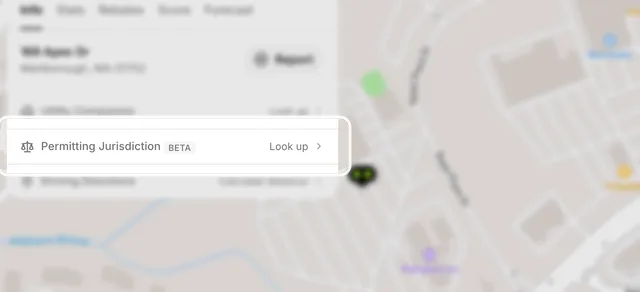
How to find a site's permitting jurisdiction
Look up the authority having jurisdiction (AHJ) that issues permits for a site, and open its website, from the Evaluate map.
Power
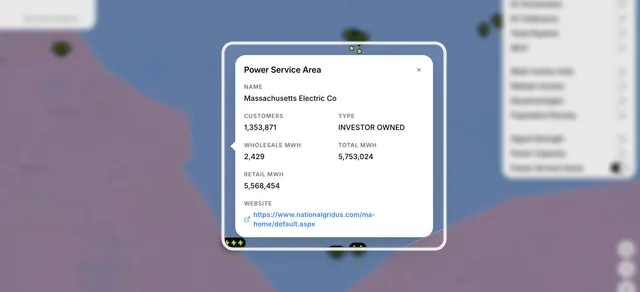
How to find the utility that serves a site
Draw electric utility service areas on the Evaluate map and open the utility that covers a site.
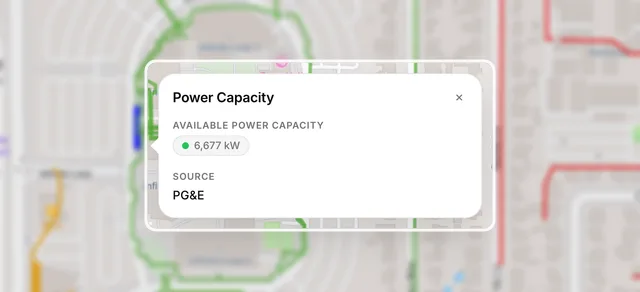
How to check grid capacity near a site
Color nearby power lines by the capacity the utility reports as available and read a circuit's kW, where the data exists.
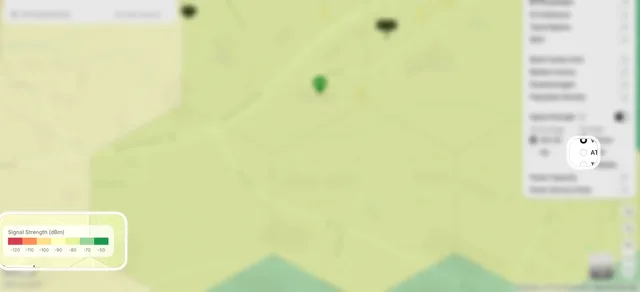
How to check mobile signal at a site
Shade the map by cellular signal strength for a carrier and compare carriers at a site, so networked chargers can stay online.
Demand
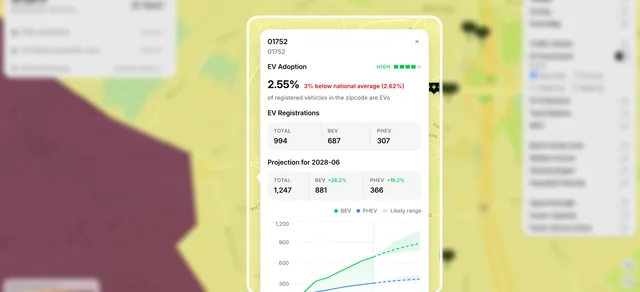
How to see EV adoption around a site
Shade the map by the share of registered vehicles that are EVs and open an area's registrations and forecast.
How to check traffic volume near a site
Color nearby roads by average daily traffic and read the vehicle and truck counts that pass a site.
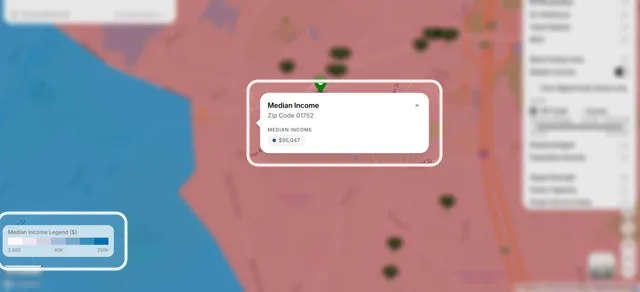
How to check income and population around a site
Shade the Evaluate map by median household income and by population density, and read the values for the site's area.
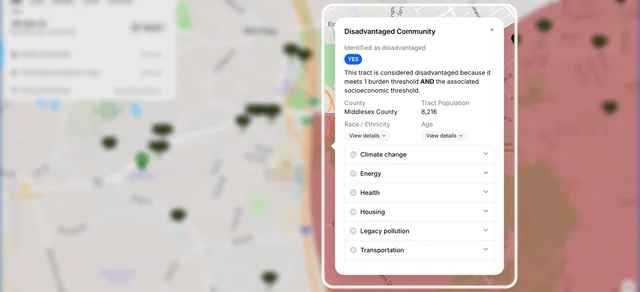
How to check if a site is in a disadvantaged community
Shade federally designated disadvantaged census tracts on the Evaluate map and read why a tract qualifies.
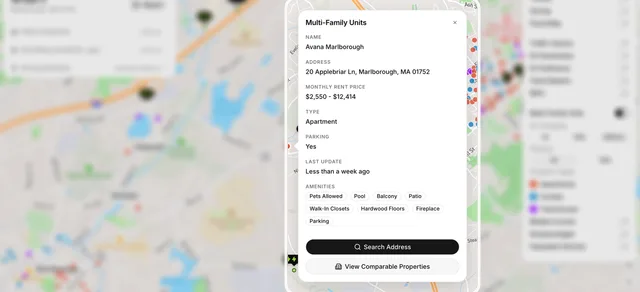
How to find apartments near a site that lack EV charging
Show apartments, condos and townhomes around a site, filtered to those without EV charging, and open one's rent and amenities.
Designing layouts
Lay out stalls, power equipment and site details on the Design page.
Stalls
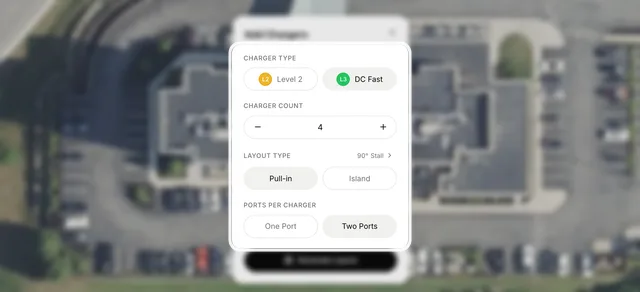
How to add charging stalls to a design
Generate a row of chargers on the Design page, move it into place, and save the design as a project.
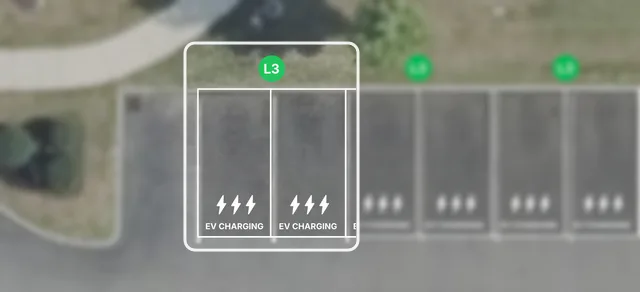
How to change the width of stalls
Make a charging stall wider or narrower from the size bar above it on the Design page.
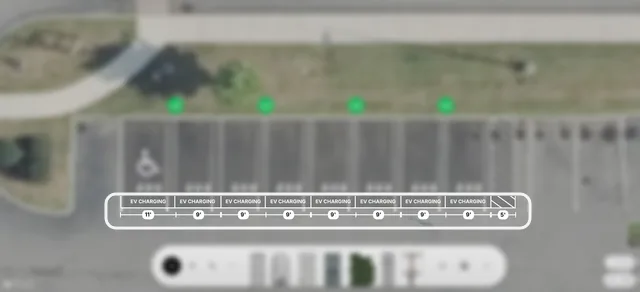
How to show the width of stalls on a design
Label each stall with its width under the row, from the right-click menu on the Design page.
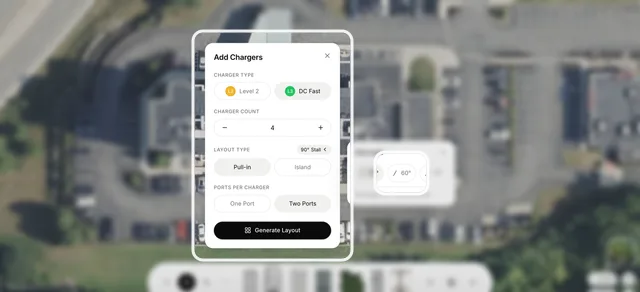
How to angle charging stalls
Generate a row of 60° or 45° charging stalls on the Design page for a one-way drive aisle.
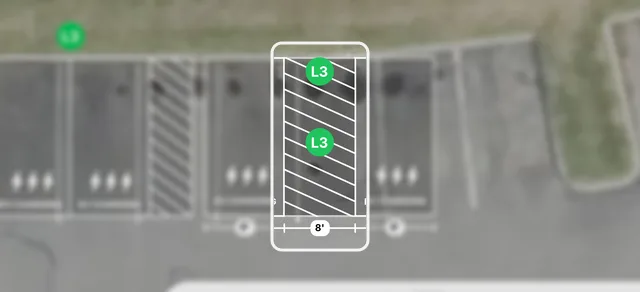
How to adjust the island width of stalls
Widen or narrow the hatched island between island-layout charging stalls from the right-click menu.
How to rotate equipment on a design
Turn a row of charging stalls to match the angle of the painted spaces and drag it into place on the Design page.
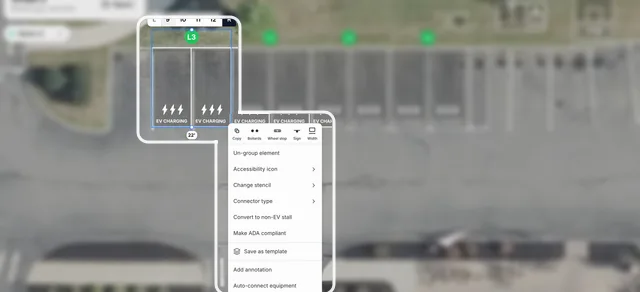
How to add bollards to stalls
Put protective bollards in front of the chargers on a design's charging stalls from the right-click menu.
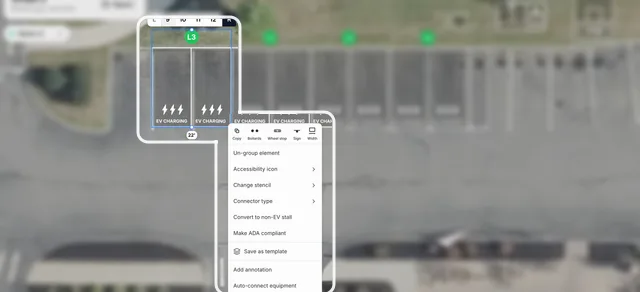
How to add wheel stops to stalls
Add wheel stops to the charging stalls on a design from the right-click menu.
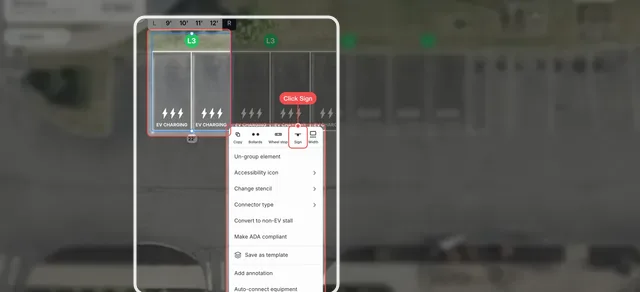
How to add parking signs to stalls
Add an EV parking sign to each charging stall on a design from the right-click menu.
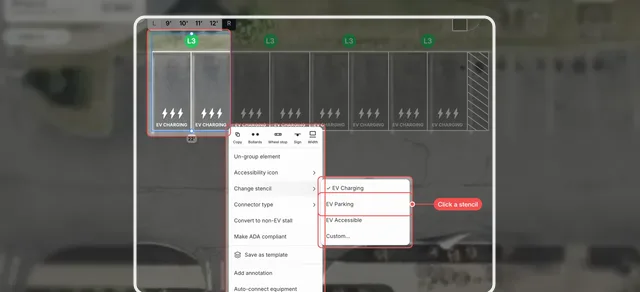
How to change a stall's stencil
Change the text painted on a charging stall, such as EV Charging or EV Parking, from the right-click menu.
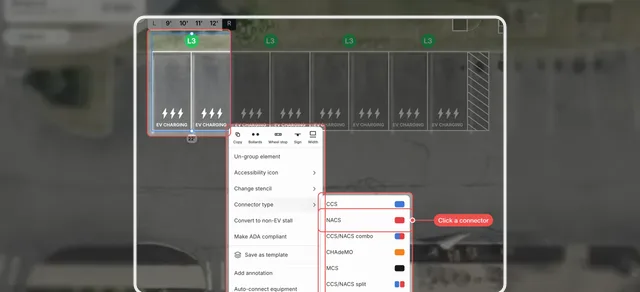
How to assign connector types to stalls
Mark which connector, such as CCS or NACS, each charging stall's port has, from the right-click menu.
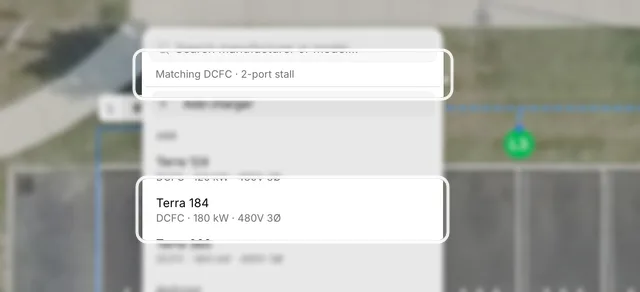
How to pick a charger model for stalls
Give the chargers on your stalls a model from the catalog so EVpin can size their circuits and the equipment that feeds them.
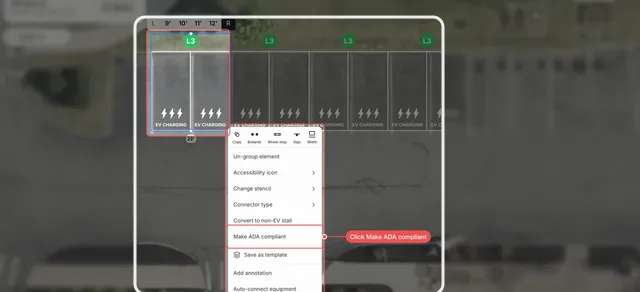
How to make stalls ADA compliant
Turn a pair of charging stalls into an accessible stall with an access aisle from the right-click menu.
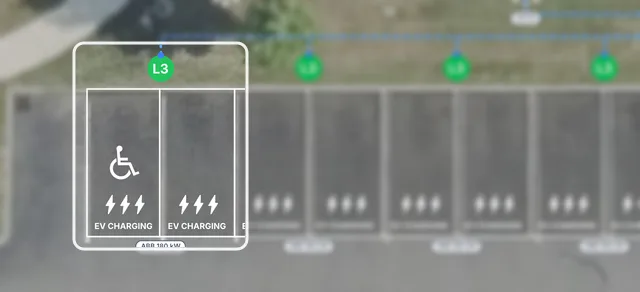
How to show the accessibility icon on a stall
Paint the accessibility symbol on the left or right stall of a charger from the right-click menu on the Design page.
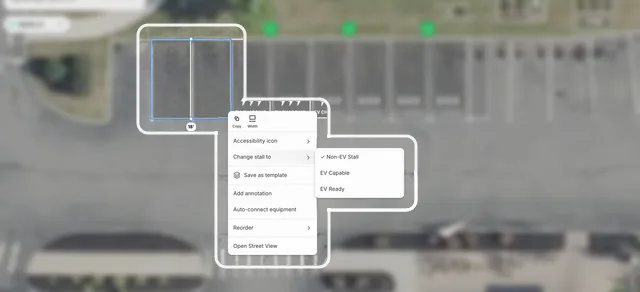
How to mark stalls as EV ready
Turn charging stalls into non-EV stalls marked EV Ready or EV Capable for future chargers, from the right-click menu.
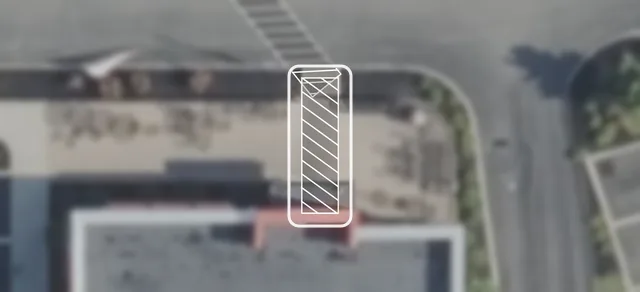
How to add a path of travel
Draw the accessible route from the charging stalls to the building entrance on the Design page.
Power equipment
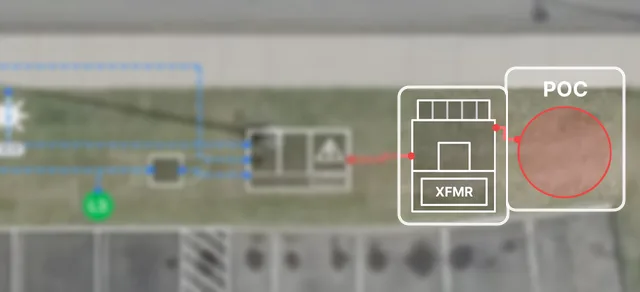
How to add a point of connection
Mark where the utility service enters the site and connect it to the transformer on the Design page.
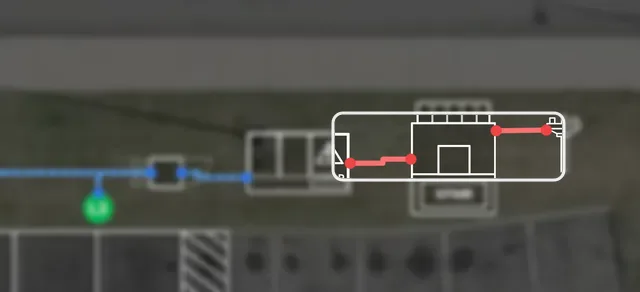
How to add a utility pole
Mark the utility pole that feeds the site on the Design page and connect it to the transformer.
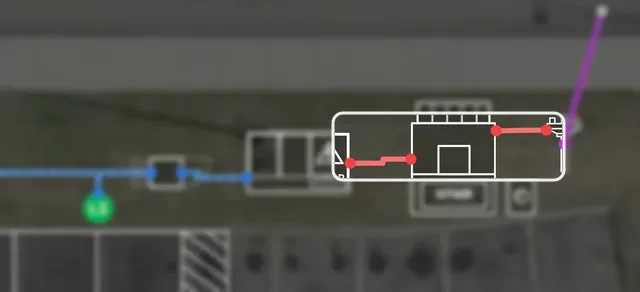
How to add a meter pedestal
Place a meter pedestal on a design where the utility meters the service that feeds the chargers.
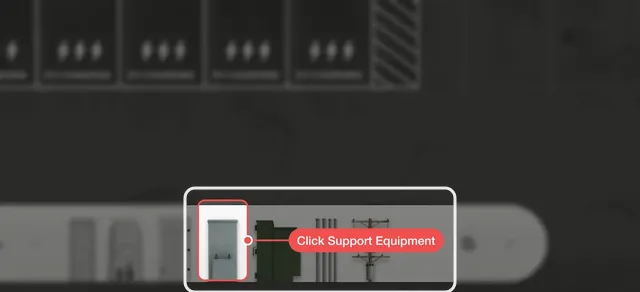
How to add an H-Frame
Place an H-Frame on a design to hold the meter and service disconnect at the utility source.
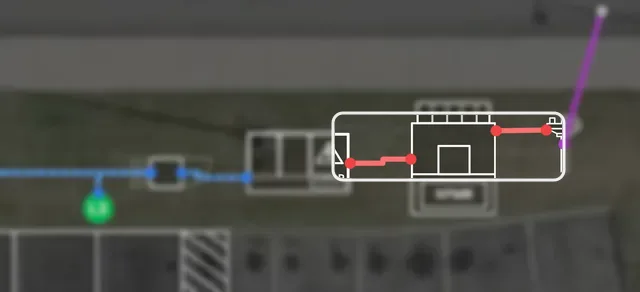
How to draw a primary overhead or underground line
Draw the utility's primary line from the street to the utility pole or point of connection on a design.
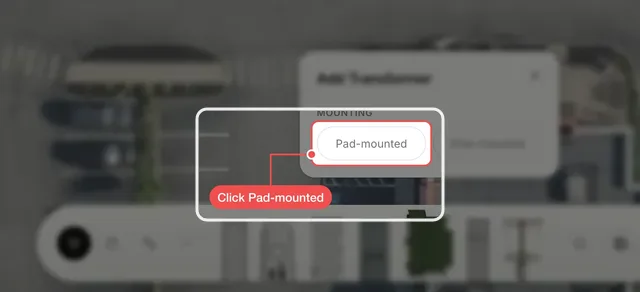
How to add a transformer
Place a pad- or pole-mounted transformer on a design and size it.
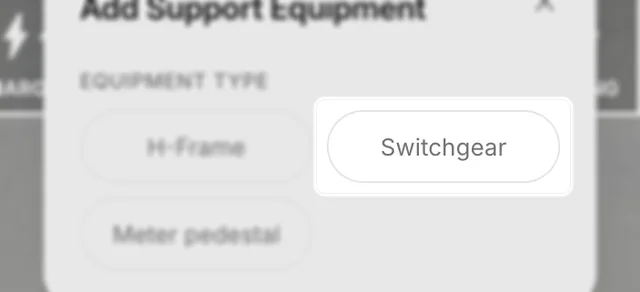
How to add a switchgear
Place a switchgear on a design between the transformer and the power cabinets.
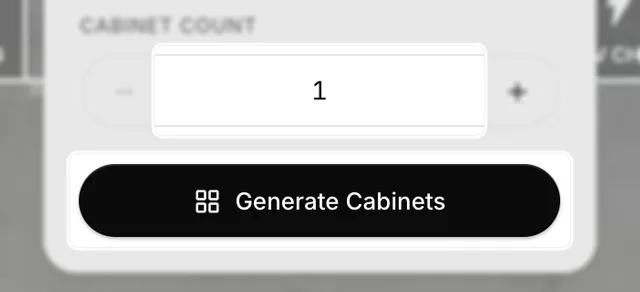
How to add power cabinets
Add power cabinets to a design and place them between the switchgear and the chargers.
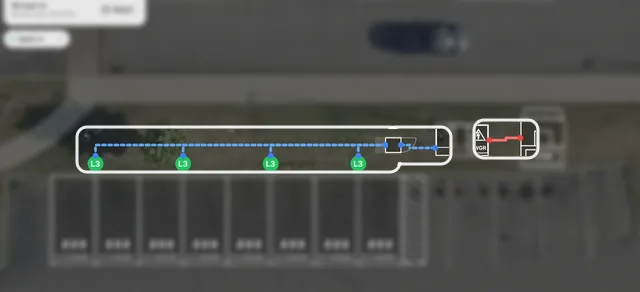
How to auto-connect equipment
Wire every charger, power cabinet, switchgear and transformer on a design with conduit runs in one click.
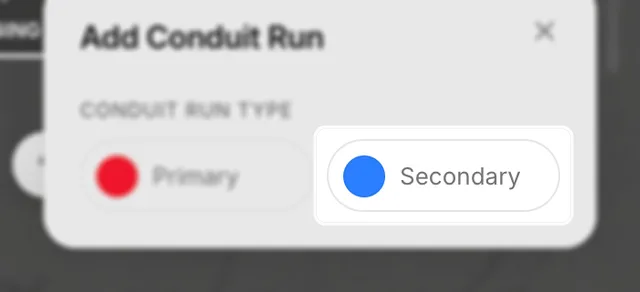
How to draw a conduit run
Draw a conduit run by hand between two pieces of equipment on a design.
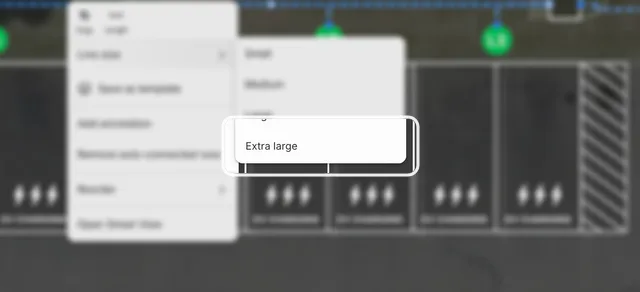
How to change the line size of a conduit run
Draw a conduit run with a thicker line from the right-click menu on the Design page.
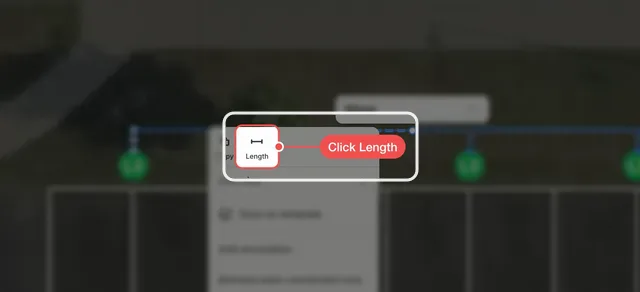
How to show the length of a conduit run
Label a conduit run with its length from the right-click menu on the Design page.
Electrical design
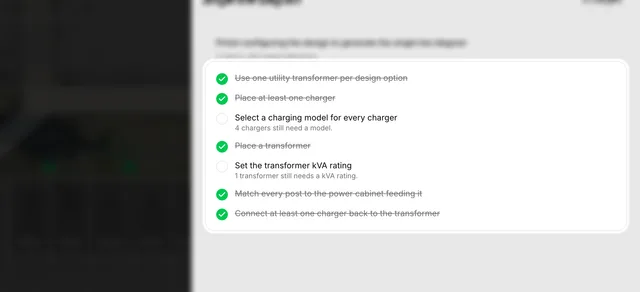
How to turn on electrical design
Turn on electrical design for a design option and see what it still needs before EVpin can draw the electrical plan.
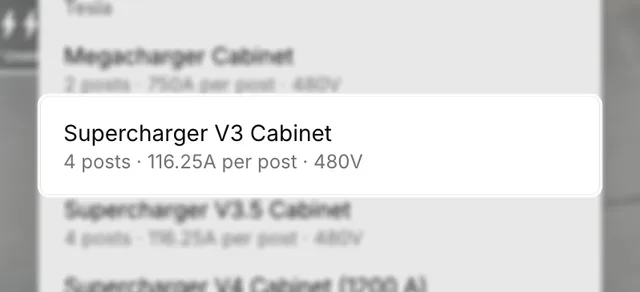
How to pick a power cabinet's model
Set the model of a power cabinet so EVpin knows its posts and gives every charger it feeds the matching model.
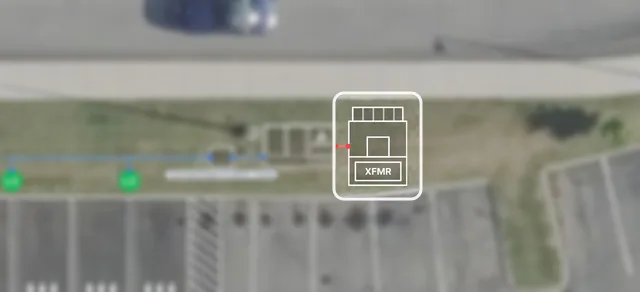
How to set a transformer's kVA rating
Give a transformer its nameplate kVA so EVpin can check it against the chargers' load.
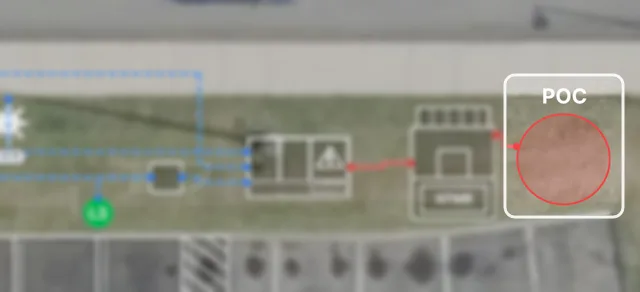
How to set a site's service capacity
Tell EVpin how many amps the utility or building service can supply, from the point of connection on the Design page.

How to set a switchgear's ratings
Give a switchgear its bus rating and interrupting rating so EVpin can check it against the main breaker and fault current.
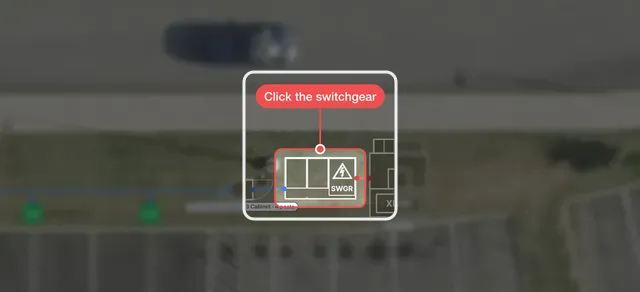
How to change a switchgear's size
Pick a standard or custom footprint for a switchgear so it takes the right space on the site.
Site details
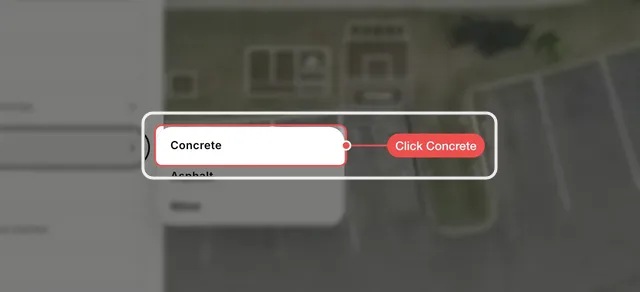
How to add a concrete pad
Draw a concrete pad on the Design page for equipment such as a transformer and switchgear to sit on.
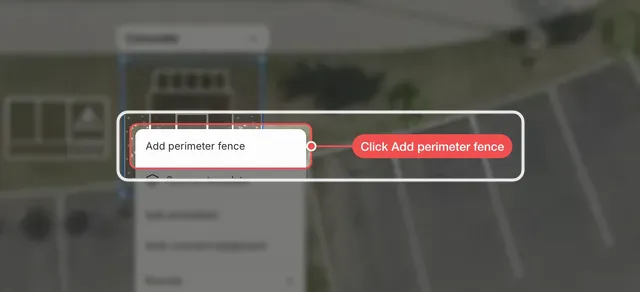
How to add a perimeter fence to a pad
Fence the edge of a pad on the Design page and move its gate to the side people come in from.
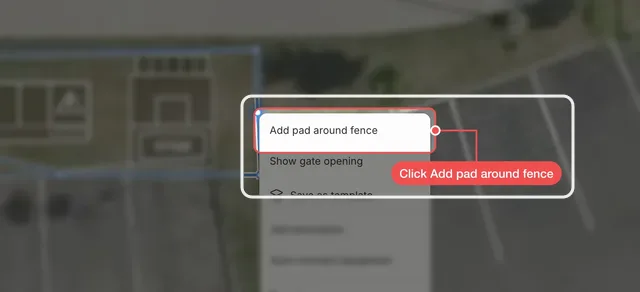
How to draw a custom fence
Draw a fence of any shape around equipment on the Design page, then add a pad and a gate to it.
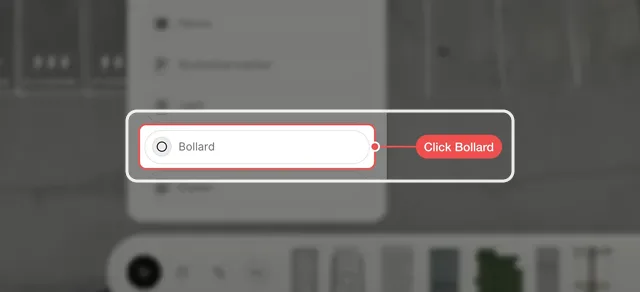
How to add bollards around equipment
Place free-standing bollards on the Design page to protect equipment such as a transformer from vehicles.
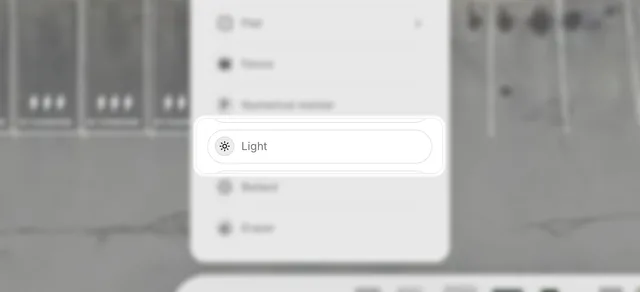
How to add a light
Place site lights on the Design page, one click per light.
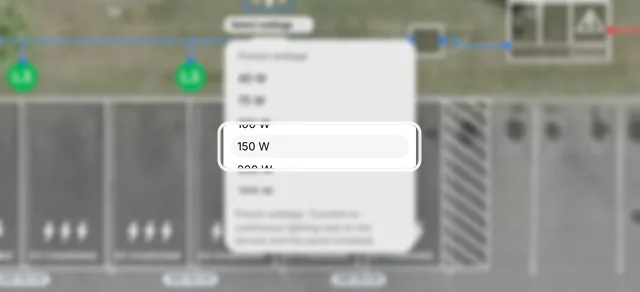
How to set a light's wattage
Give a site light its fixture wattage so the lighting load counts on the service and the panel schedule.
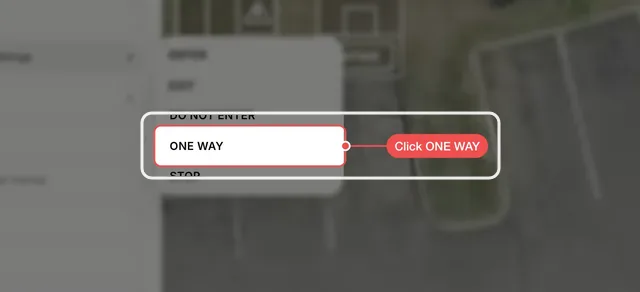
How to add a road marking
Add ENTER, EXIT, DO NOT ENTER, ONE WAY or STOP lettering to the pavement on the Design page.
Notes and markup
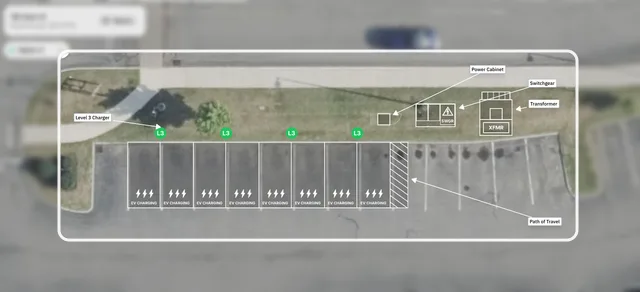
How to annotate a design automatically
Label every charger, cabinet, switchgear and transformer on a design in one click from the right-click menu.
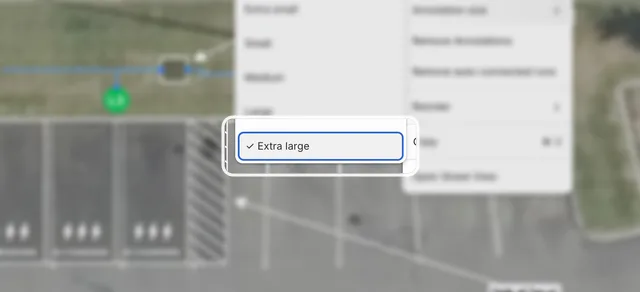
How to make annotations bigger on a design
Make an annotation label on the Design page easier to read with Annotation size in the right-click menu.
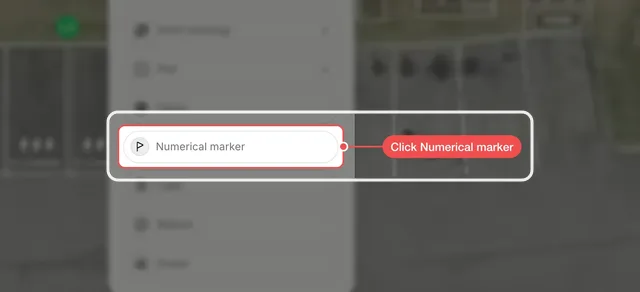
How to add numbered markers and notes
Number the things on a design and write a note for each number in the design's notes.
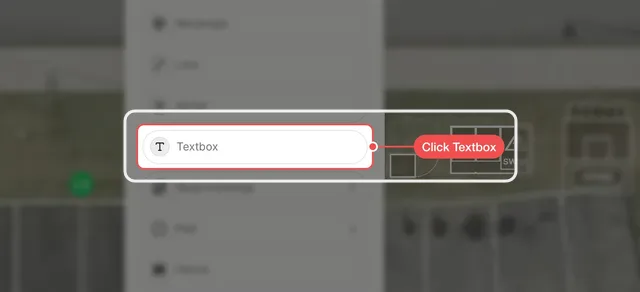
How to add a text box to a design
Put a written label on the Design page next to the thing it describes.
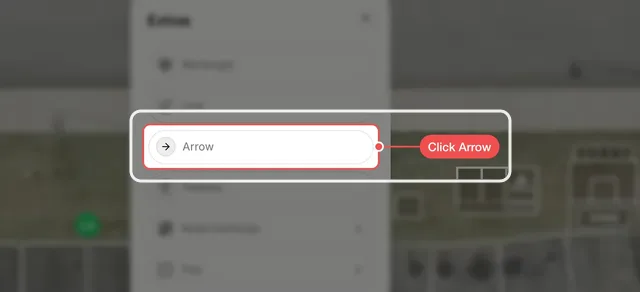
How to draw an arrow on a design
Draw an arrow on the Design page, for example to show which way traffic flows.
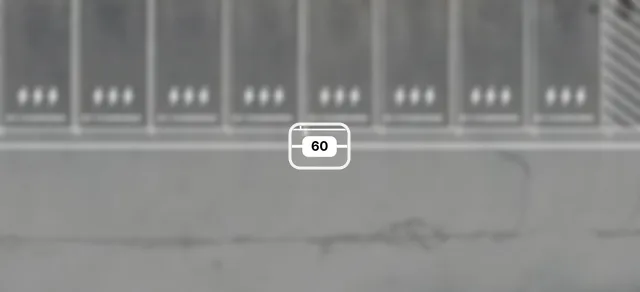
How to measure a distance on a design
Measure a distance on the Design page with the ruler, set a line to an exact length and remove it again.
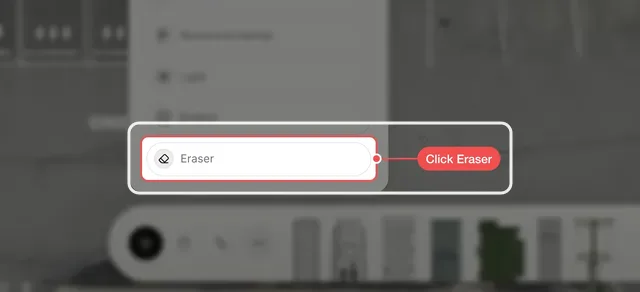
How to erase shapes from a design
Remove shapes from the Design page by dragging the Eraser across them.
Editing shapes
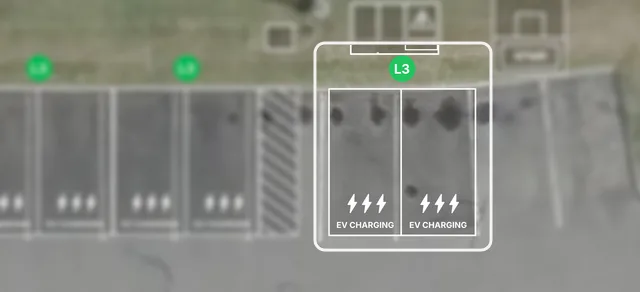
How to copy and paste shapes on a design
Copy stalls or equipment on the Design page and paste the copy where you right-click.
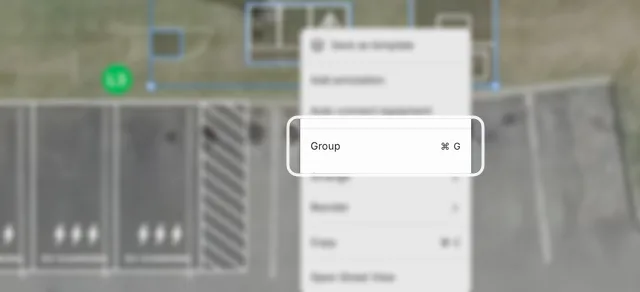
How to group shapes on a design
Group equipment on the Design page so it moves together as one piece.
How to undo a change on a design
Take back a change on the Design page with Undo, and bring it back again with Redo.
Map
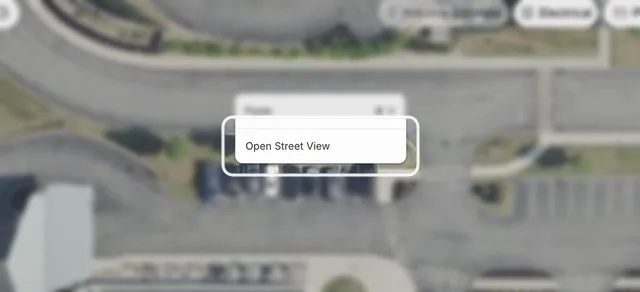
How to open Street View on the Design page
Right-click the map on the Design page to see the nearest street-level photo of that spot.
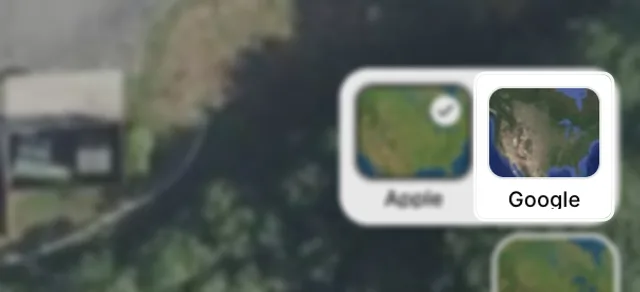
How to change the map background on the Design page
Switch the Design page's aerial imagery between Apple and Google before you start drawing.
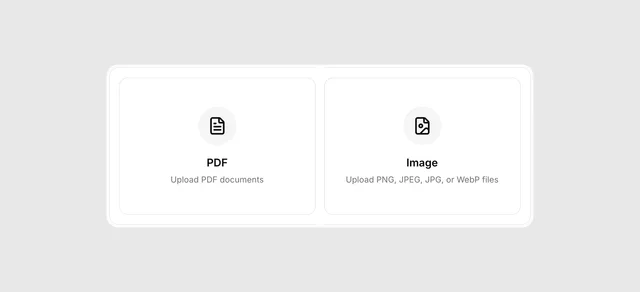
How to import a site plan into a design
Upload a site plan image or PDF on the Design page and set its scale so you can draw to scale on top of it.
Options and templates
How to add another design option
Add a second layout option to a design and switch between the options.
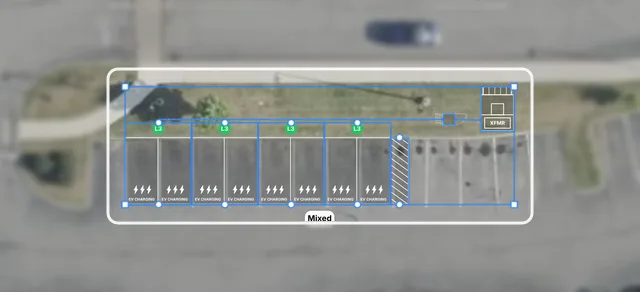
How to save part of a design as a template
Save a group of stalls, chargers and power equipment from a design so you can reuse it on other sites.
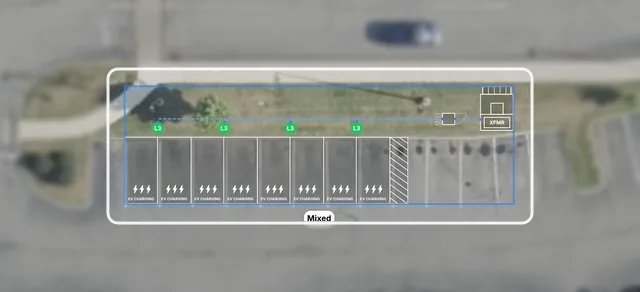
How to place a template on a design
Drop a saved template of stalls and equipment onto a design and save it.
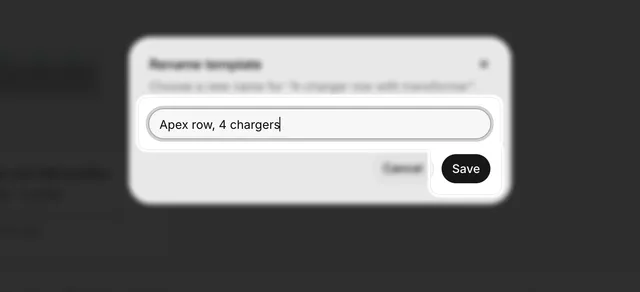
How to manage your templates
Find, rename and delete your organization's design templates on the Templates page.
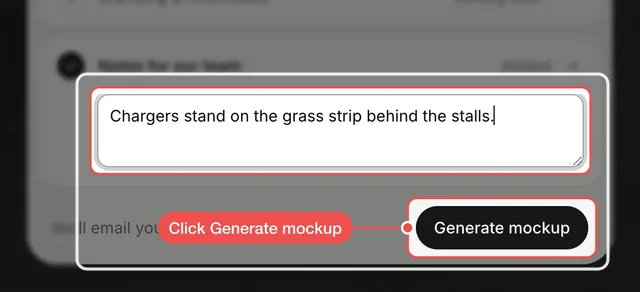
How to request a 3D mockup of a design
Ask the EVpin team for a 3D mockup of a saved design option, with the charger and vehicle you choose.
Estimates and reports
Set your prices, check the electrical plan and share a finished report.
Pricing templates
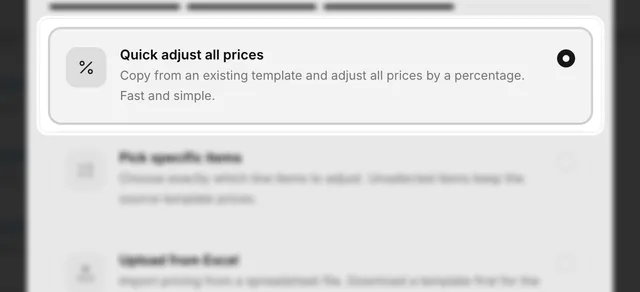
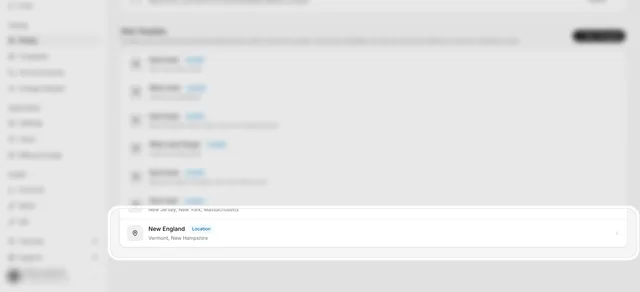
How to create a pricing template for a region
Create a pricing template for the states you work in, so estimates for projects there use your regional prices.
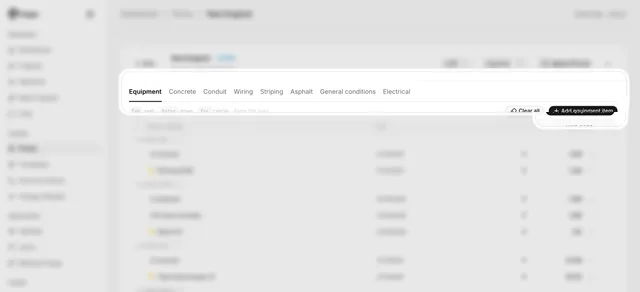
How to add an item to a pricing template
Add a charger or other piece of equipment with its own unit cost to a pricing template.
How to change a price in a pricing template
Edit the unit cost of an item in a pricing template so the next estimate uses your price.
Estimates
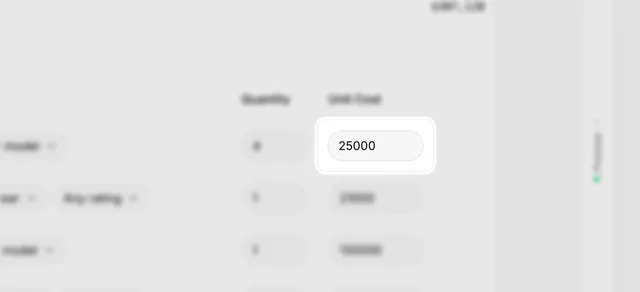
How to create an estimate
Turn a design into an estimate and type your own unit price on each line so the totals match what you charge.
How to see what a design costs
Open the estimate preview for a design and read its total and section-by-section costs.
How to turn a cost preview into an editable estimate
Create a full estimate from a design's cost preview, edit its line items and save it to the project.
How to use a pricing template in an estimate
Switch an estimate to another pricing template and rebuild its line items with that template's prices.
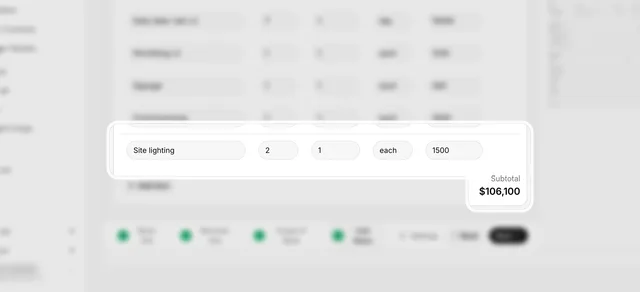
How to add a line item to an estimate
Add your own line to an estimate, such as site lighting or an extra fee, with its quantity and unit cost.
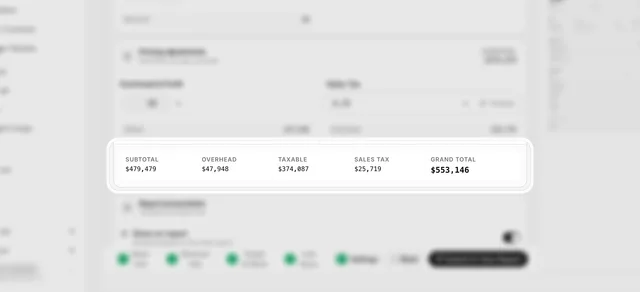
How to add overhead and sales tax to an estimate
Add an overhead and profit percentage and a sales tax rate to an estimate, and choose which sections are taxed.
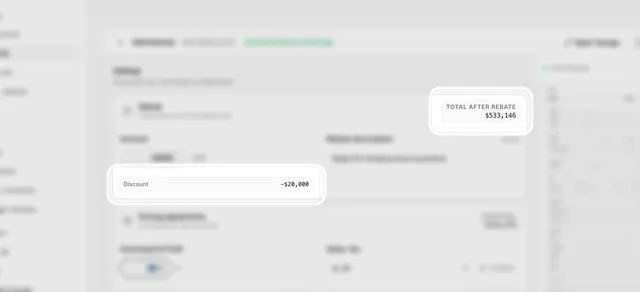
How to apply a rebate to an estimate
Take a fixed rebate, such as a utility or state incentive, off an estimate's grand total and say what it is for.
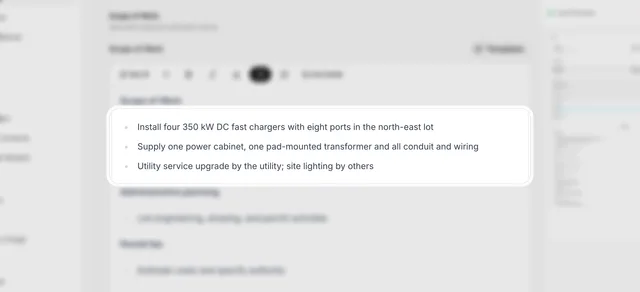
How to write the scope of work for an estimate
Describe what an estimate covers and leaves out, starting from EVpin's outline of the usual sections.
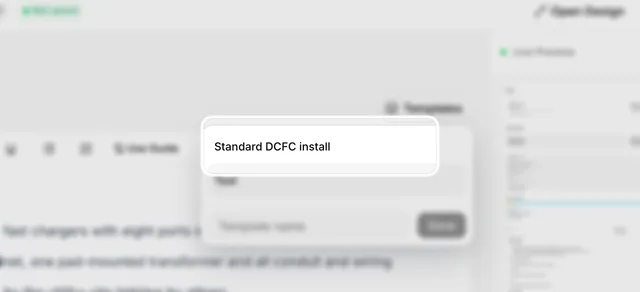
How to save a scope of work as a template
Save an estimate's scope of work as a template your team can drop into the next estimate with one click.
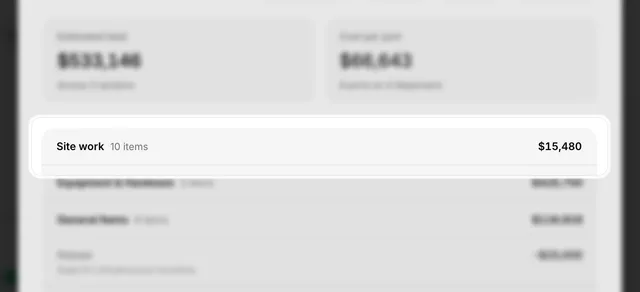
How to show a client a summary of an estimate
Show the client section totals instead of every line, and combine sections into your own groups.
Electrical plan
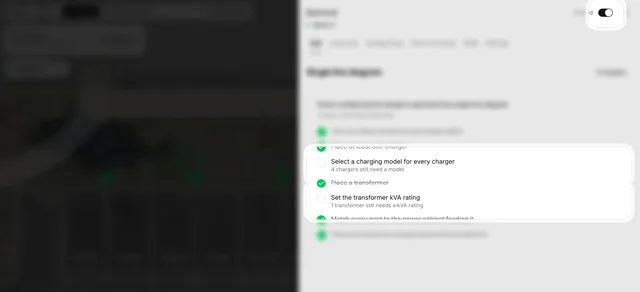
How to add a single-line diagram to a project
Generate a single-line diagram for a project from the Projects page and finish the design so EVpin can draw it.
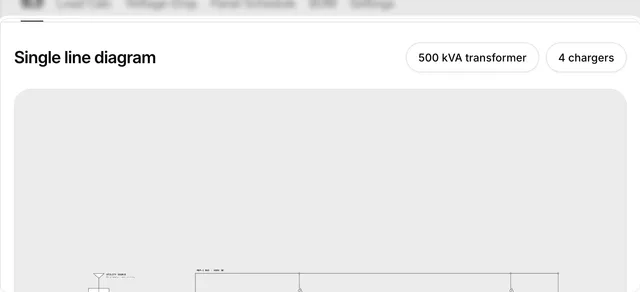
How to view a design's single line diagram
Open the single line diagram EVpin draws from a design, from the utility source through the switchgear and cabinet to each charger.
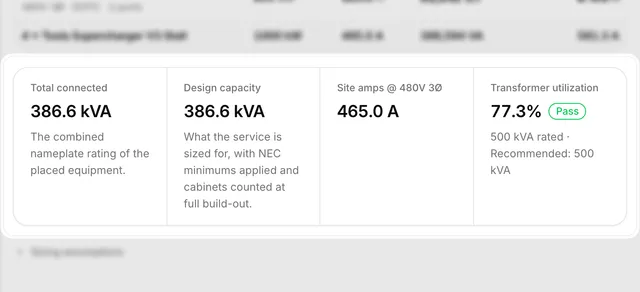
How to check a design's load calculation
See the chargers' combined load and whether the transformer is big enough, and try another transformer size.
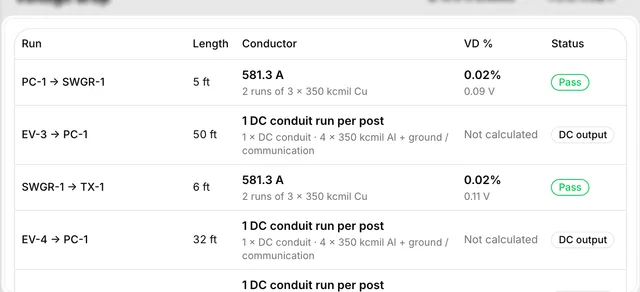
How to check voltage drop on a design
See the length, conductor and voltage drop of every conduit run in a design, and whether each one is within the limit.
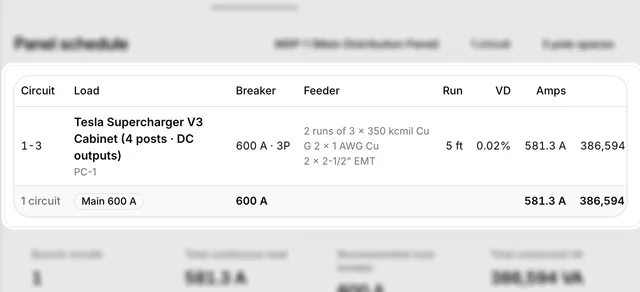
How to see a design's panel schedule
See each circuit's breaker and feeder in a design, and the main breaker EVpin recommends.
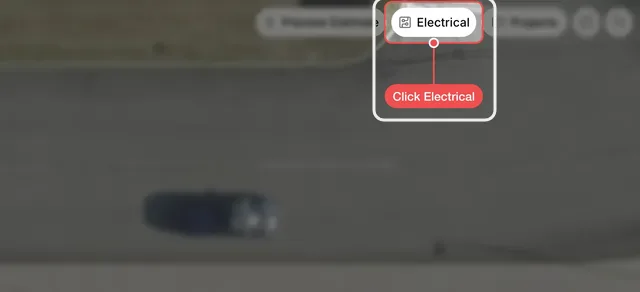
How to export a design's electrical bill of materials
List the electrical equipment, conductors, conduit and breakers a design needs and download them as a CSV.
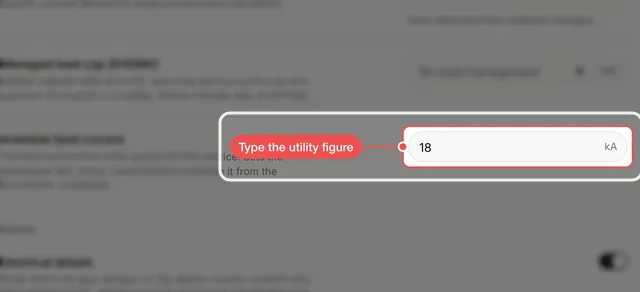
How to change a design's electrical settings
Set the conductor material, system voltage, load cap, fault current and diagram options the electrical plan uses.
Reports
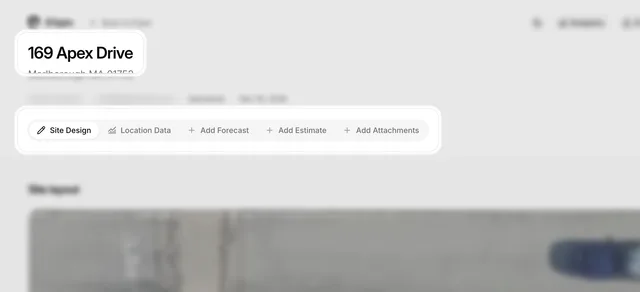
How to generate a report from the Design page
Turn a design into a shareable site report with its layout, location data and estimate.
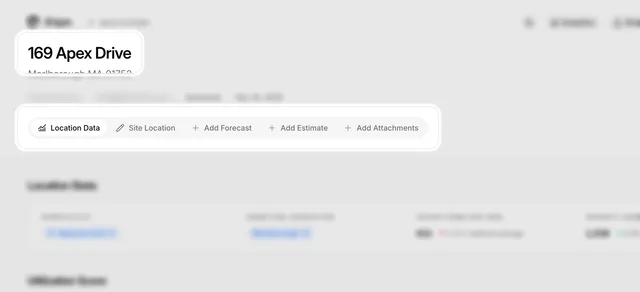
How to generate a report from the Evaluate map
Build a site report with location data and a utilization score for any address, without drawing a design.
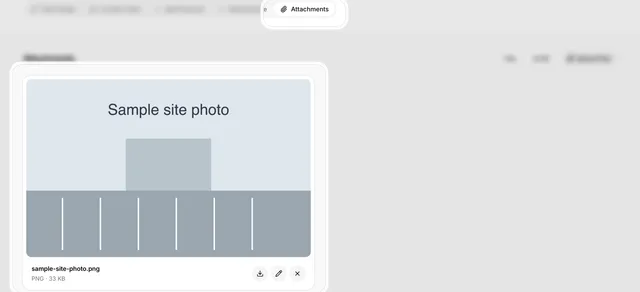
How to add an attachment to a report
Upload site photos, brochures or other documents to a report so they travel with it.
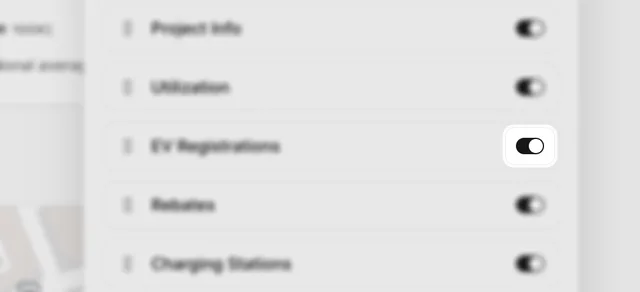
How to hide sections of a report
Hide whole report tabs, then hide and reorder the parts of the Location Data tab.
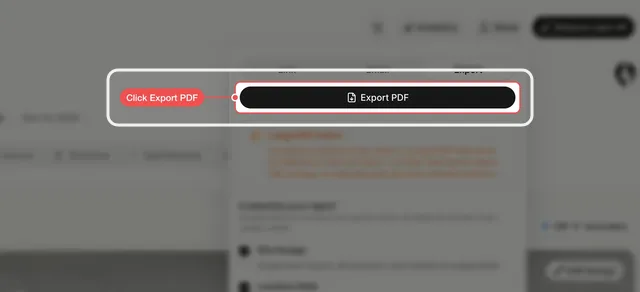
How to export a report as a PDF
Download a project's report as a PDF with the sections you chose to include.
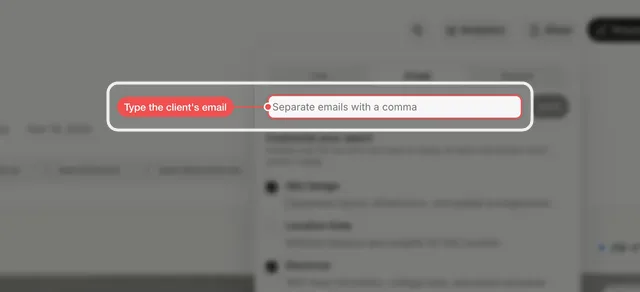
How to share a report with a client
Pick the sections a client sees, then send them the report link or email it from the Share popover.
Managing projects
Find, organize and hand off projects across your team.
Finding projects
How to find a project
Search the Projects page by site name or address and open the project you need.
How to sort the project list
Order the Projects page by name or by when each project was last changed.
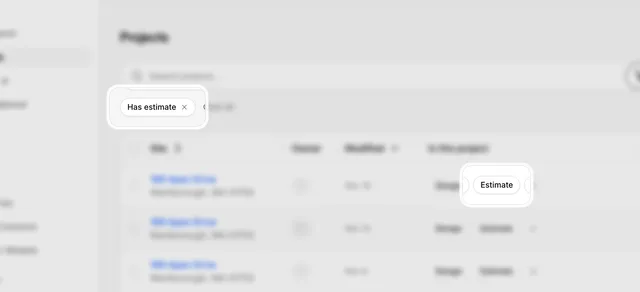
How to find projects that have an estimate
Filter the Projects page by what each project contains, such as an estimate, a design or a forecast.
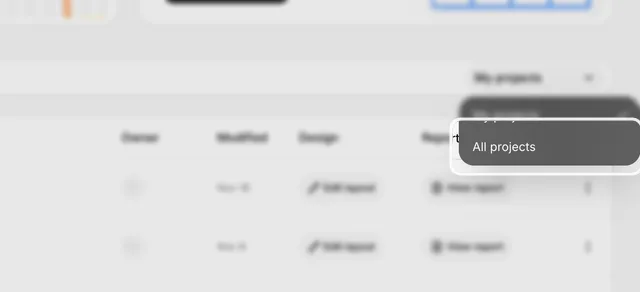
How to see all projects on the dashboard
Switch the dashboard's recent projects from your own to everyone's in the organization.
How to see a teammate's projects
Filter the Projects page by the person who created each project to see only a teammate's work.
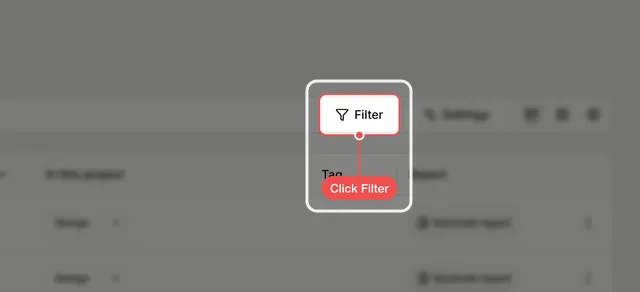
How to filter projects by tag
Show only the projects with a given tag, such as In Progress or Backlog, on the Projects page.
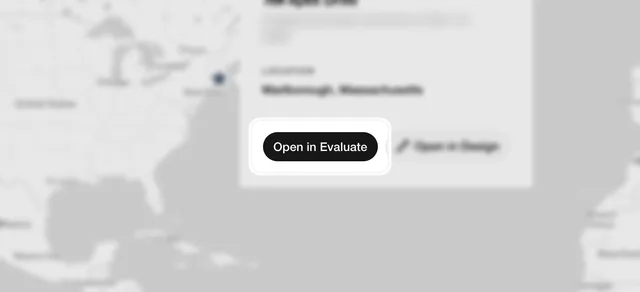
How to see your projects on a map
Switch the Projects page to the map to see where every project is and open one from its pin.
Organizing and sharing
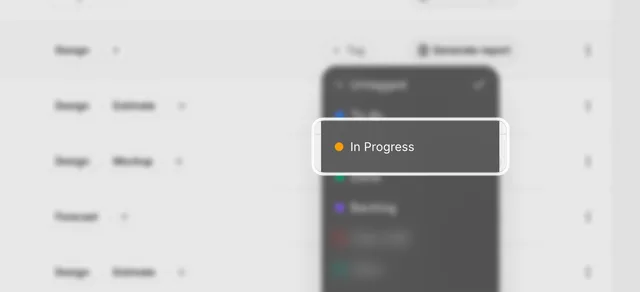
How to tag a project
Give a project a tag such as To do, In Progress or Done from the Projects page.
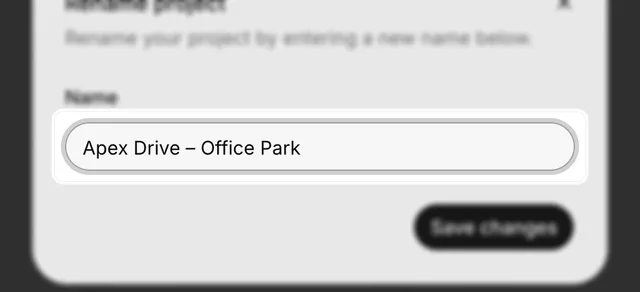
How to rename a project
Give a project a clearer name than its street address from the Projects page.
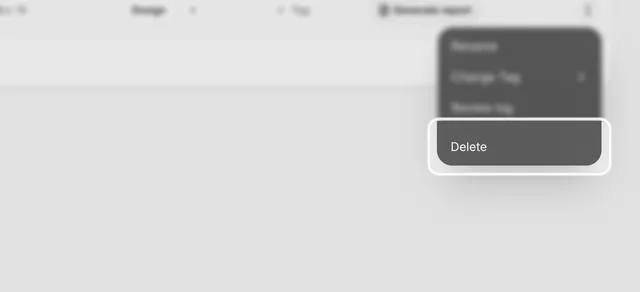
How to delete a project
Remove a project you created, along with its designs and reports, from the Projects page.
How to delete several projects at once
Tick projects in the Projects table and delete them all, with their designs and reports, in one step.
How to manage your organization's tags
Add, rename, recolour and delete the tags your team uses to track projects, from the board's Manage Tags panel.
How to move a project across the board
Switch the Projects page to the board and drag a project into another tag's column.
How to hide a column on the project board
Turn off a tag's column on the Projects board, such as Untagged, so you only see the stages you track.
How to assign a project to a teammate
Hand a project over to a teammate from the Projects page and send them a note.
monday.com
How to connect monday.com to EVpin
Connect your monday.com account, pick the board your projects belong to and keep its status column in sync with project tags.
How to link a project to a monday.com item
Link a project to its monday.com item so the item links back to the project's evaluate page, design and report.
History and batches
How to go back to an earlier version of a design
Open a design's version history, preview any earlier save, and restore it.
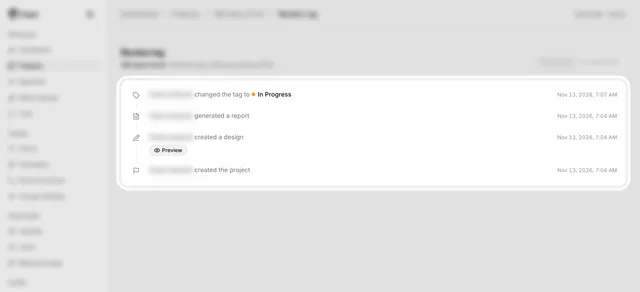
How to see a project's review log
Open a project's review log from the Projects page to see who changed it and when, and preview past designs.
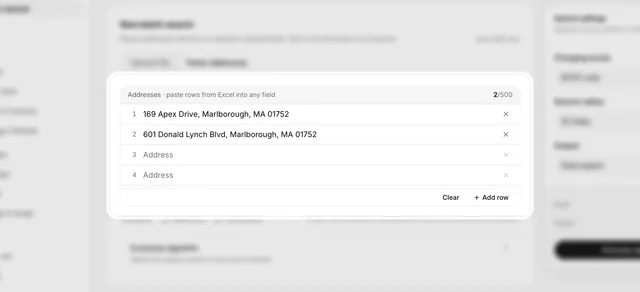
How to score many addresses with batch upload
Paste or upload a list of addresses, score them all in one run and download the results as a spreadsheet.
Workspace and billing
Invite teammates, manage your plan and set up your workspace.
Team
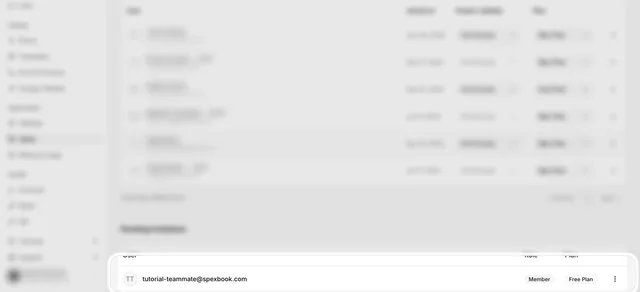
How to invite a teammate
Send an invitation from the Users page, then find it under Pending invitations and resend or cancel it.
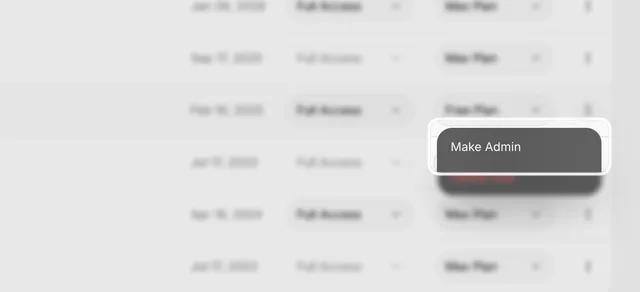
How to change a teammate's role
Make a teammate an admin, or turn an admin back into a member, from the Users page.
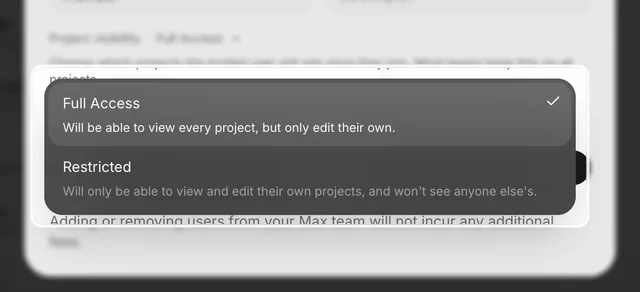
How to limit a teammate to their own projects
Set a teammate's project visibility to Restricted so they only see the projects they own, for a member or when you invite them.
Billing
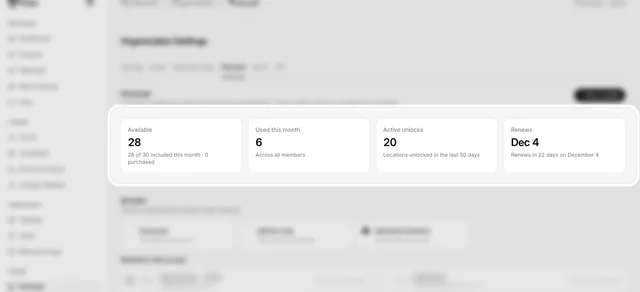
How to check your plan and credit usage
See your organization's plan, how many lookups and credits are used this period, and when they renew.
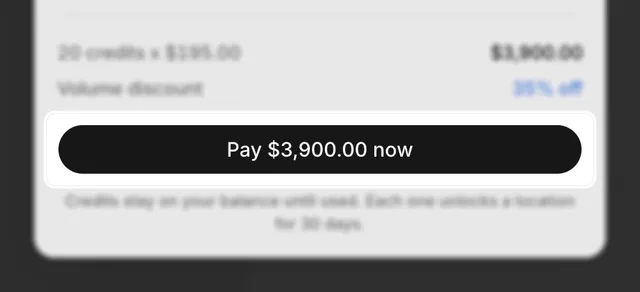
How to buy forecast credits
Top up your organization's forecast credits from Billing & Usage, with a volume discount for larger packs.
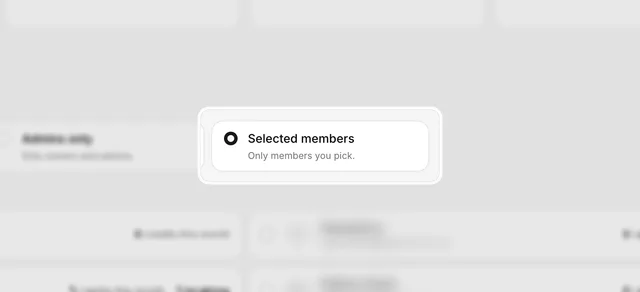
How to choose who can use forecast credits
Let everyone, only admins or the teammates you pick spend your organization's forecast credits.
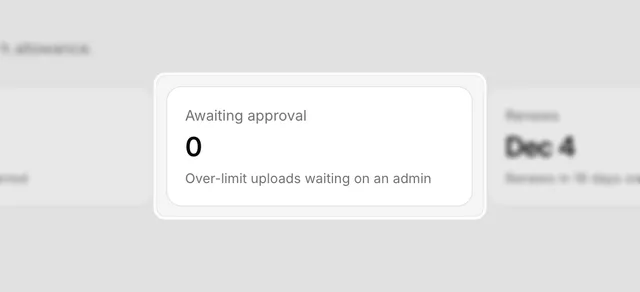
How to hold batch uploads over the limit for approval
Make batch uploads that go past your plan's included addresses wait for an admin instead of being billed as overage.
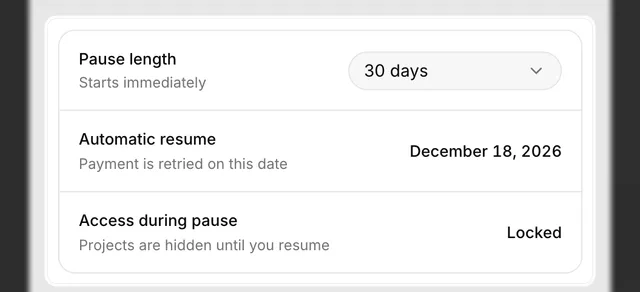
How to pause your subscription
Pause billing for 30, 60 or 90 days from Billing & Usage, and resume payments whenever you are ready.
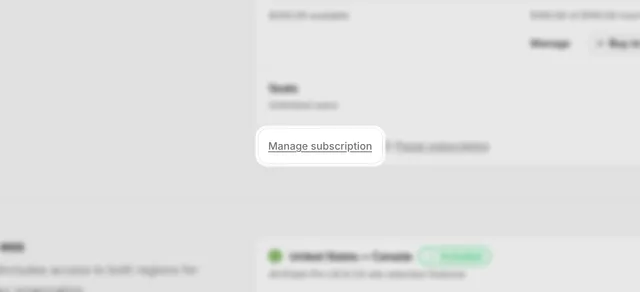
How to cancel your subscription
Cancel your organization's plan from the billing portal, opened with Manage subscription on Billing & Usage.
Settings
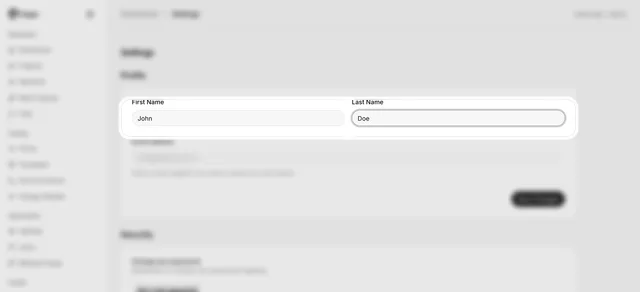
How to update your profile
Change the first and last name shown on your EVpin account and on the projects you own.
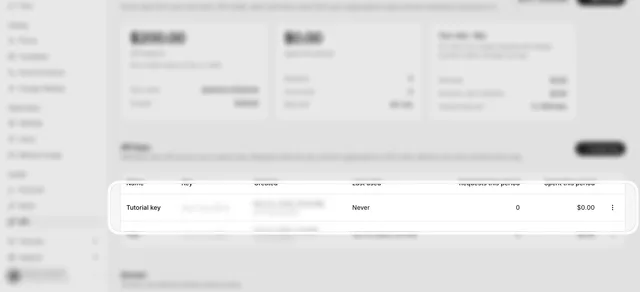
How to create an API key
Create a key on the API page so your own tools can score sites with your organization's API credit.
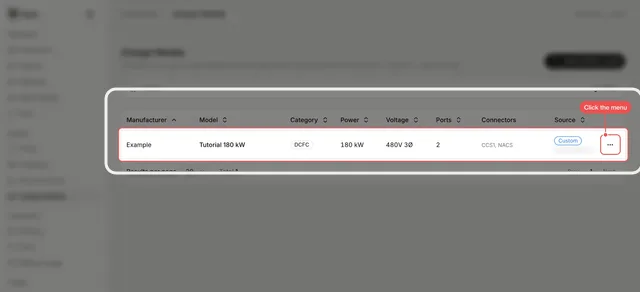
How to add a charger model
Add a charger that is not in the catalog, with its power, amps, ports and connectors from the datasheet.
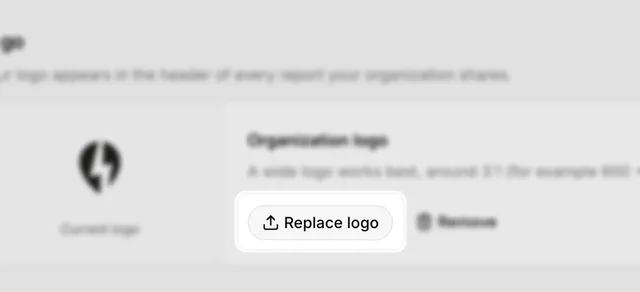
How to add your company logo
Upload your organization's logo so it shows in the header of every report you share.
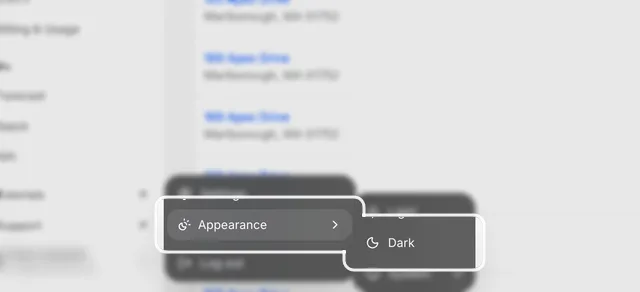
How to switch between light and dark mode
Pick Light, Dark or System under Appearance in your account menu.
How to contact support
Report a bug, request a feature or leave a review for the EVpin team from the dashboard sidebar.