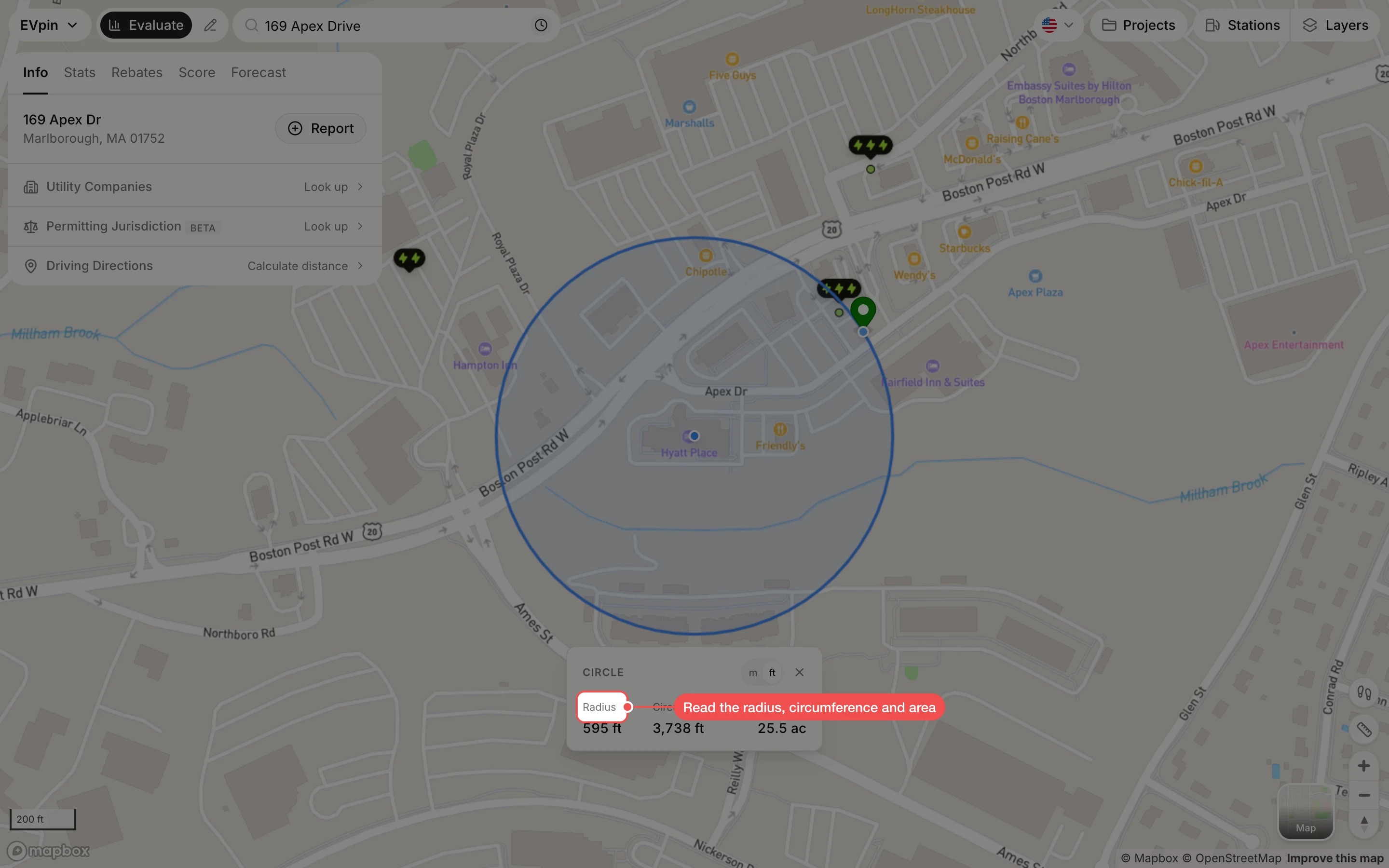
How to draw a radius circle on the Evaluate map
Right-click the Evaluate map to draw a circle around a site and read its radius, circumference and area.
By the end you will have a circle drawn around the site, here reaching out to the nearest charging station, with its radius, circumference and area. You need the site open on the Evaluate map, as in How to look up an address on the Evaluate map.
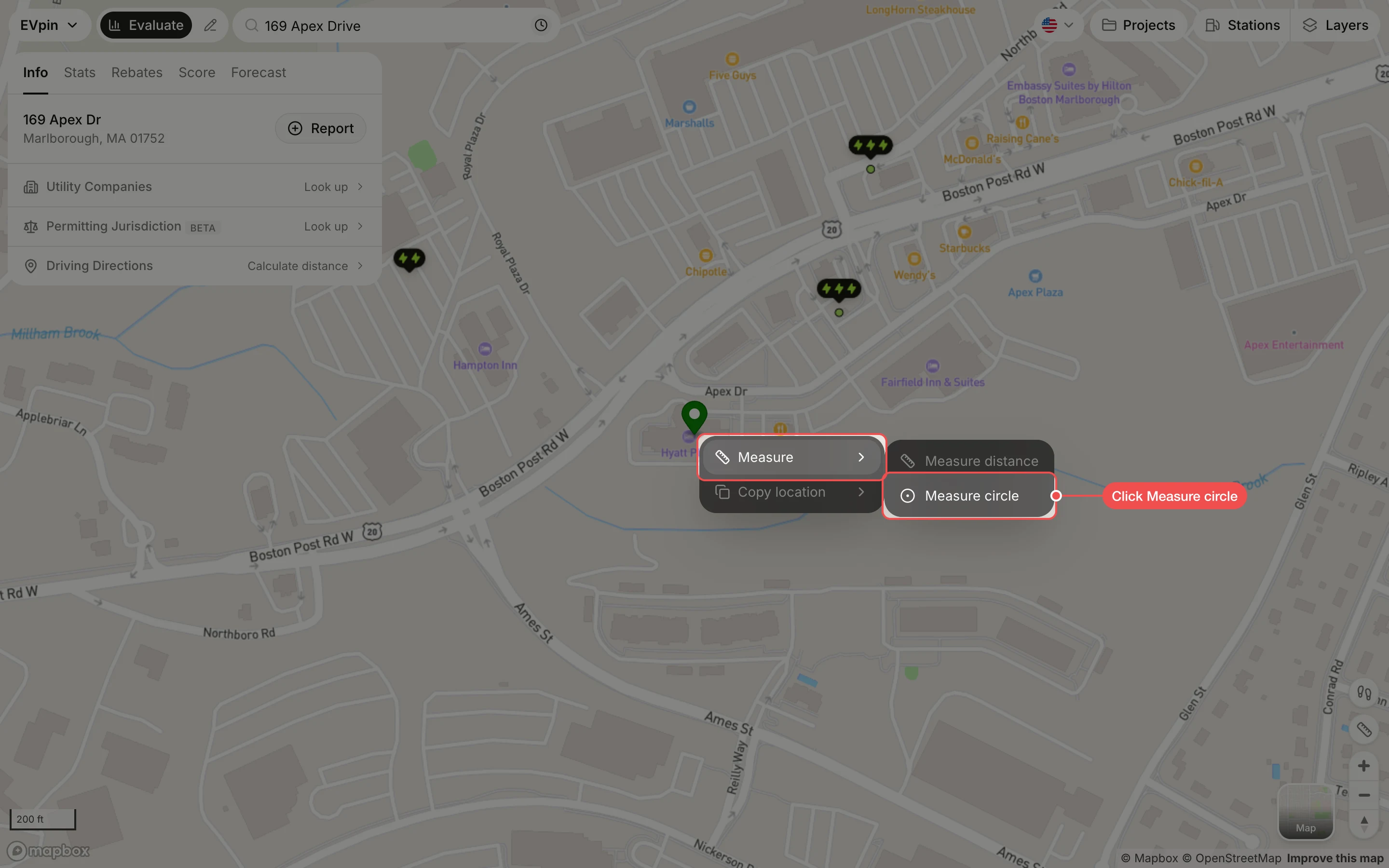
Click to set the radius
Move the pointer out from the centre; the circle grows with it. Click where the edge should be, here just past the nearest charging station.
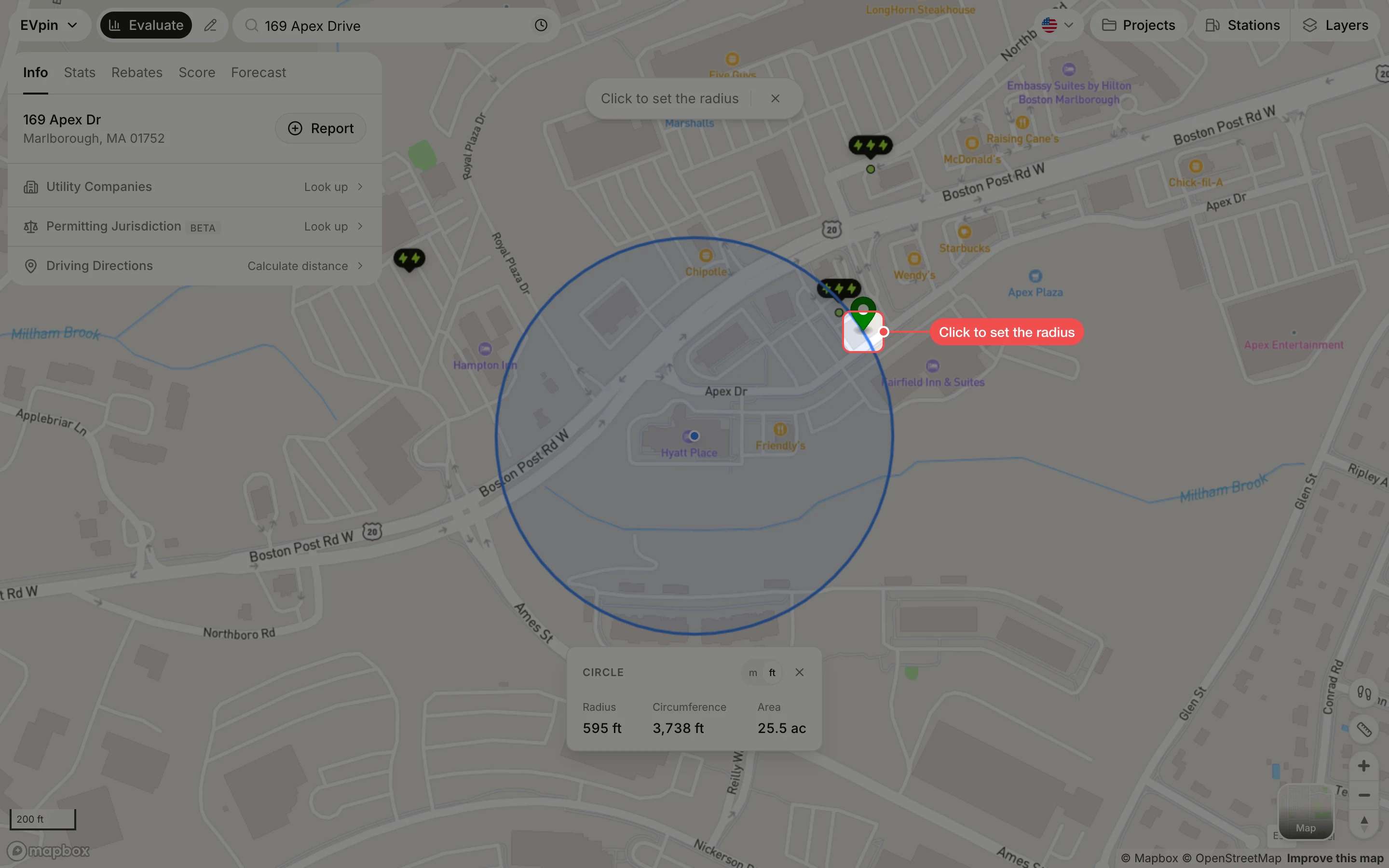
Read the circle
The Circle card under the circle shows the Radius, Circumference and Area. Click m or ft to switch units, and × to clear the circle.