How to see existing charging stations on the map
Show the charging stations around a site, narrow them by level and network, and open one to see how busy it is.
By the end you will see the competing charging stations around a site, filtered to the ones that matter to you. Start with the address open on the Evaluate map, as in How to look up an address on the Evaluate map.
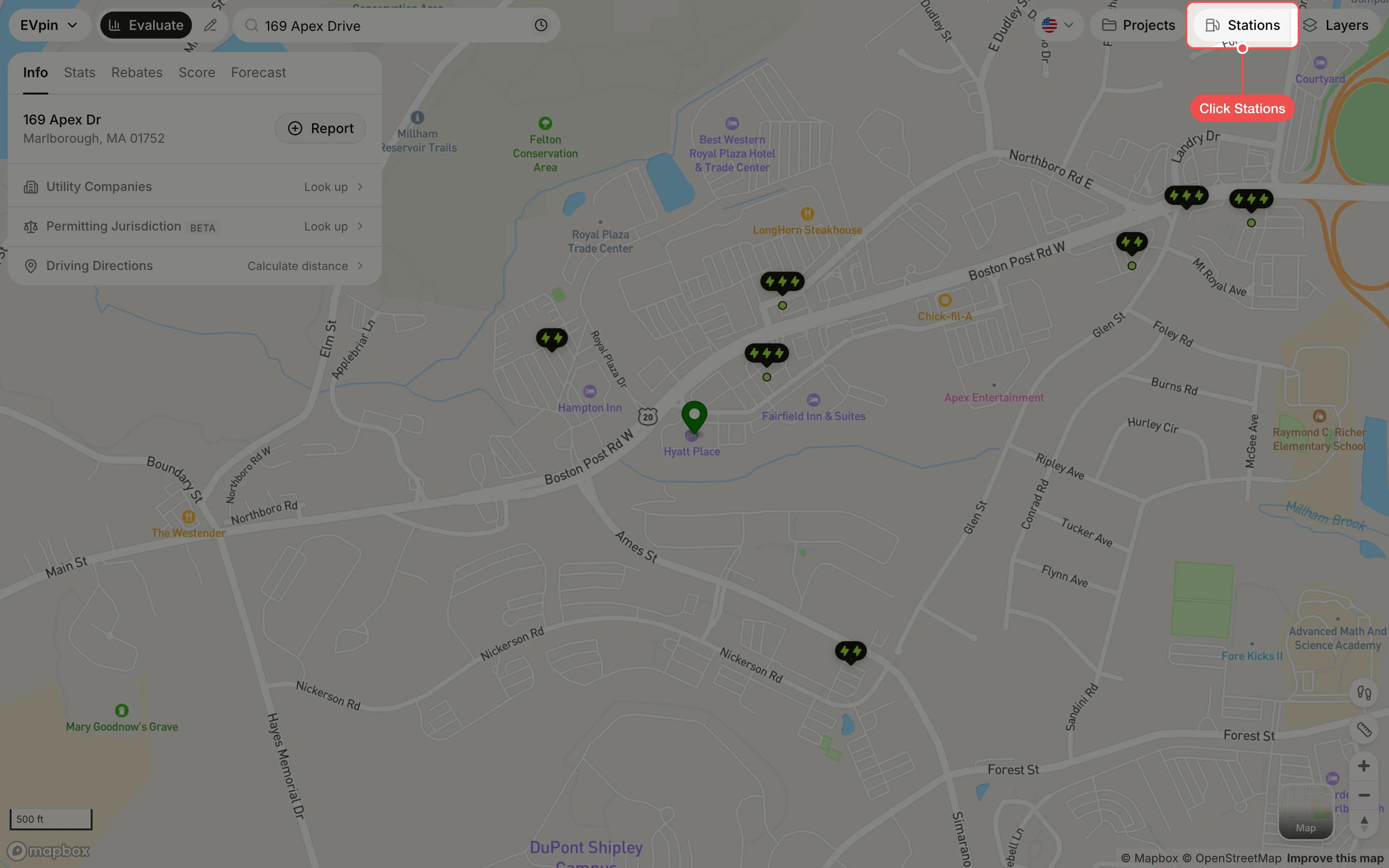
Open the Stations panel
Click Stations at the top right. Each lightning marker on the map is an existing station; more bolts means a faster charger.
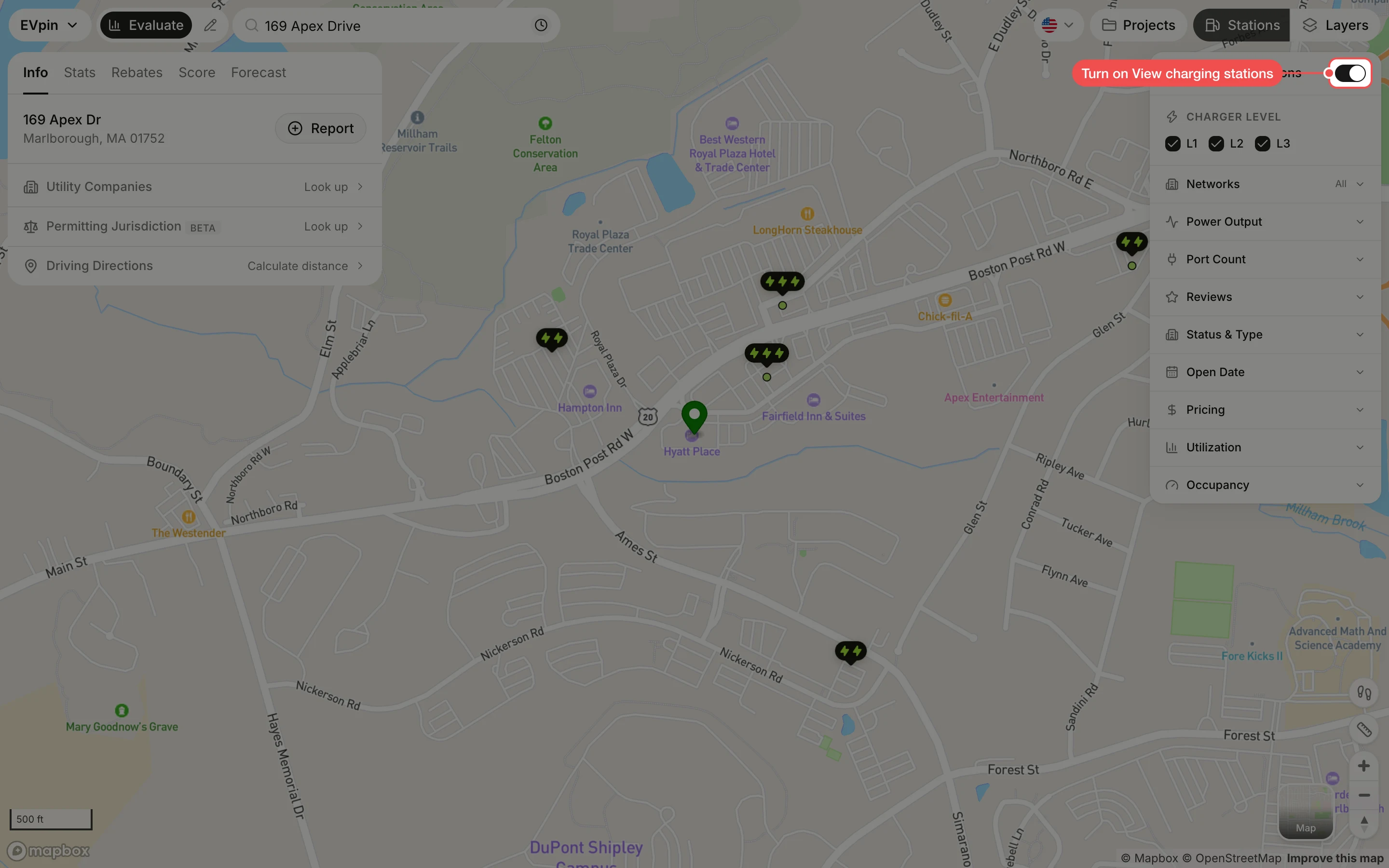
Turn on View charging stations
Make sure View charging stations is on at the top of the panel. Turning it off hides every station.
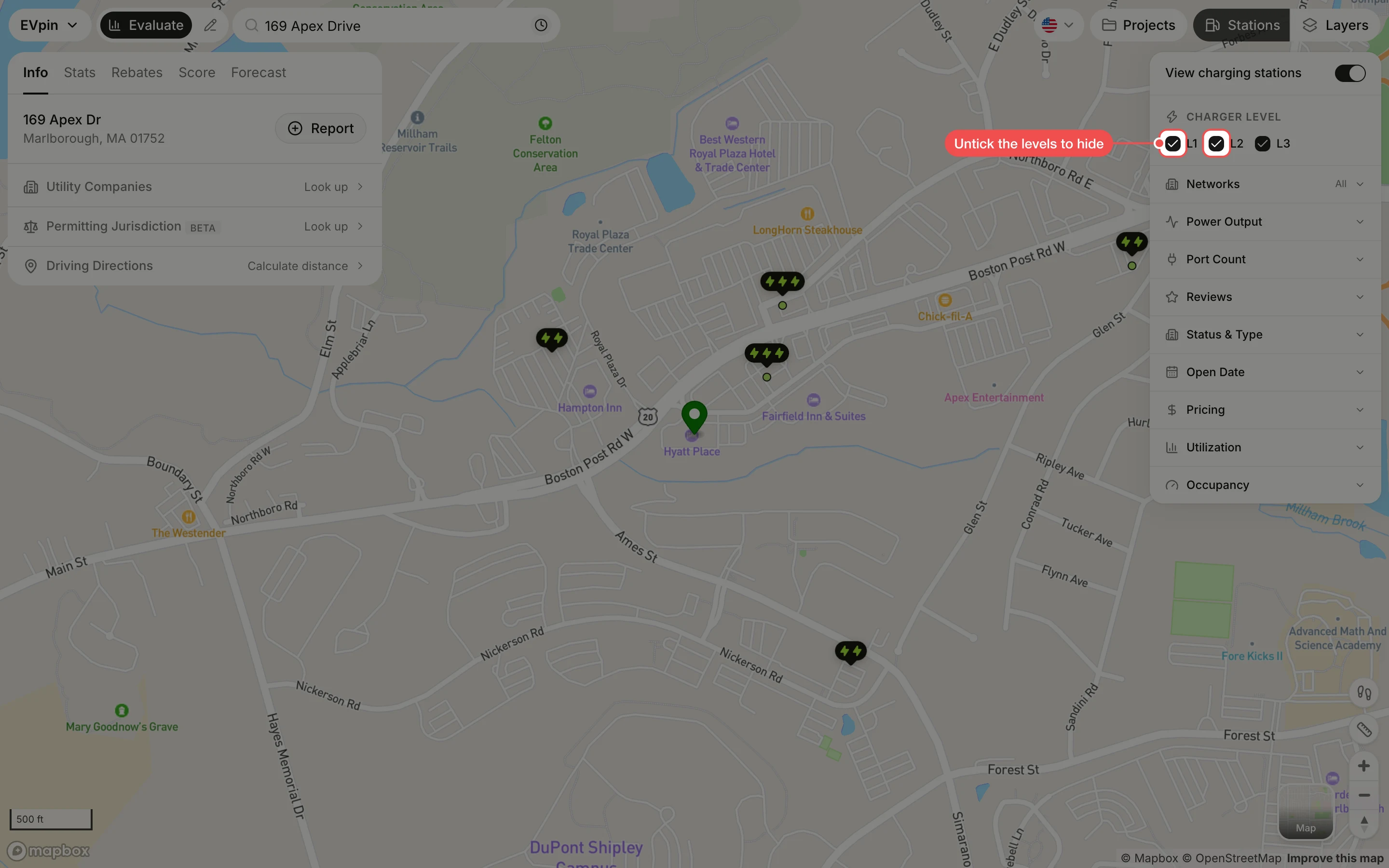
Untick the charger levels you don't need
Under Charger Level, untick L1 and L2 to keep only DC fast chargers (L3) on the map.
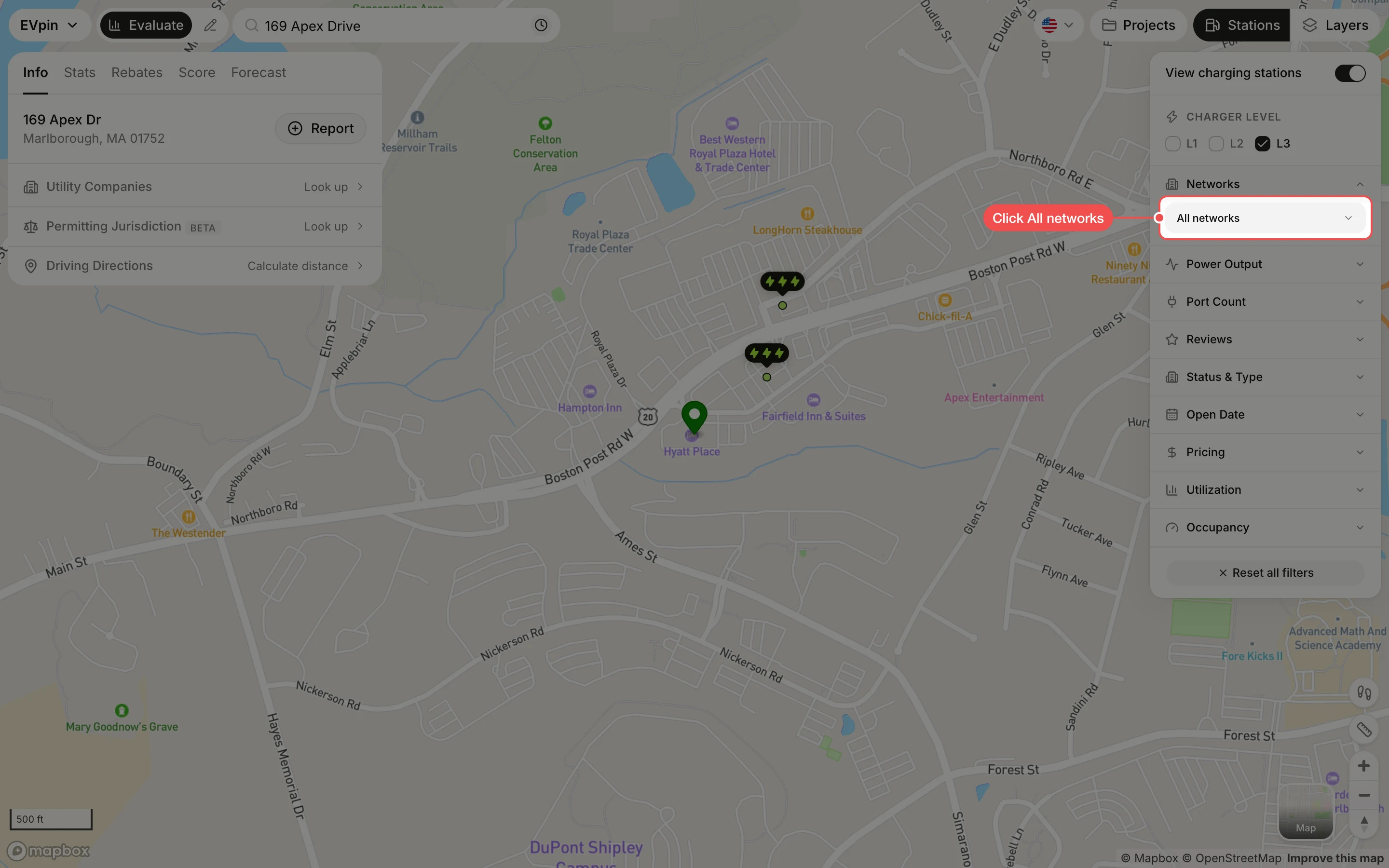
Click the networks to show
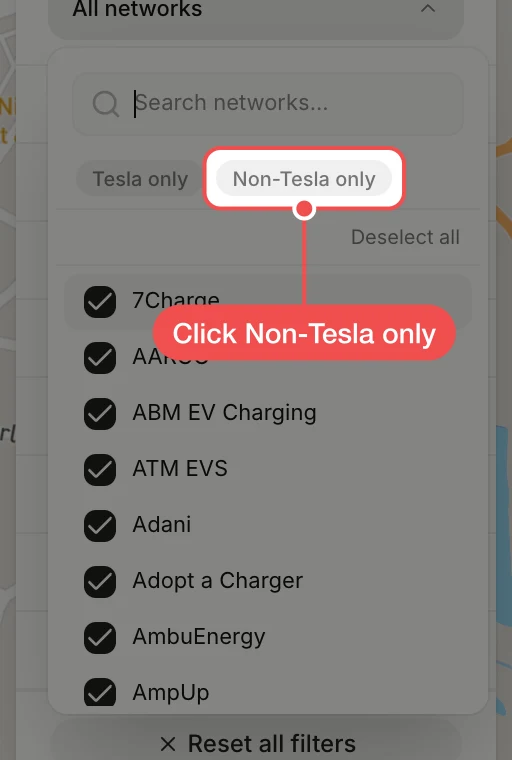
Click Tesla only or Non-Tesla only, or tick the networks you want. Click Only next to a network to show just that one.
Click a station
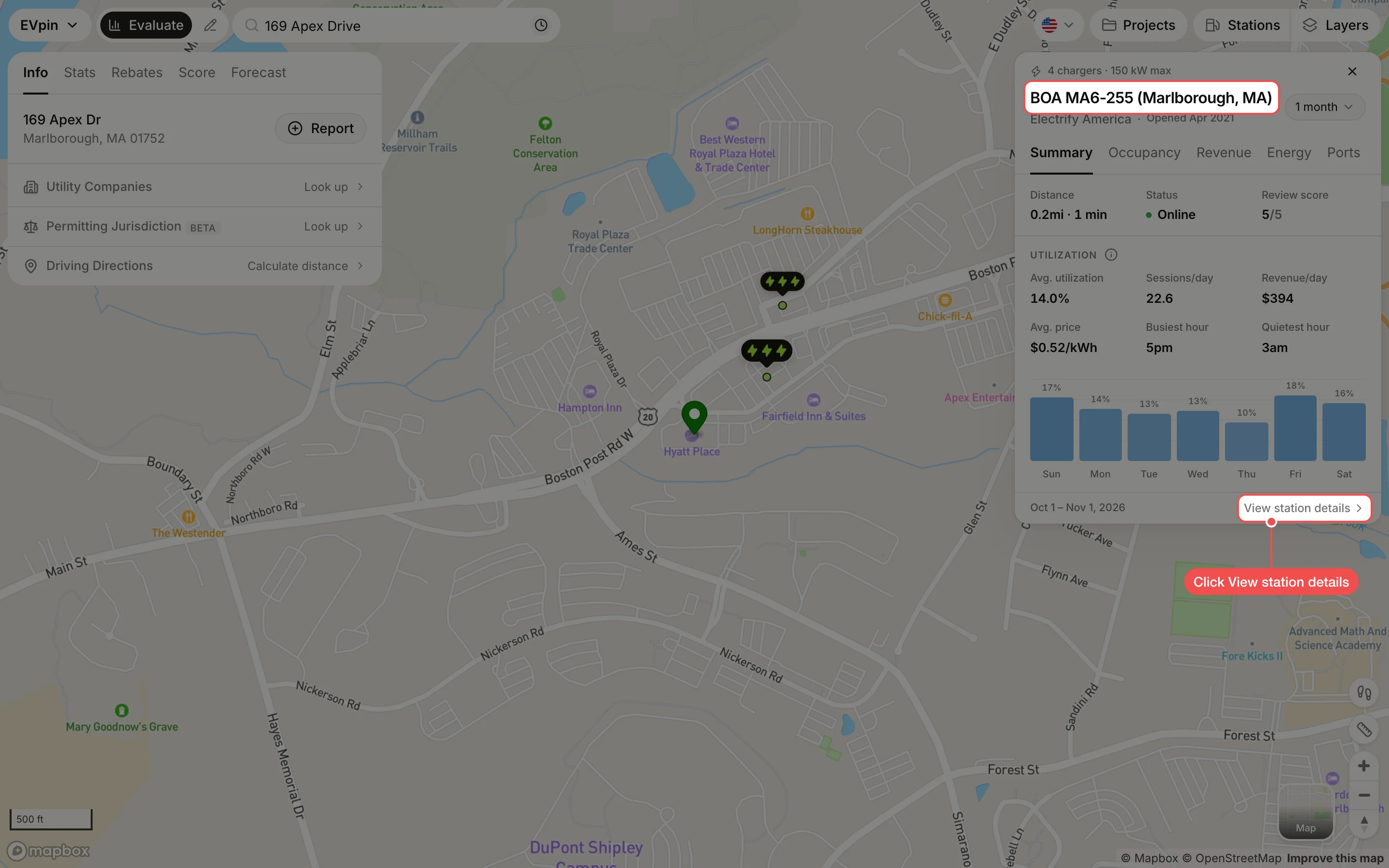
Click a station marker. A card opens with its network, chargers, status, review score and, where EVpin has data, its utilization and revenue per day. Click View station details for the full history.
What's next
- How to get a utilization score for an address, which takes nearby stations into account.