How to add an attachment to a report
Upload site photos, brochures or other documents to a report so they travel with it.
By the end your report will have an Attachments tab with your files on it. You need a report for the project, as in How to generate a report from the Design page.
Open the attachments tab
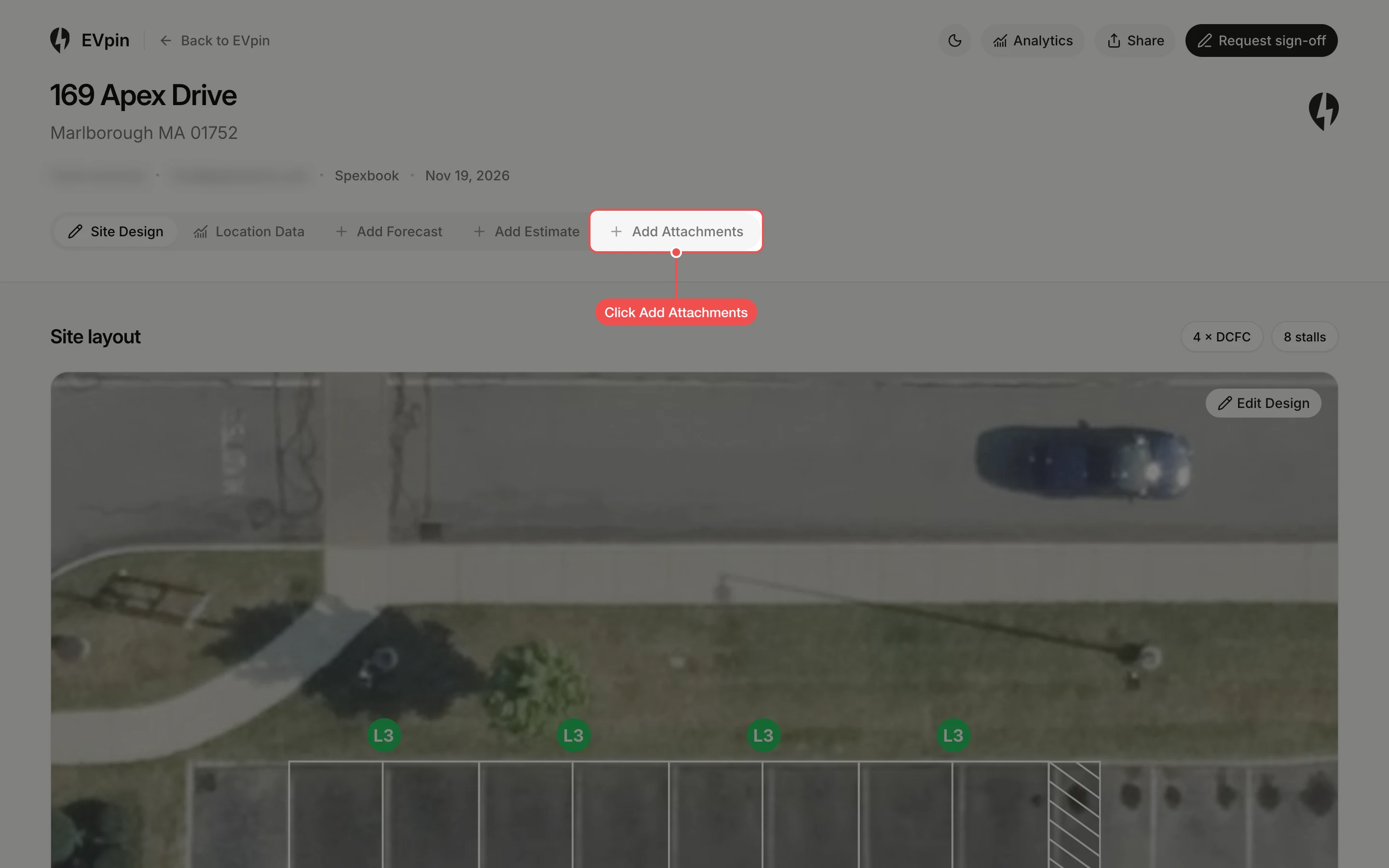
With the report open, click Add Attachments at the end of the report's tabs.
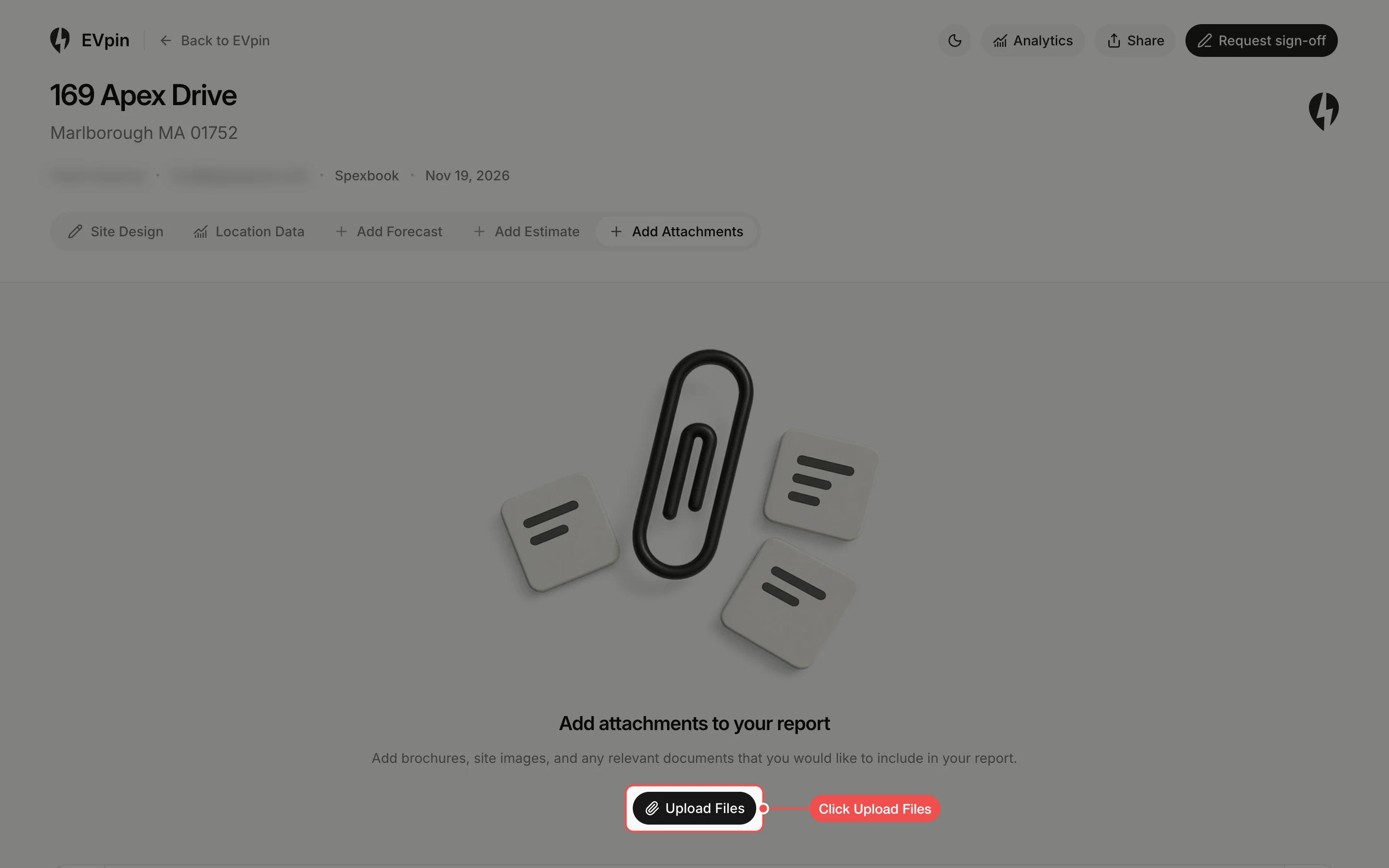
Click Upload Files
The tab is empty until you add something. Click Upload Files under the paper clip.
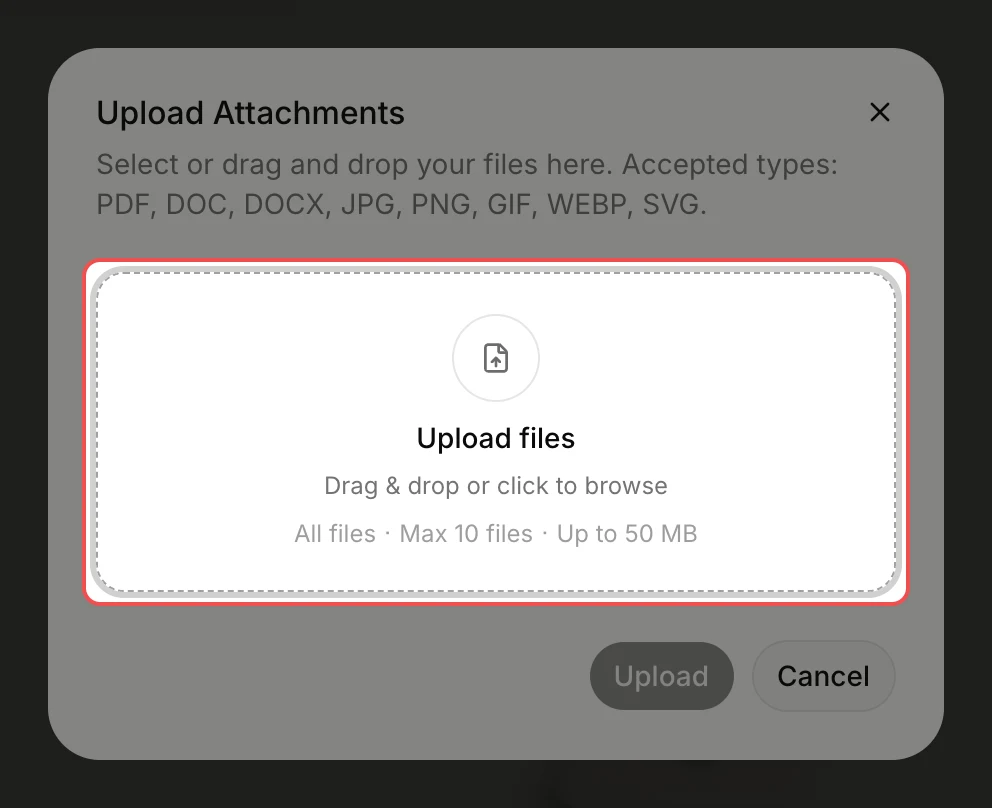
Pick your files
In the Upload Attachments dialog, click the Upload files area and pick the files from your computer, or drag them onto it. You can add up to 10 files of up to 50 MB each.
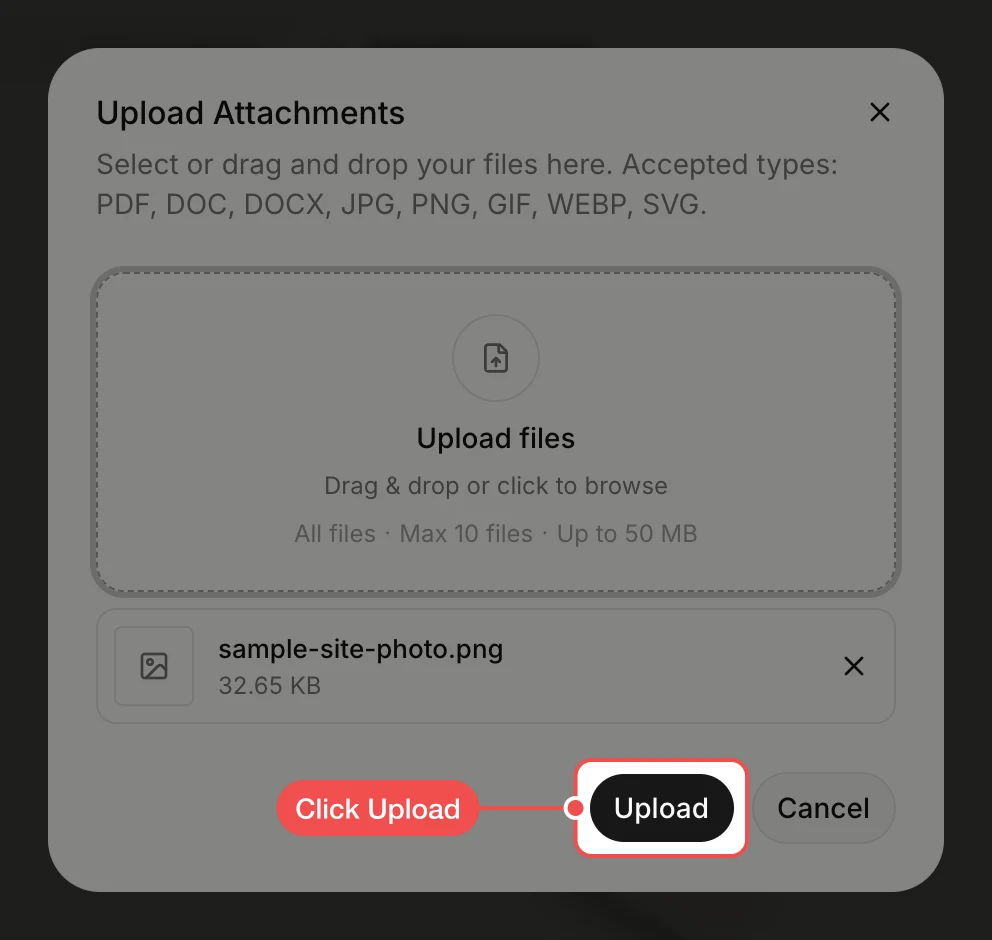
Check the attachment
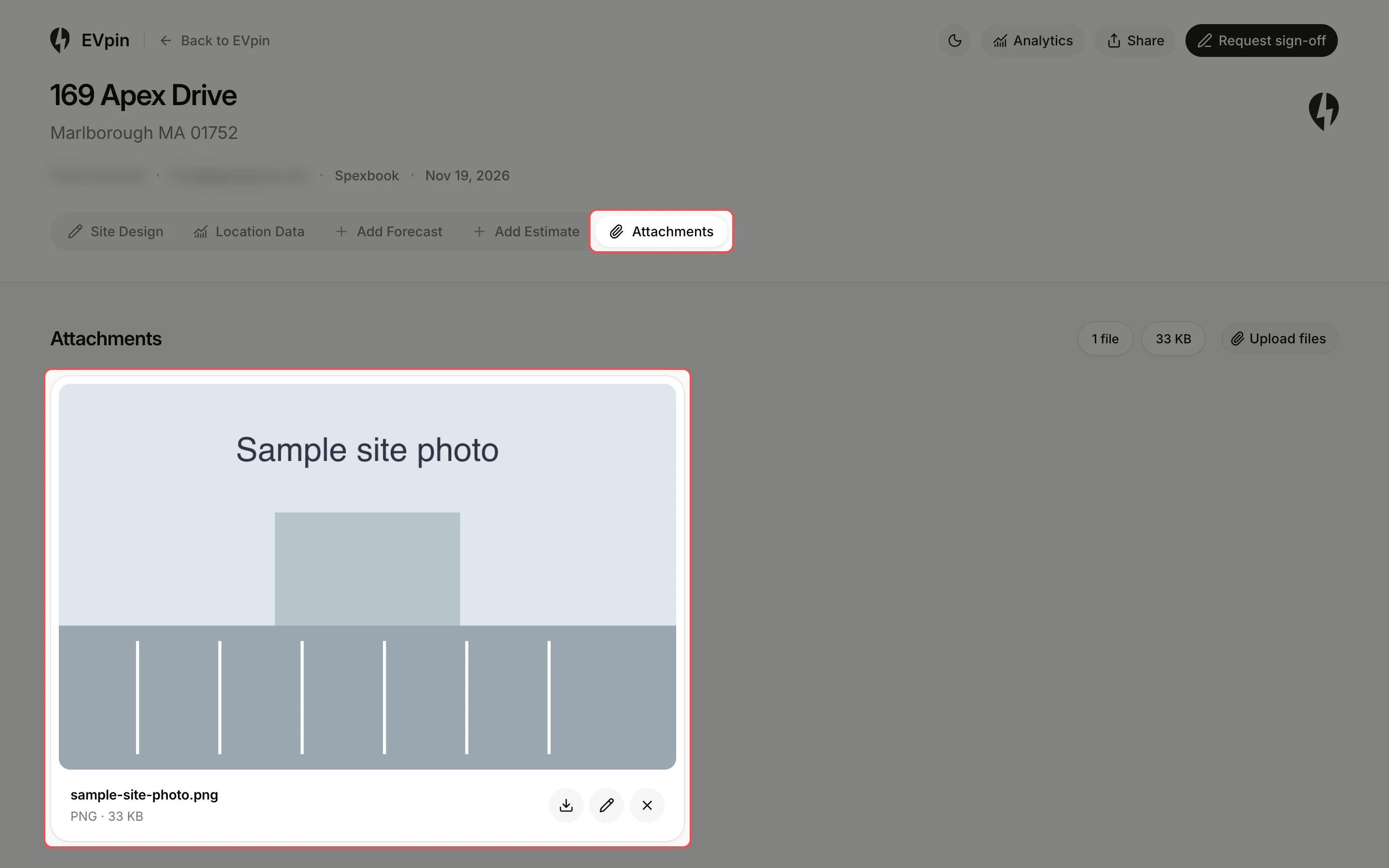
The tab is now called Attachments and shows each file as a card, with a preview for images. Use the buttons on a card to download, rename or remove the file.
What's next
- How to share a report with a client to send it with its attachments.
- How to hide sections of a report to leave the attachments out of what a client sees.