How to hide sections of a report
Hide whole report tabs, then hide and reorder the parts of the Location Data tab.
By the end your report will show only the tabs you want, and its Location Data tab will show its parts in the order you choose. You need a report for the project, as in How to generate a report from the Design page.
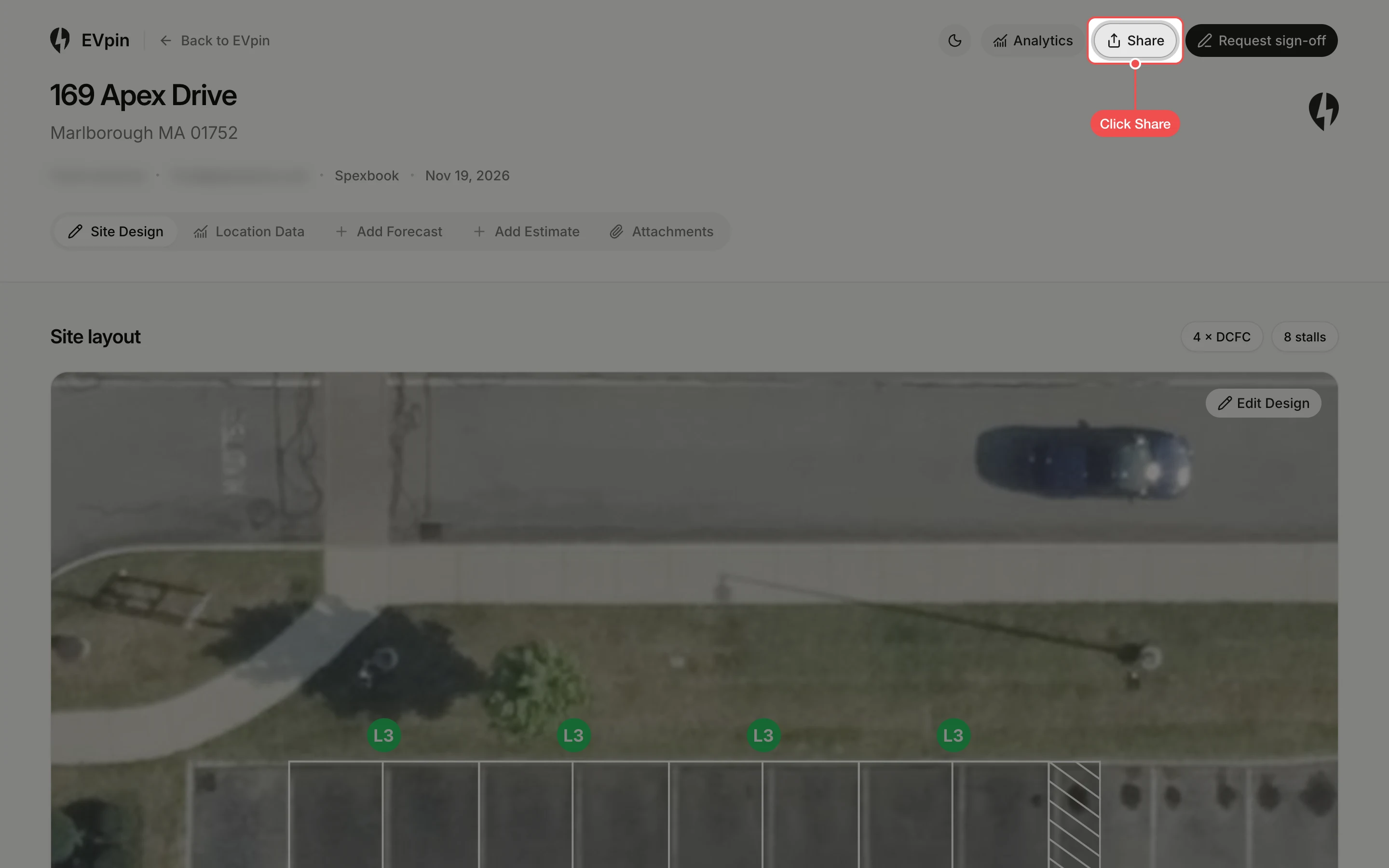
Untick the sections to hide
Under Customize your report, untick each section you want to hide. At least one section stays ticked.
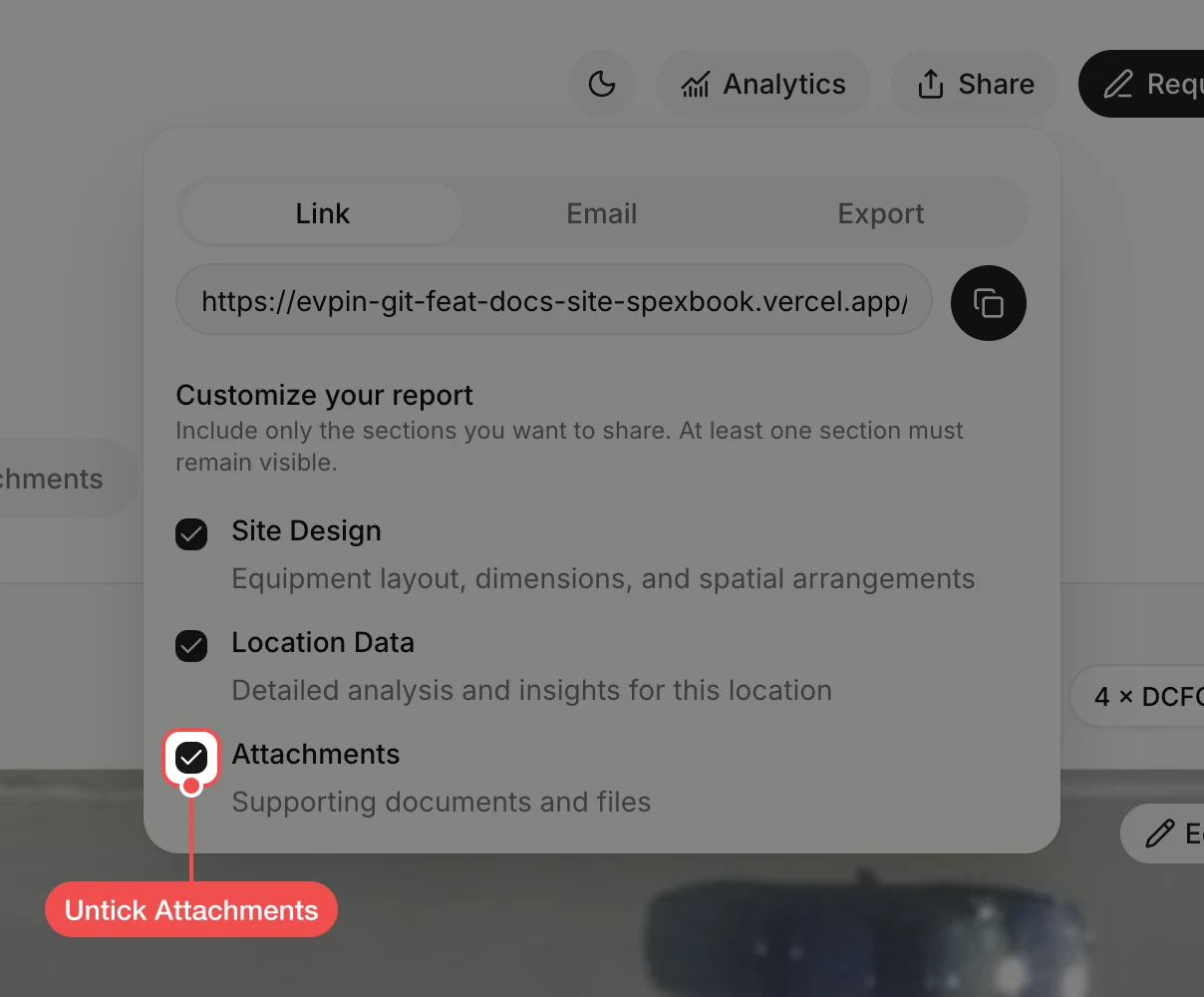
Save the sections
Click Save Changes. The unticked sections disappear from the report's tabs, for you and for anyone you share it with.
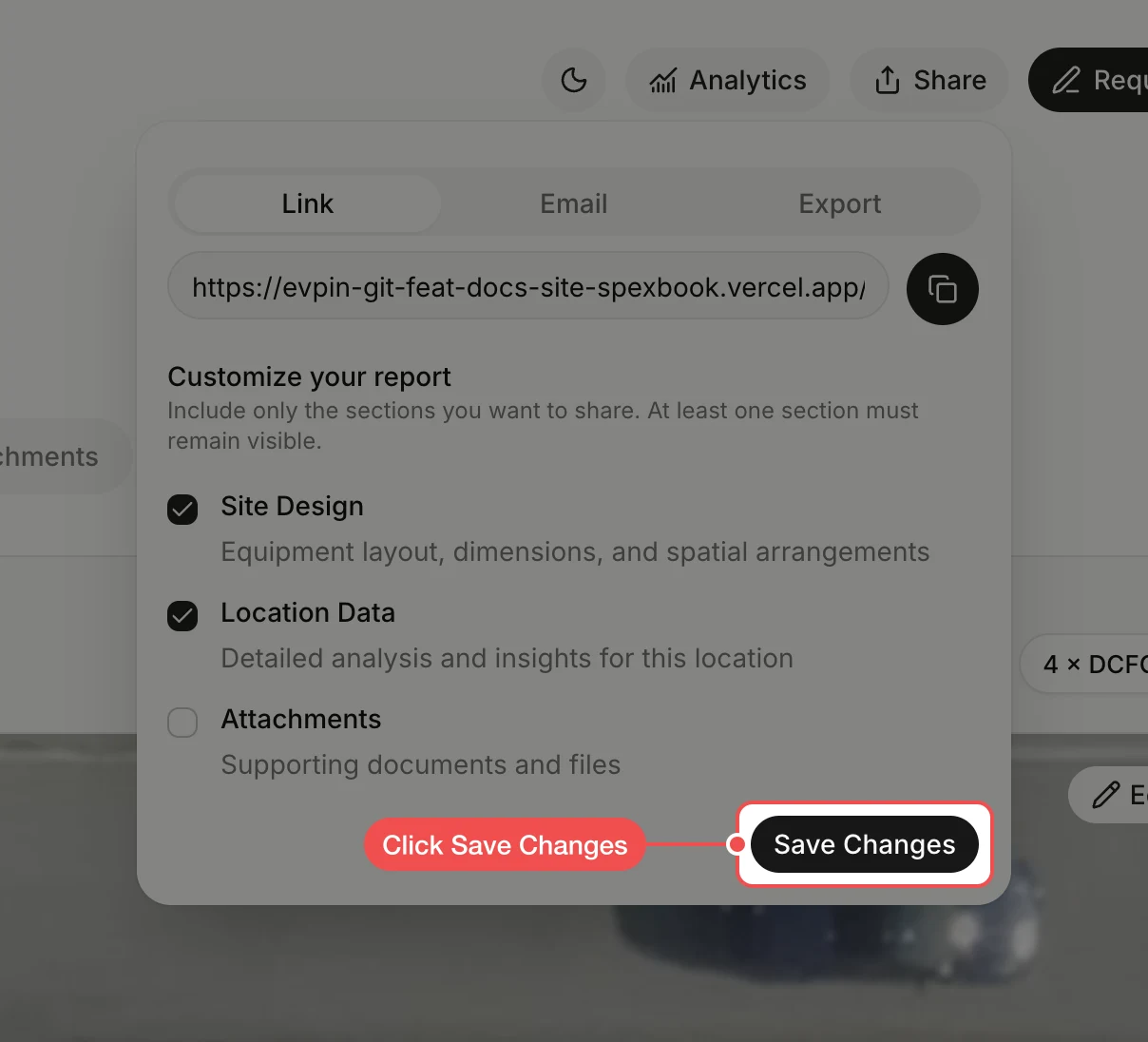
Open the Location Data tab
The Attachments tab is gone. To change what the Location Data tab shows, click Location Data.
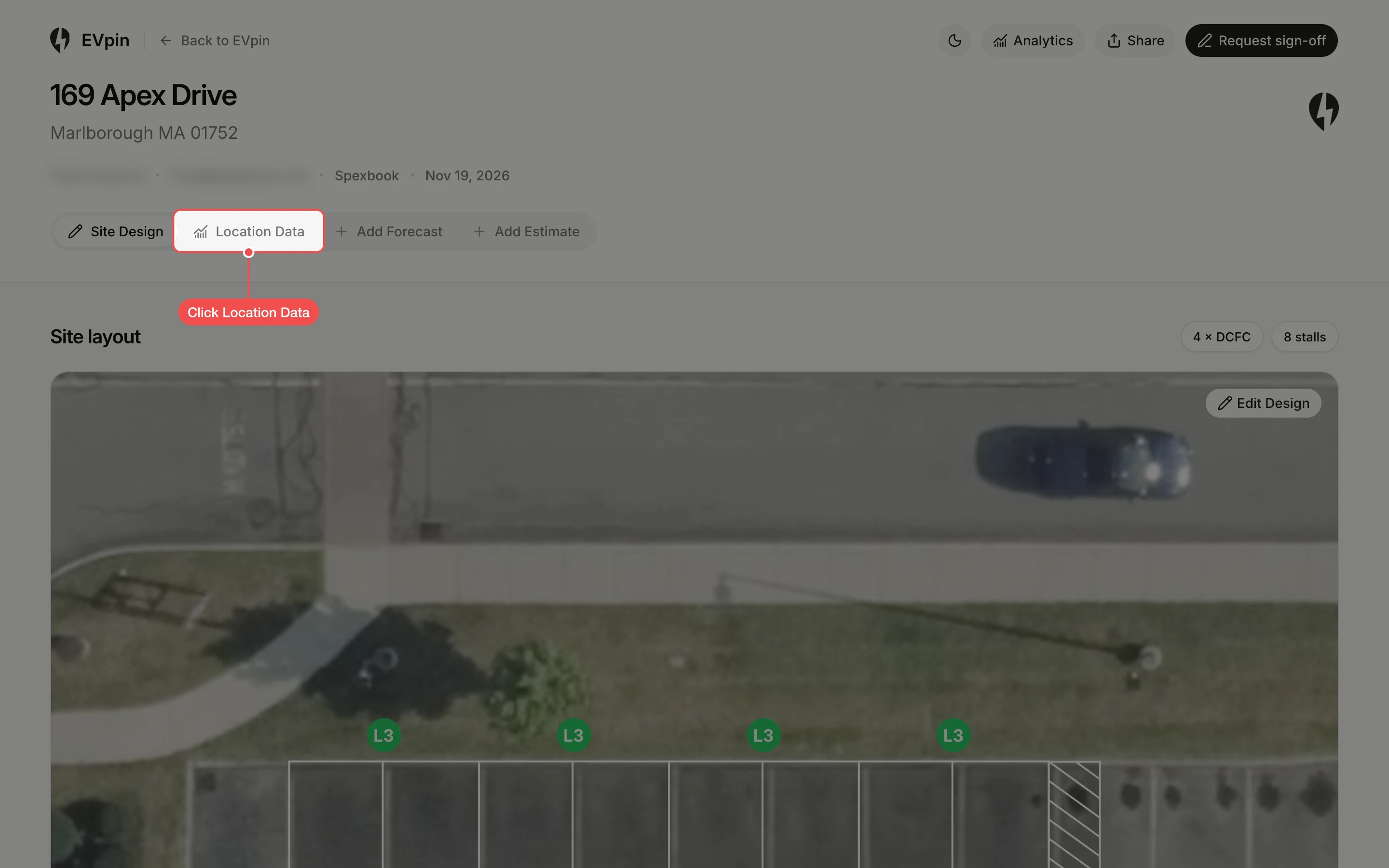
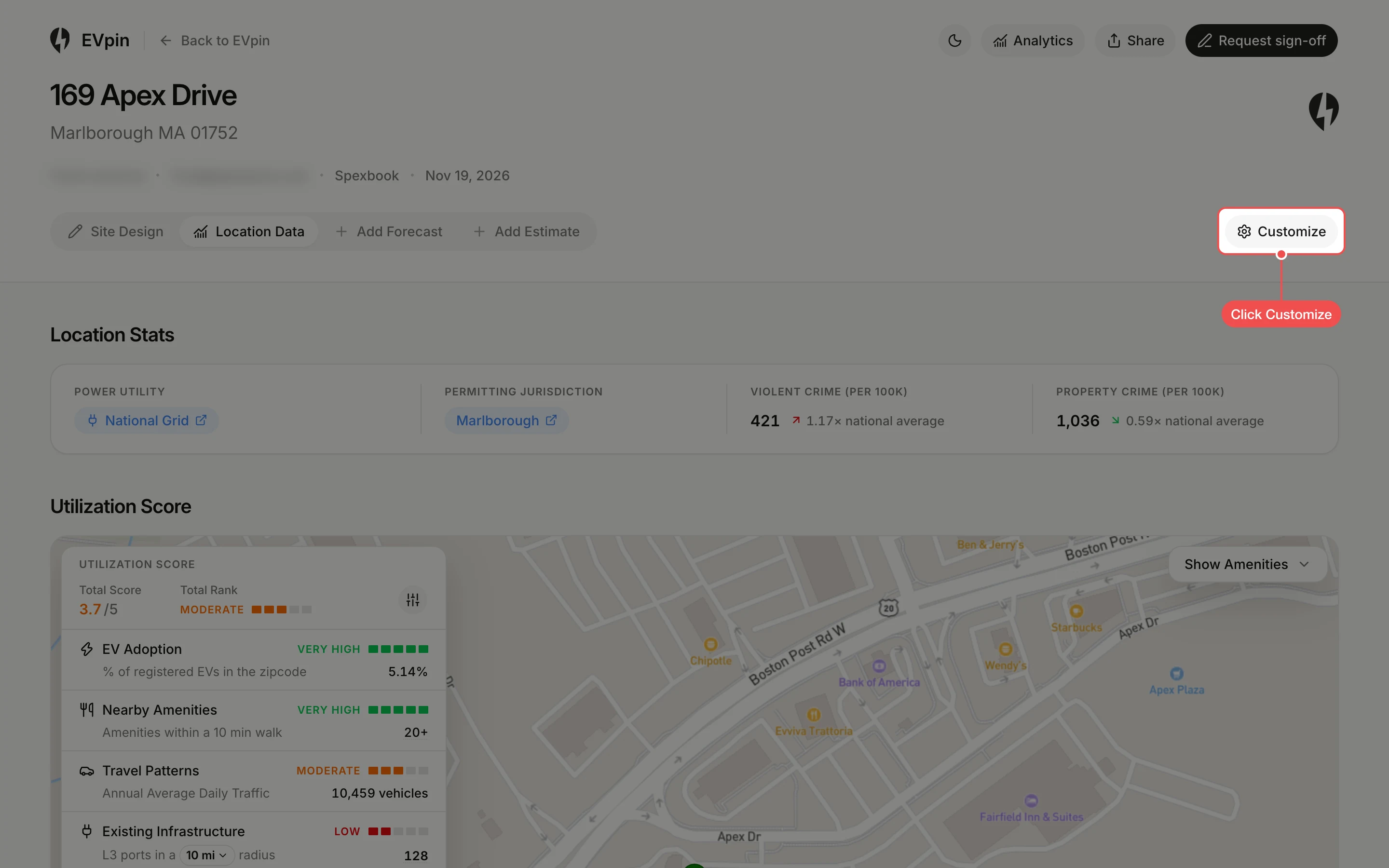
Click Customize
Click Customize at the right end of the tabs. It only appears on the Location Data tab.
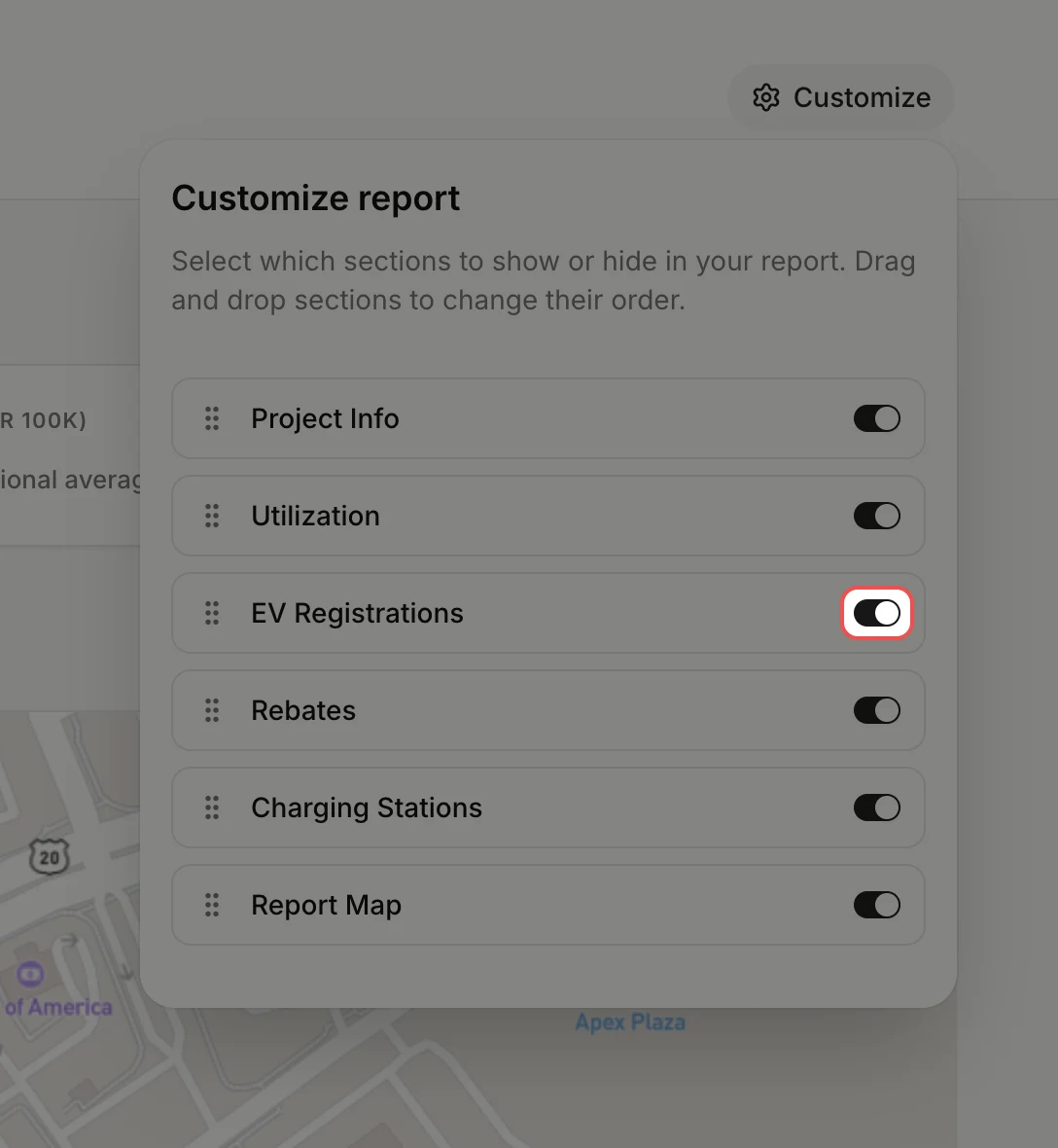
Turn off the parts to hide
In Customize report, turn off the switch next to each part you want to hide, such as EV Registrations.
Drag the parts into order
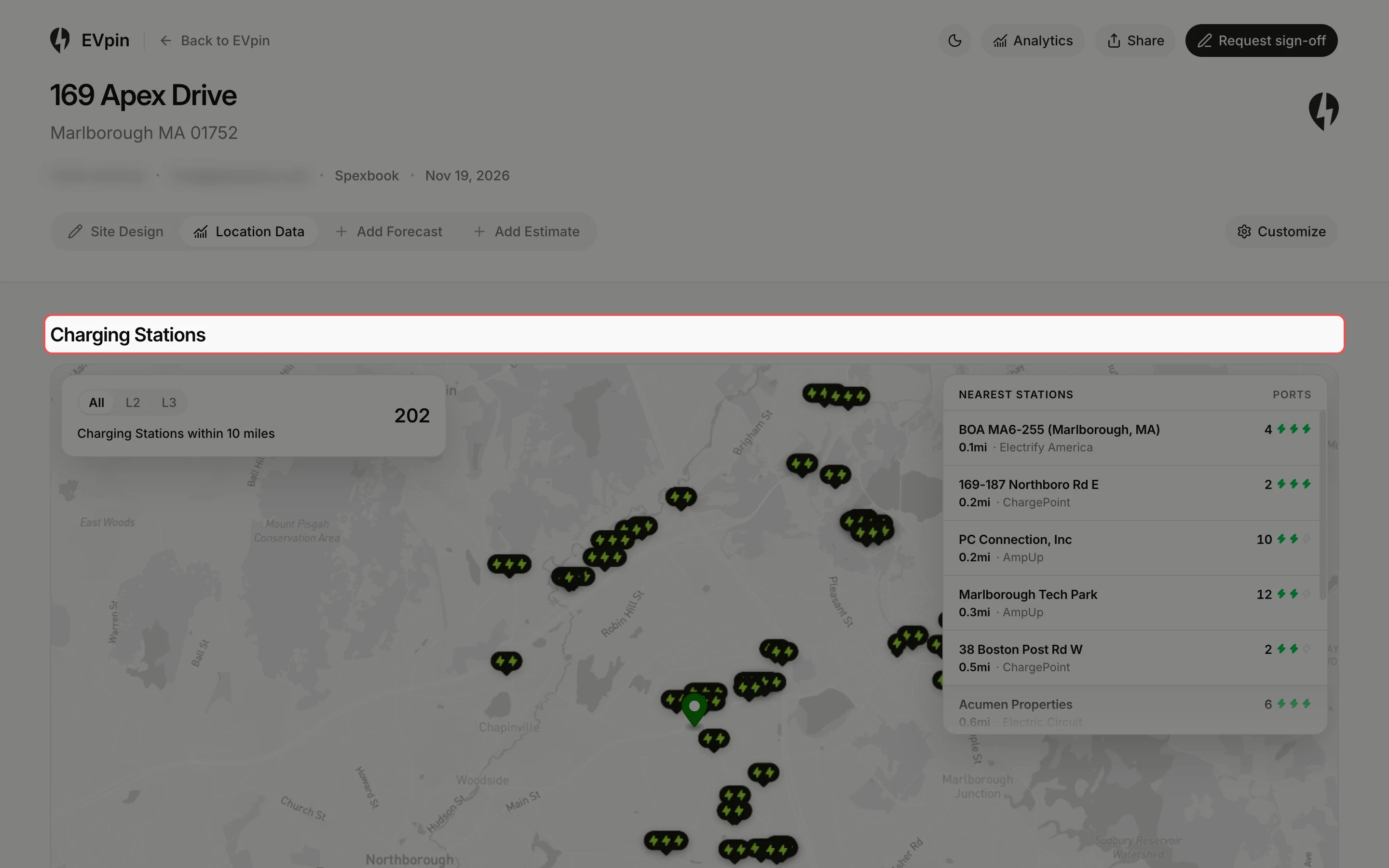
Drag a part by the handle on its left and drop it where it should appear. Here Charging Stations moves to the top.
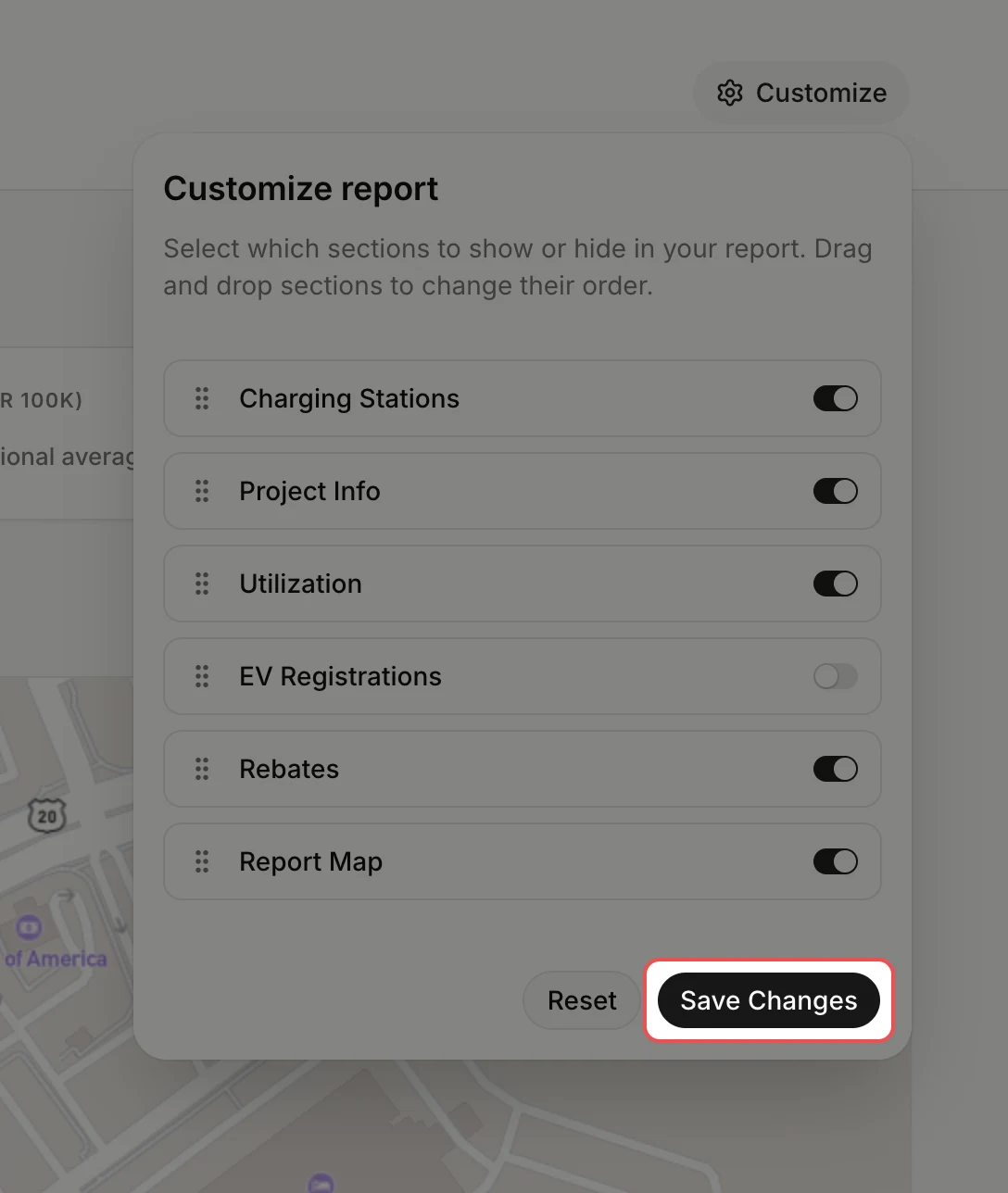
Check the result
The Location Data tab now starts with Charging Stations and no longer shows the parts you turned off.
What's next
- How to share a report with a client once it shows what the client needs.
- How to export a report as a PDF to send it as a file.