How to angle charging stalls
Generate a row of 60° or 45° charging stalls on the Design page for a one-way drive aisle.
Angled stalls are easier to pull into and need a narrower drive aisle than 90° stalls, so they suit a one-way aisle. By the end your design will have a row of 60° stalls along a curb, with the chargers on the grass beyond it. You need an address open on the Design page, as in How to add charging stalls to a design.
Open Charging Stalls
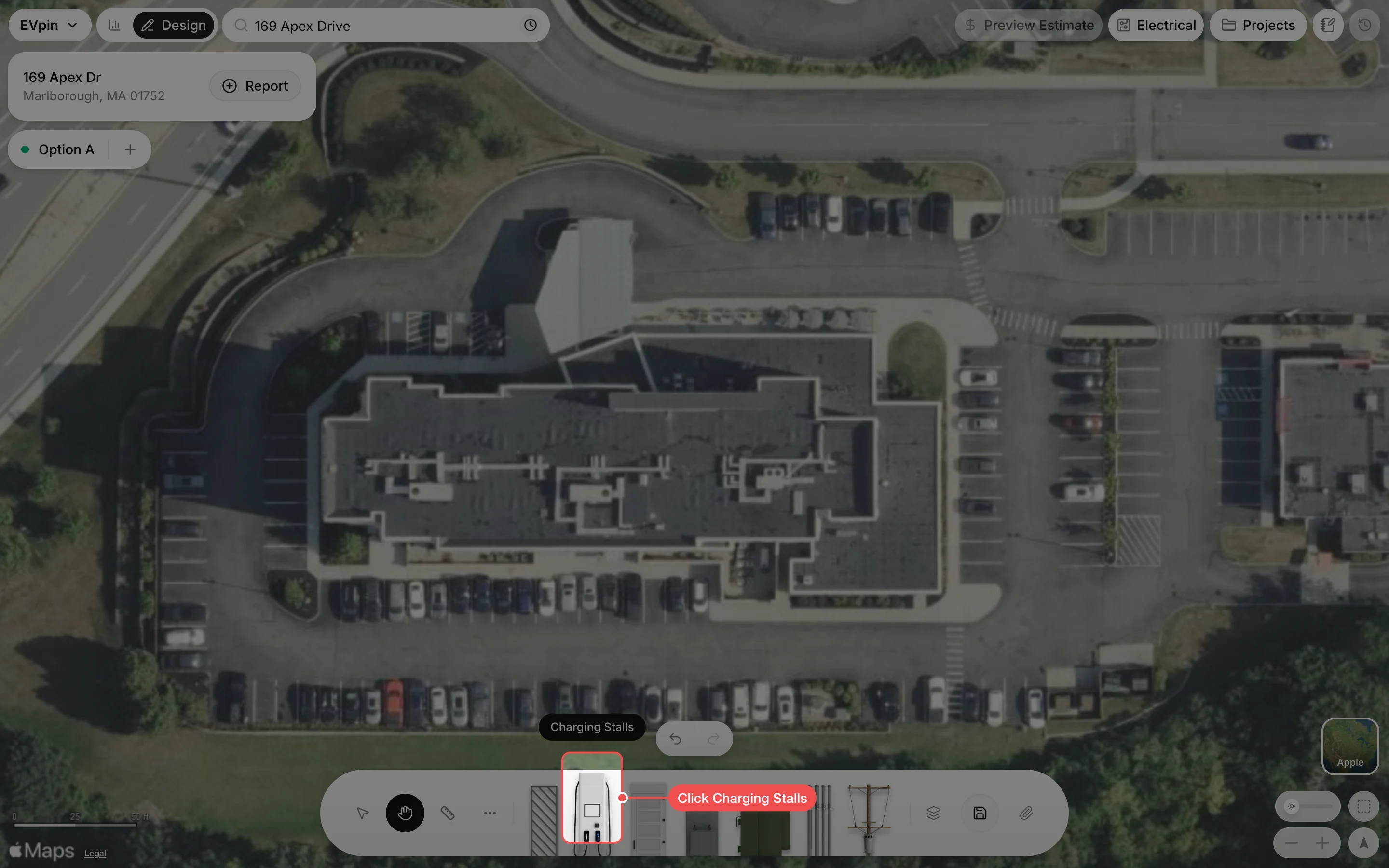
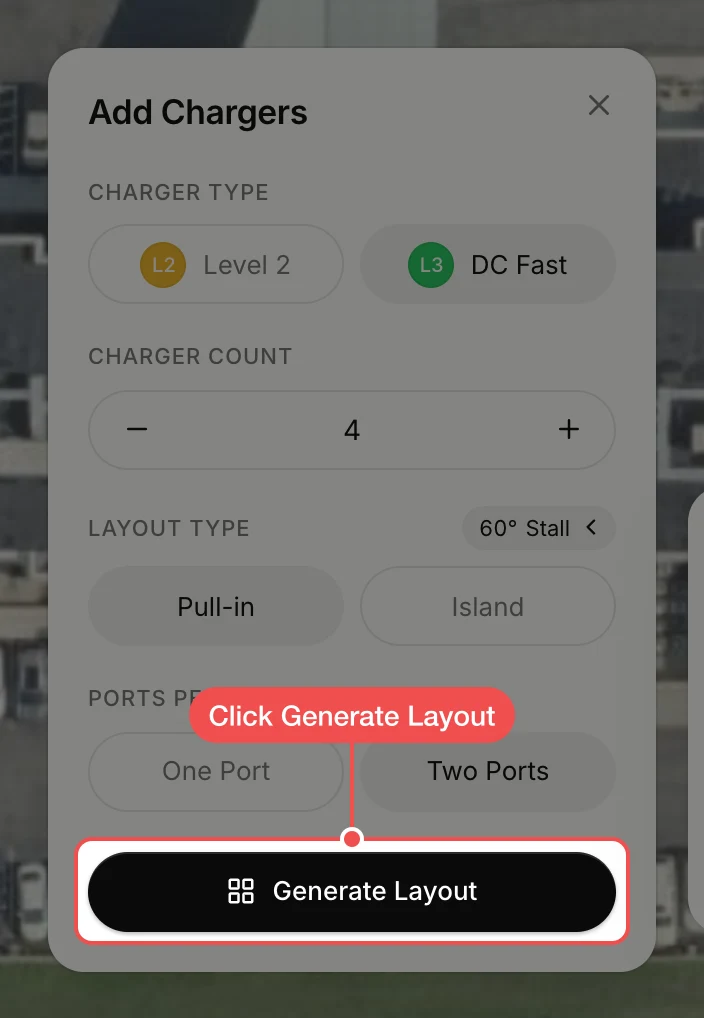
Click Charging Stalls in the toolbar at the bottom. The Add Chargers panel opens. Set the charger count and ports as you normally would.
Open the stall angle
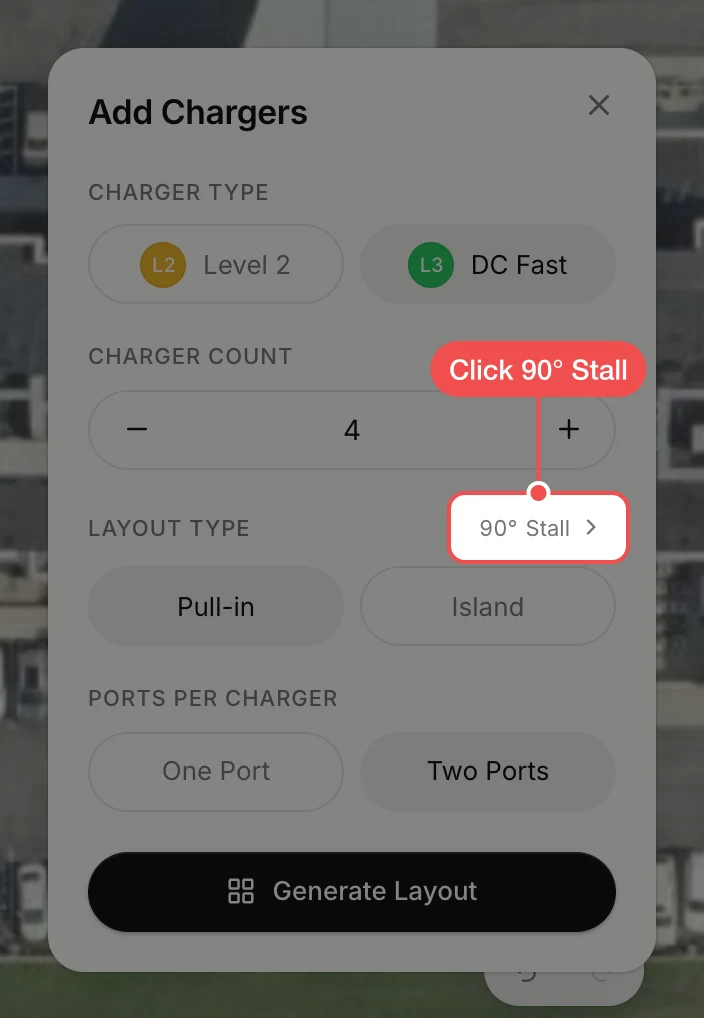
Next to Layout Type, click 90° Stall. The Stall angle panel opens beside the card.
Click an angle
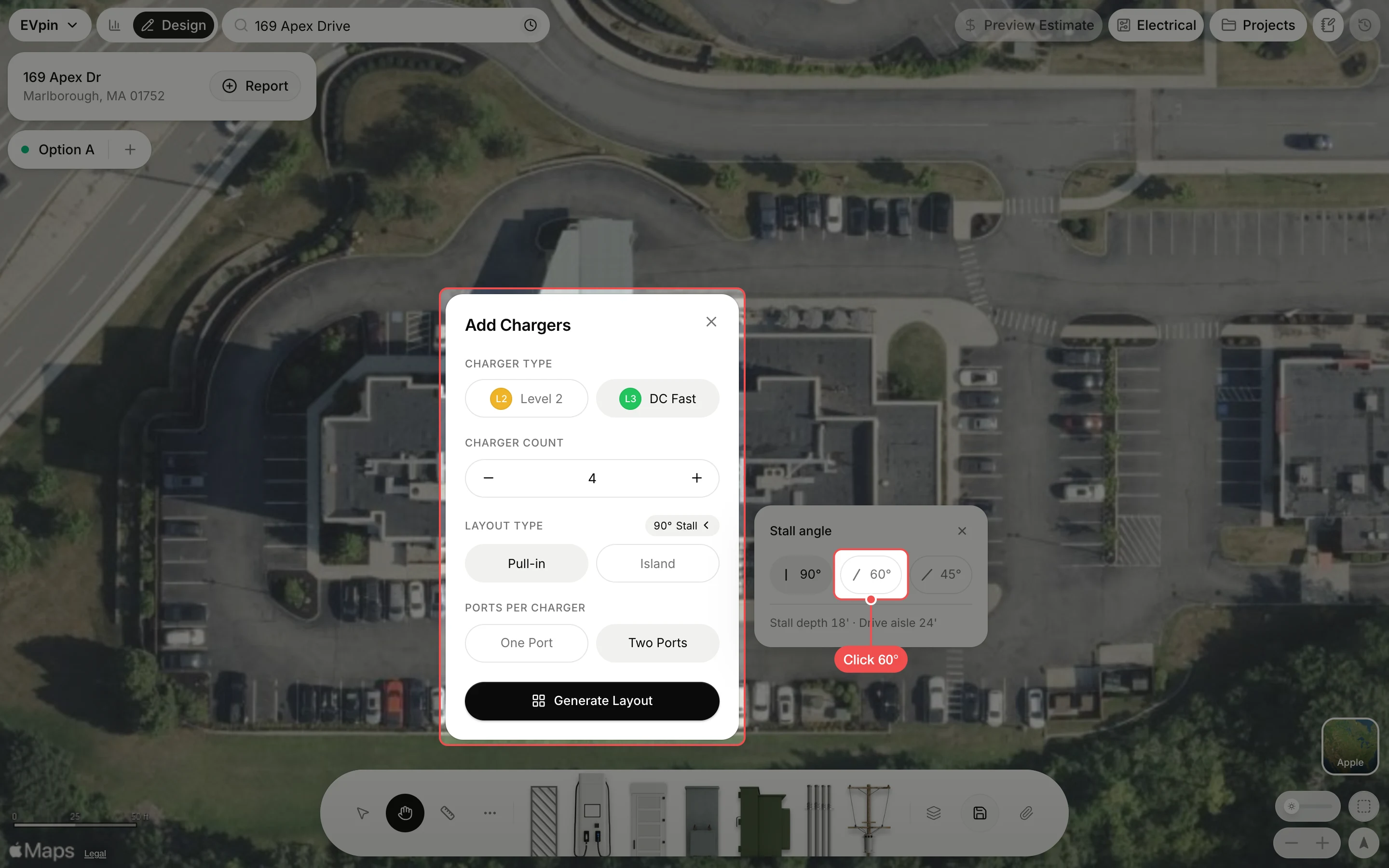
Click 60°, or 45° for an even narrower aisle. The panel shows the stall depth and the drive aisle the angle needs: 18' for 60° and 13' for 45°, against 24' for 90°.
Click a lean
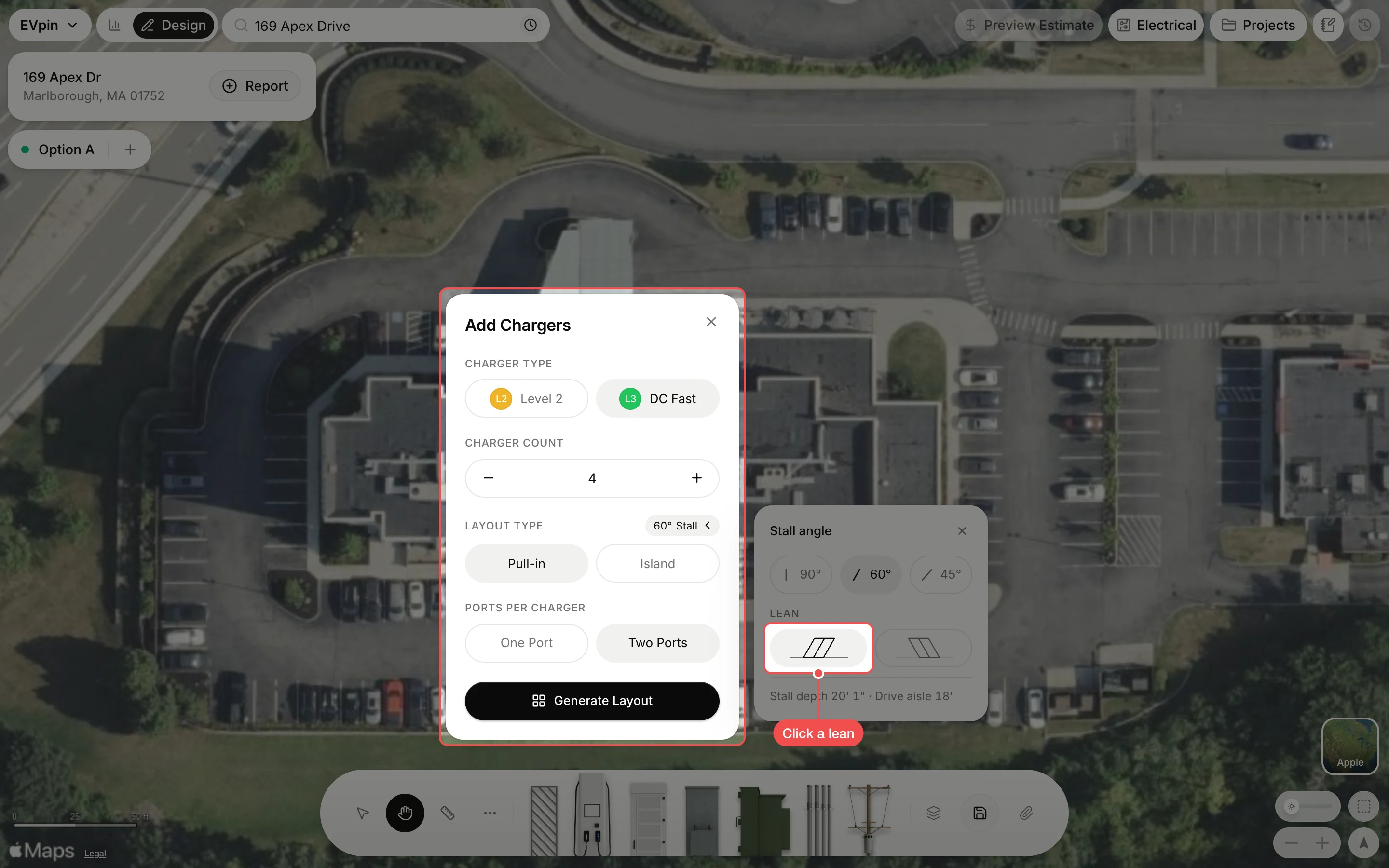
Under Lean, click the drawing whose stalls slant the way traffic flows down the aisle, so drivers turn into them without backing up.
Click Generate Layout
Click Generate Layout. The angled row appears selected in the middle of the map.
Drag the row into place
Drag the row by one of its stalls until the front edge of the stalls sits on the curb and the chargers stand on the grass beyond it.
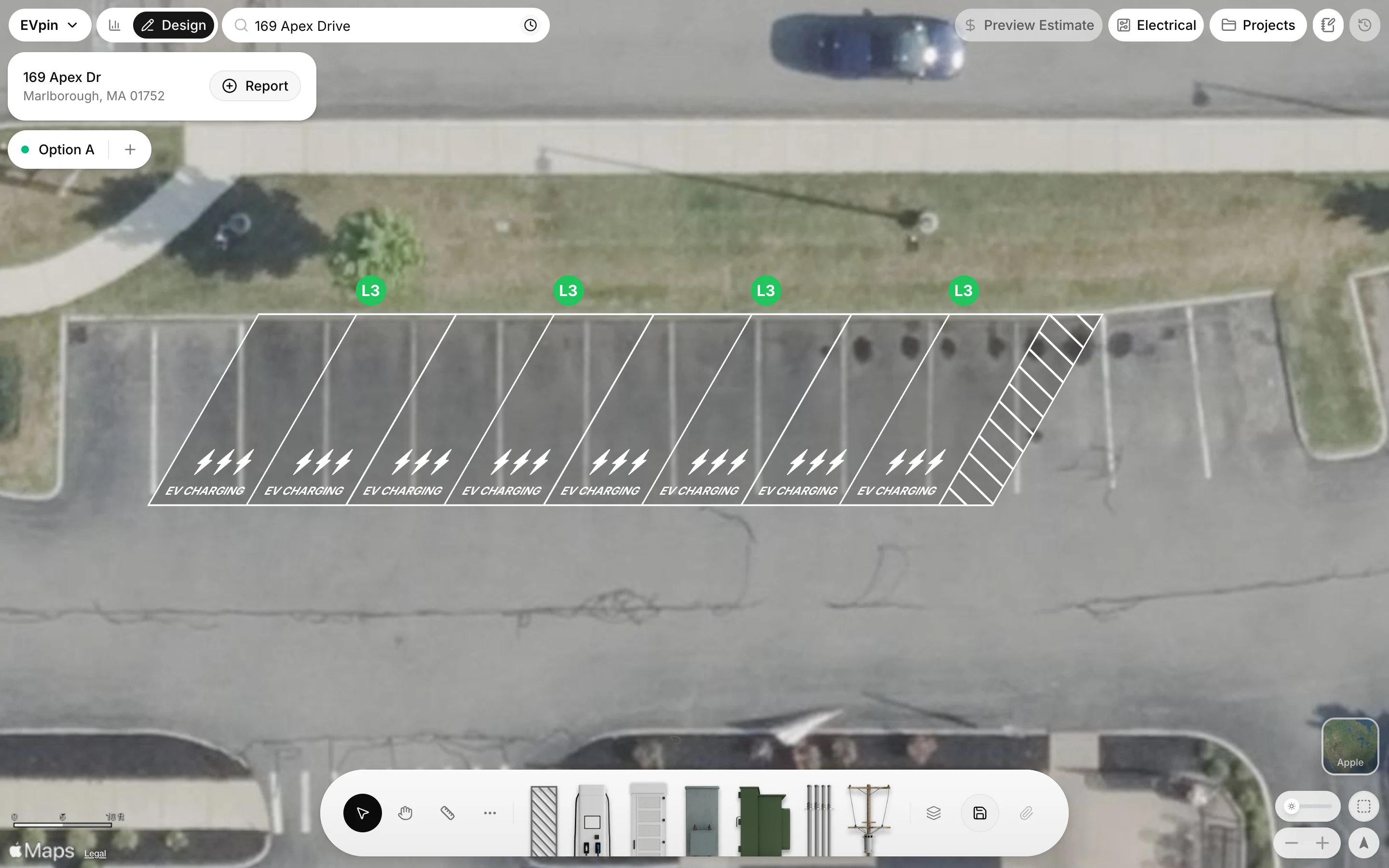
Check the row
Zoom in to check the row against the curb. The stalls keep their angle when you move them.
What's next
- How to add a transformer to power the stalls.