How to add a road marking
Add ENTER, EXIT, DO NOT ENTER, ONE WAY or STOP lettering to the pavement on the Design page.
By the end your design will show lettering painted on the drive aisle, such as ONE WAY. You need a design open on the Design page, as in How to add charging stalls to a design.
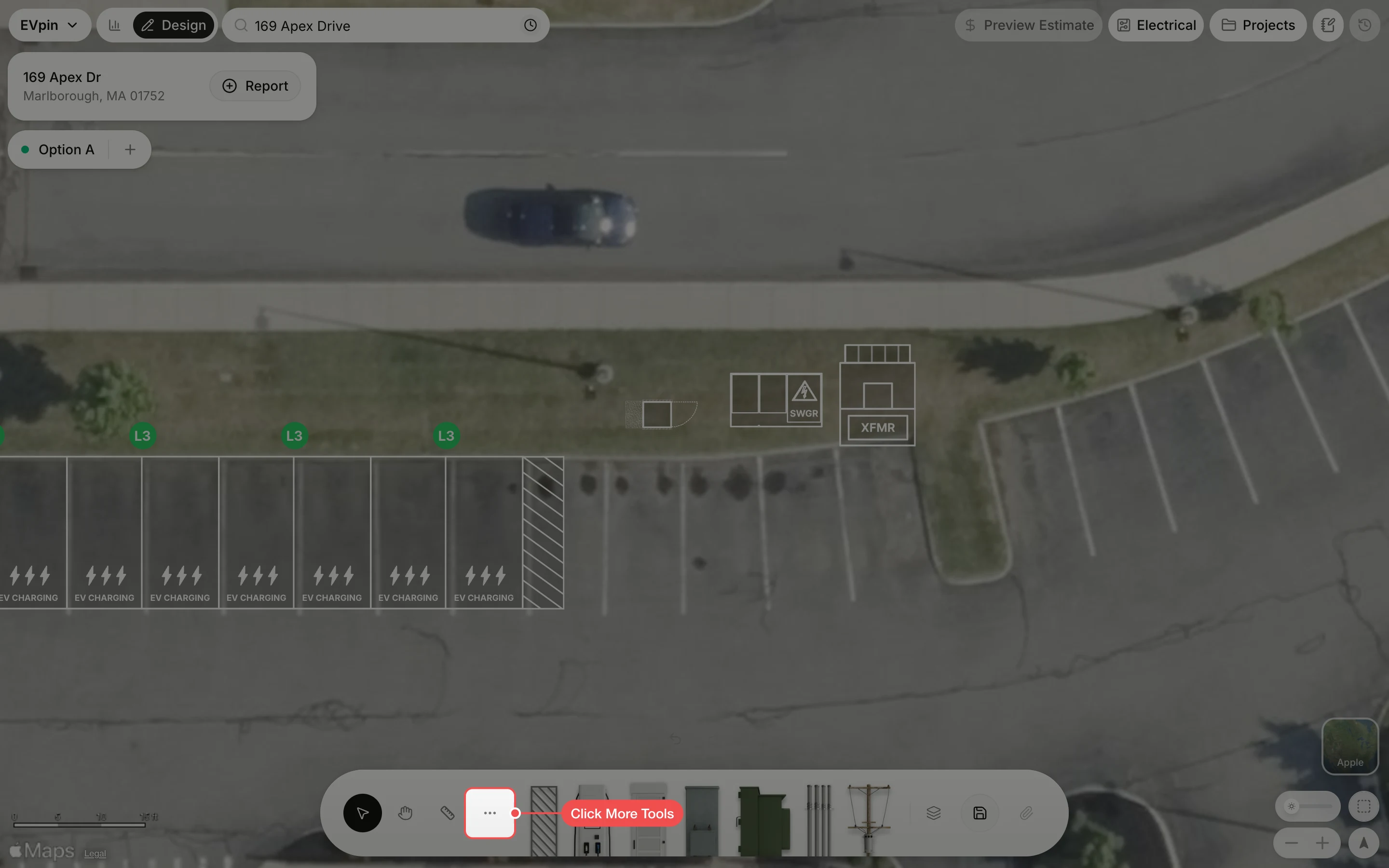
Click the marking
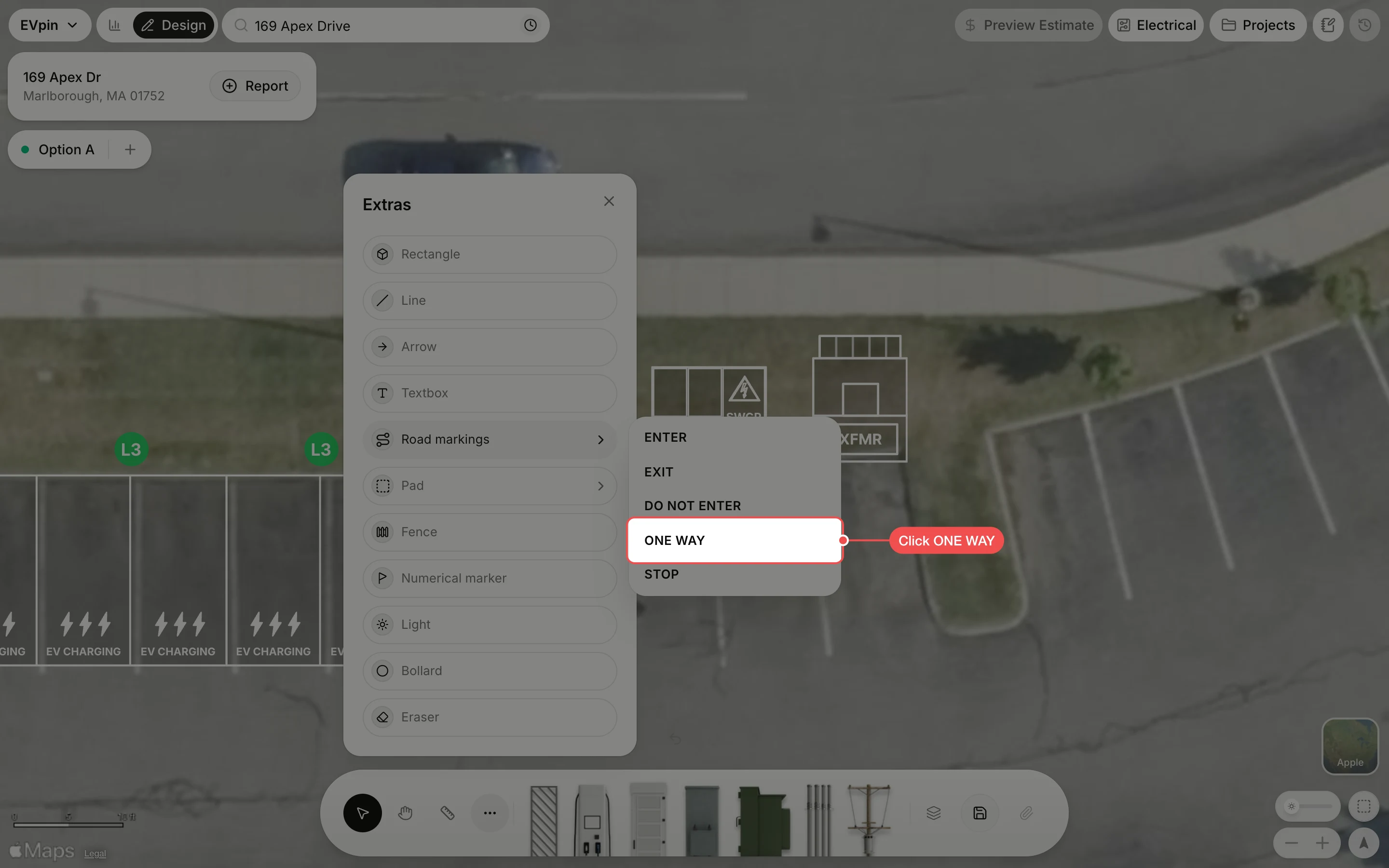
In the Extras menu, point at Road markings and click the marking you need, here ONE WAY.
Drag it onto the aisle
The marking appears in the middle of the map, selected. Drag it onto the pavement where it is painted.
What's next
- How to draw an arrow on a design to show the direction of travel.