How to score many addresses with batch upload
Paste or upload a list of addresses, score them all in one run and download the results as a spreadsheet.
By the end you will have a spreadsheet with a score and the site data for every address on your list. Batch Upload takes up to 500 addresses per run. Runs with a data export use your organization's batch credits.
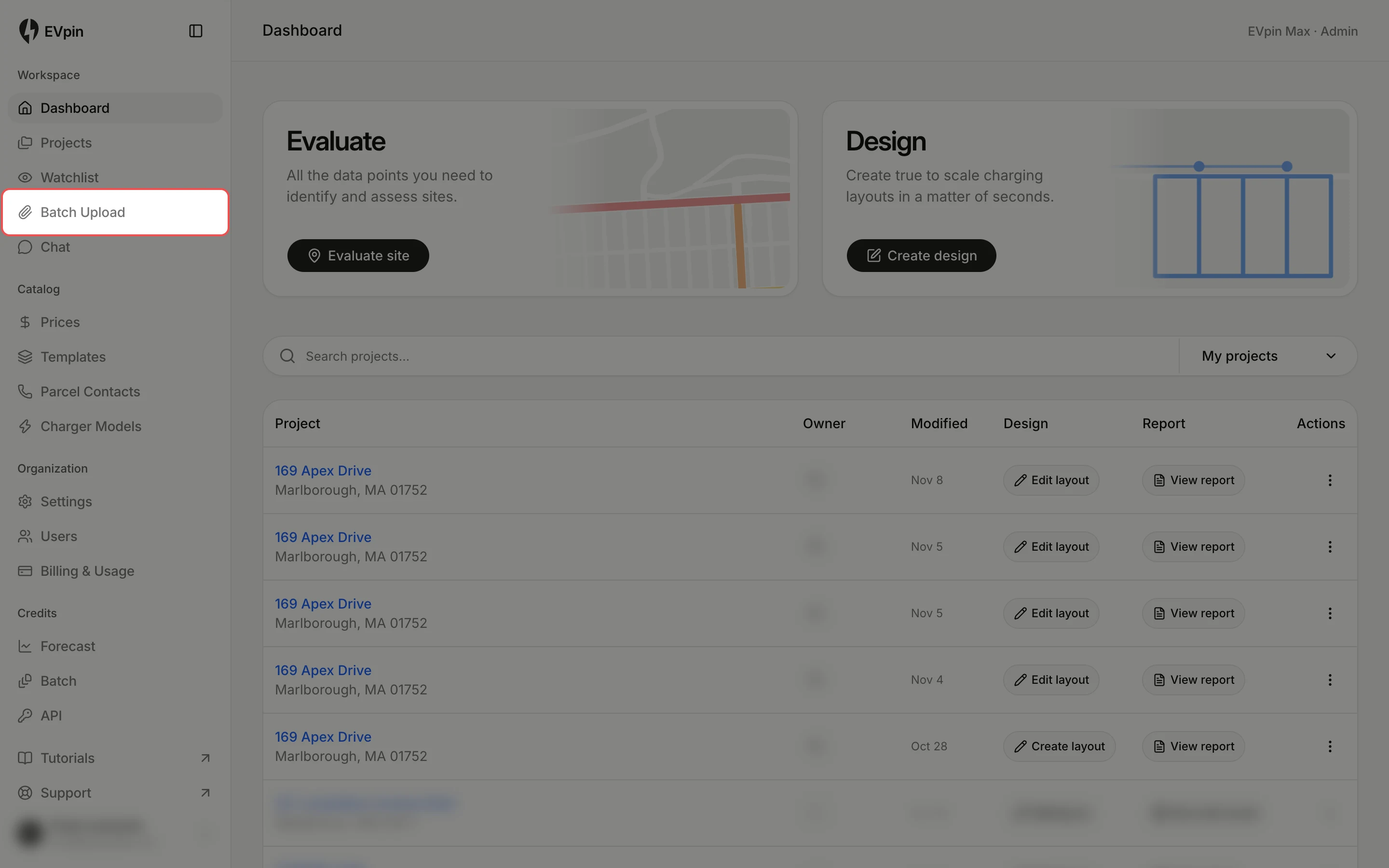
Click how you'll add your addresses
For a short list, click Paste addresses. For a long one, stay on Upload file and click Choose file to upload a CSV or Excel (.xlsx) file.
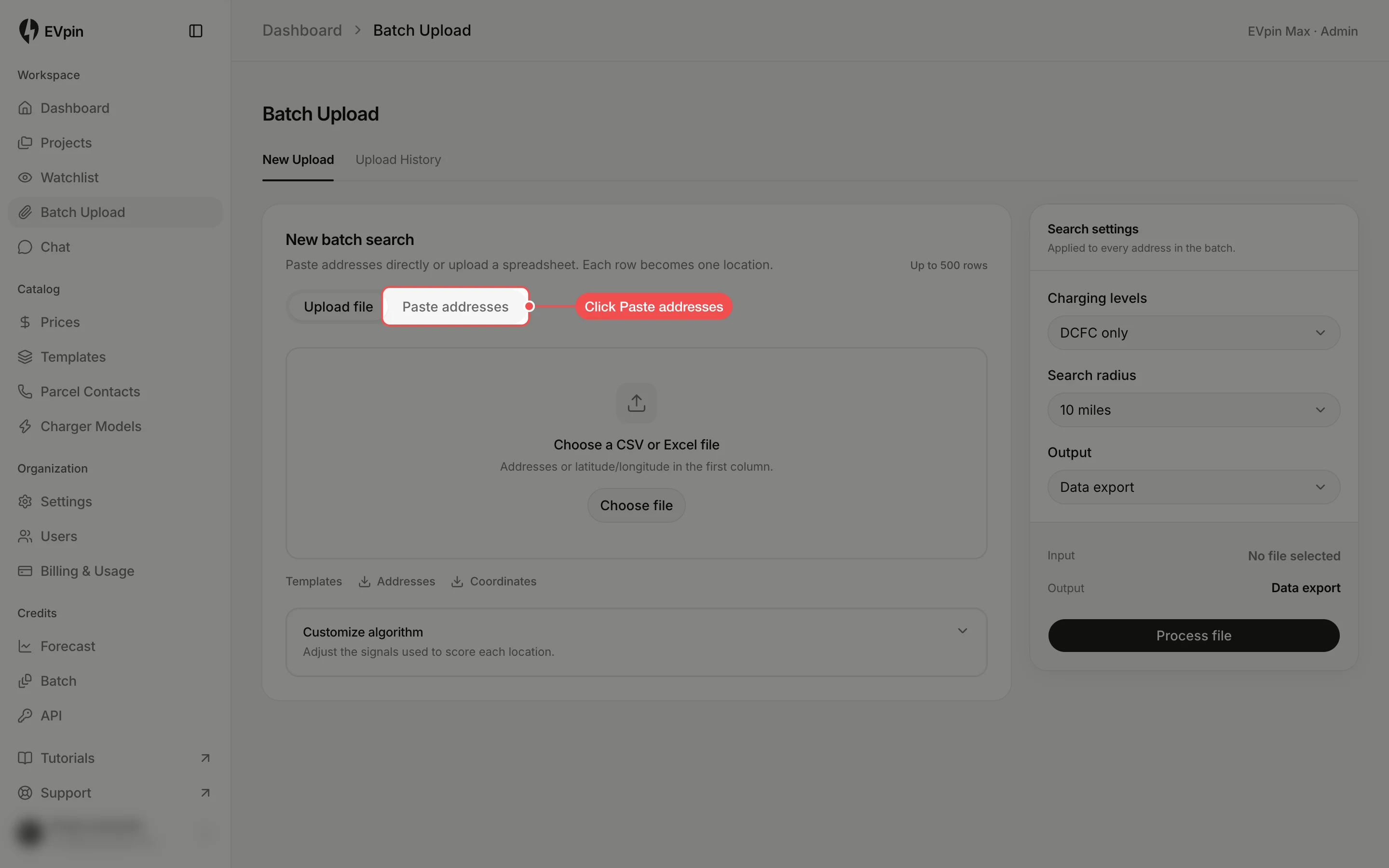
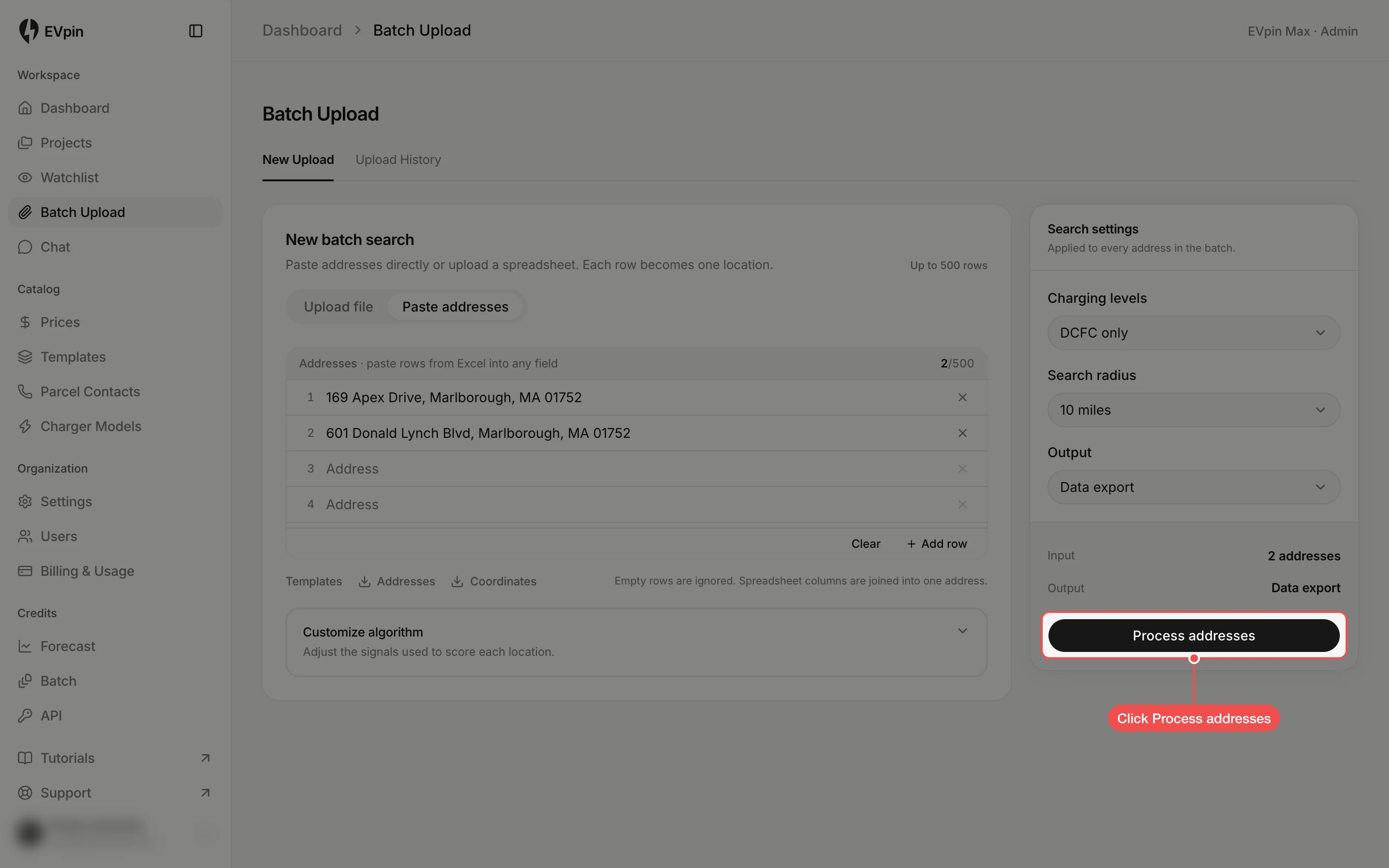
Type the addresses
Type one full address per row. Click Add row for more rows, or paste a column copied from a spreadsheet into any row and it fills one row per line. The count at the top right shows how many addresses will be scored.
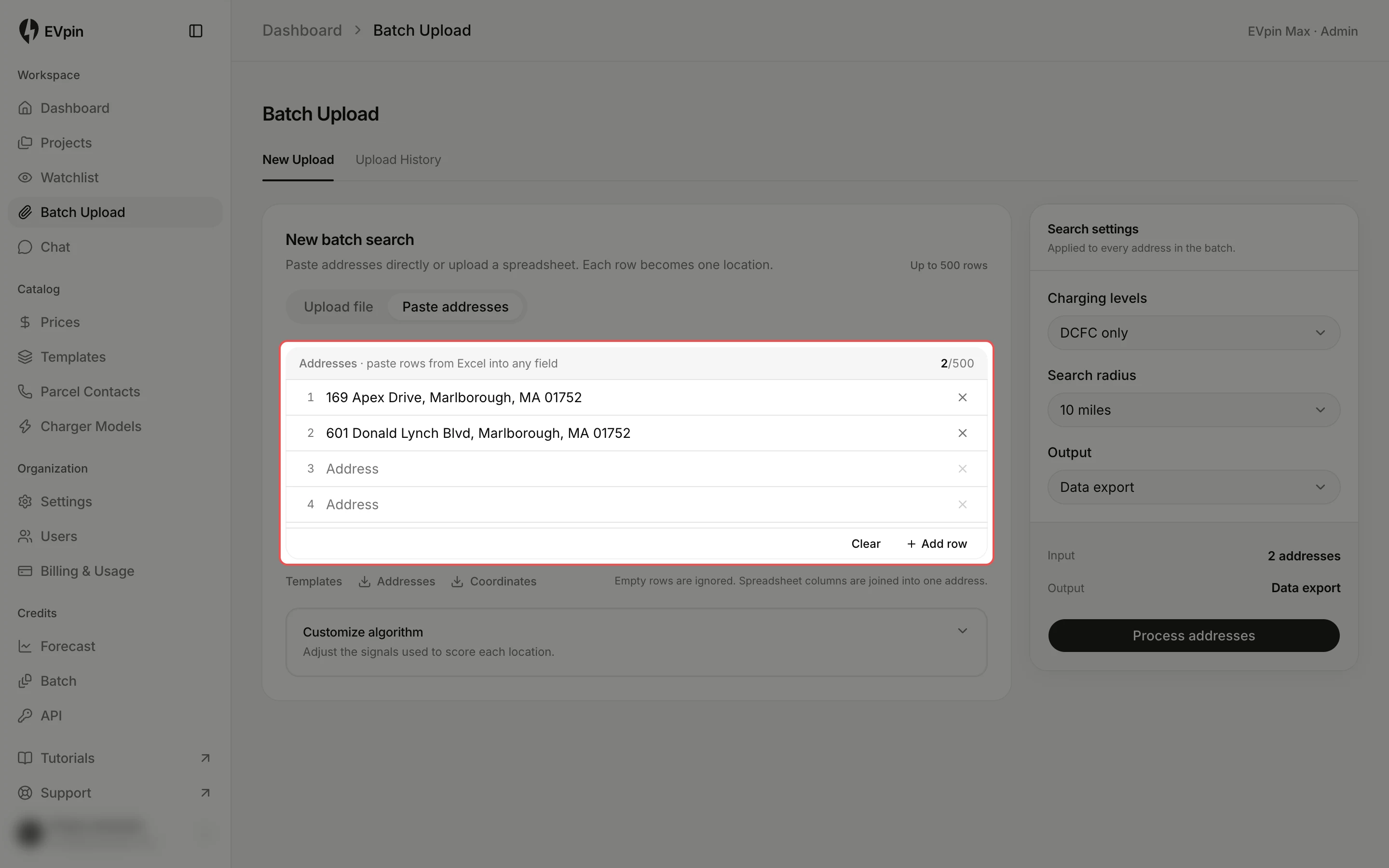
Click the output you want
Under Search settings, click Output, then click what you want back: Data export for a spreadsheet, Data export + reports for the spreadsheet and a site report per address, or Reports only, which uses no batch credits. The Charging levels and Search radius above it apply to every address and can stay as they are.
Process the addresses
Check the Input and Output lines, then click Process addresses (Process file for an upload). The form shows progress while the addresses are geocoded and scored. Click Continue in background to keep working while the run carries on.
Open Upload History
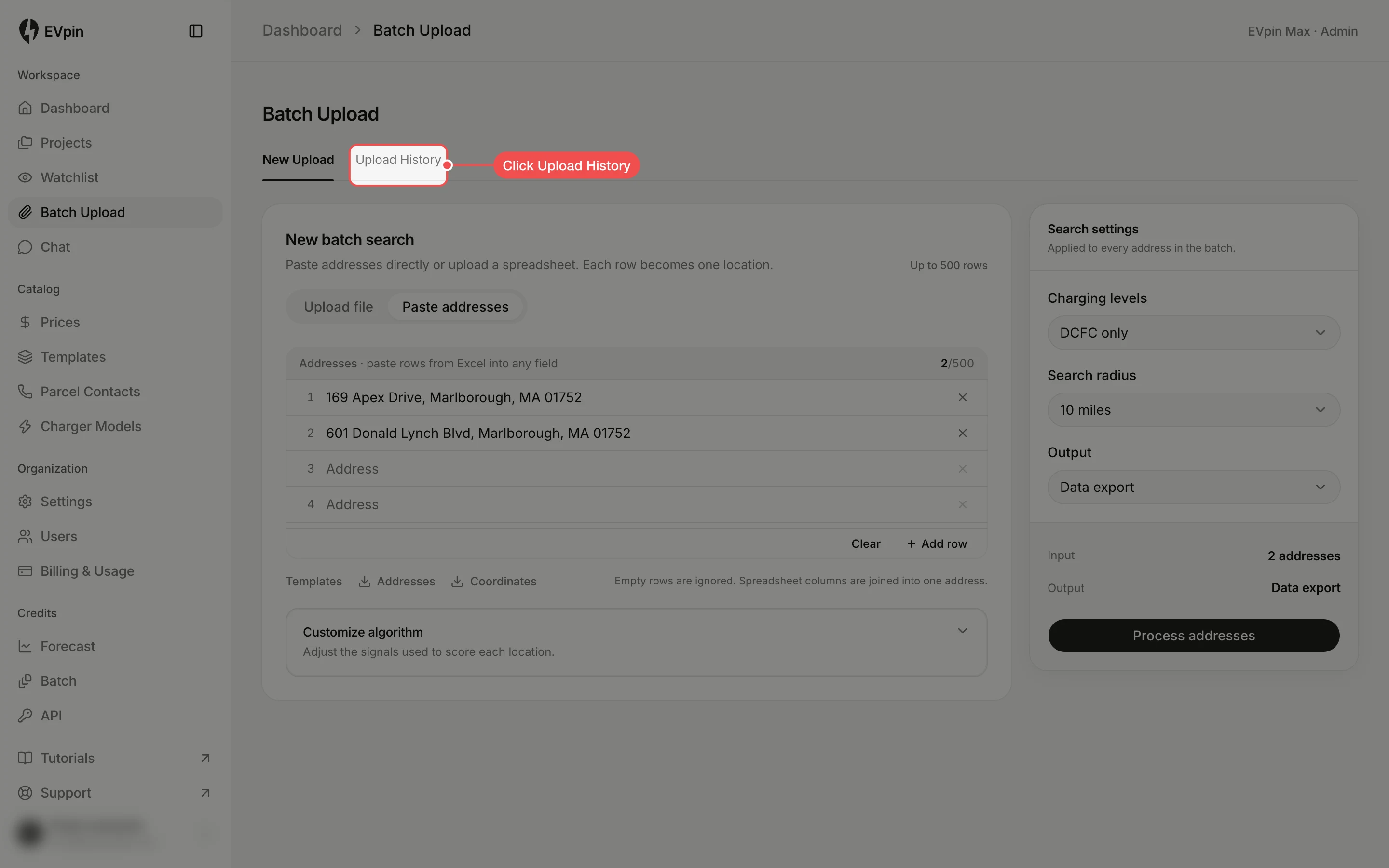
Click Upload History at the top of the page. Every run is listed with its status, settings and submit time.
Download the results
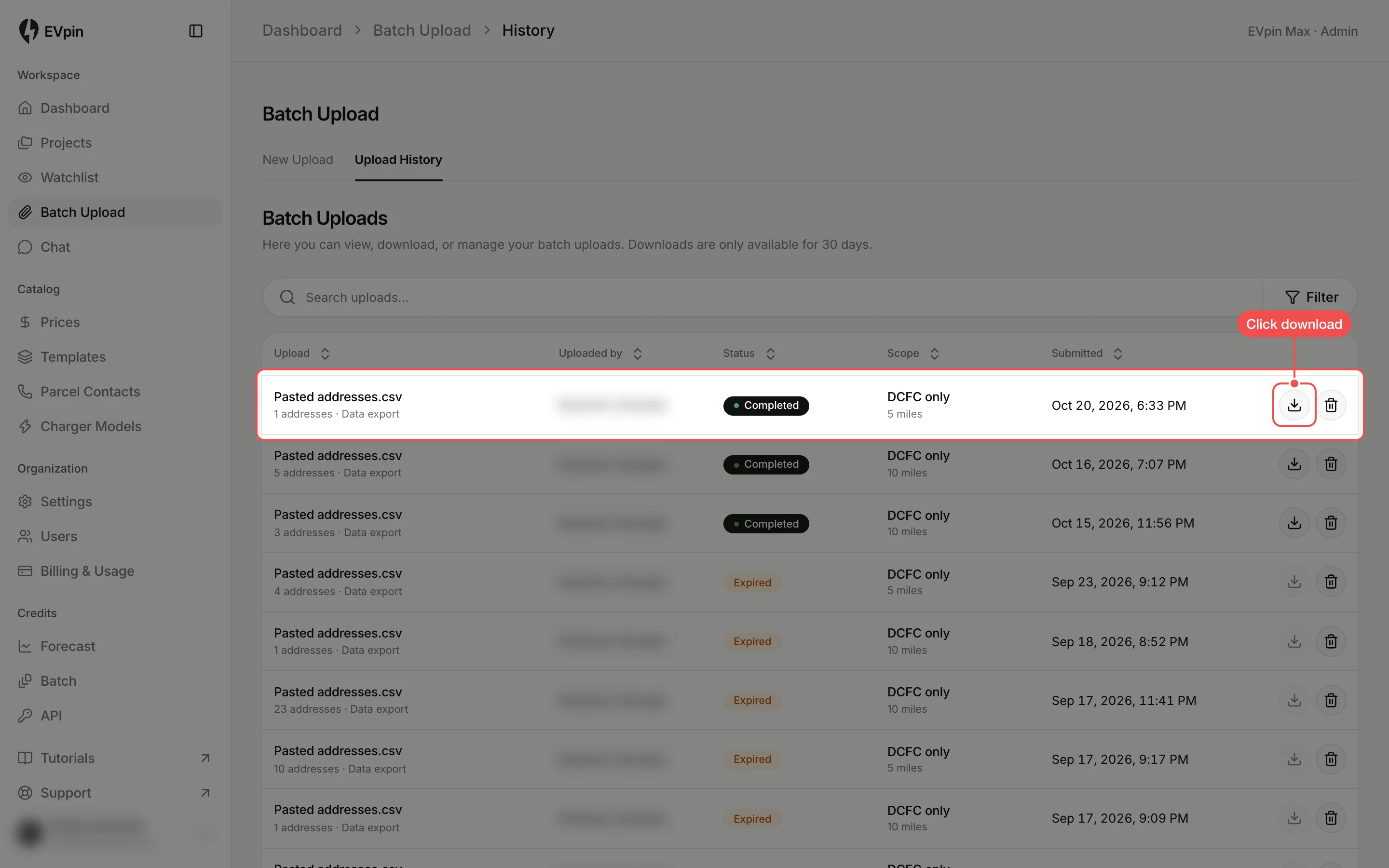
When a finished upload shows Completed, click the download button at the end of its row. Downloads stay available for 30 days.
What's next
- How to get a utilization score for an address to look at one site in detail.