How to turn a cost preview into an editable estimate
Create a full estimate from a design's cost preview, edit its line items and save it to the project.
By the end you will have an estimate saved to the project with line items you can change. You need the estimate preview open, as in How to see what a design costs.
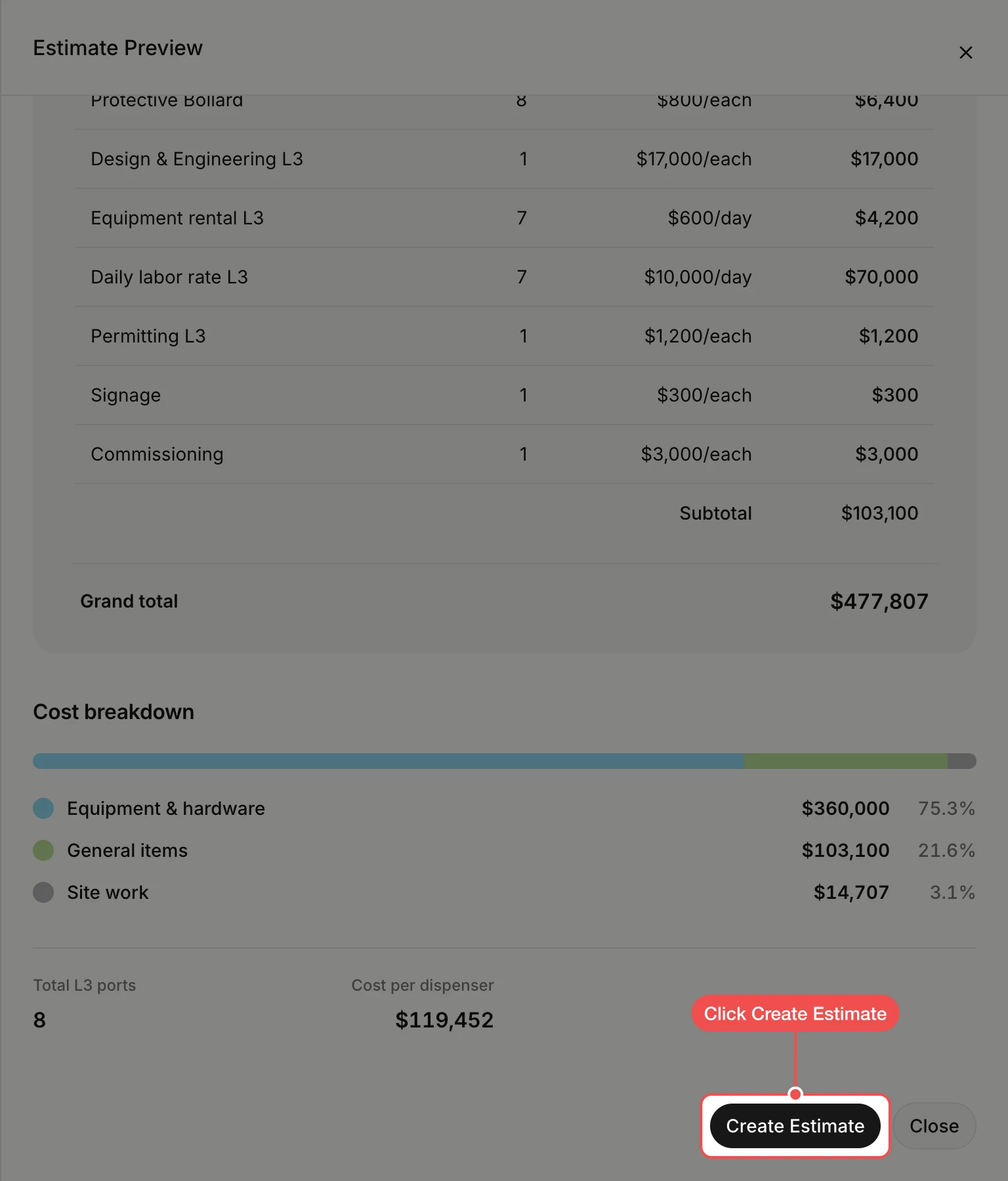
Click Create Estimate
At the bottom of the Estimate Preview panel, click Create Estimate. The full estimate opens in a new tab on its Line Items page.
Change a line item
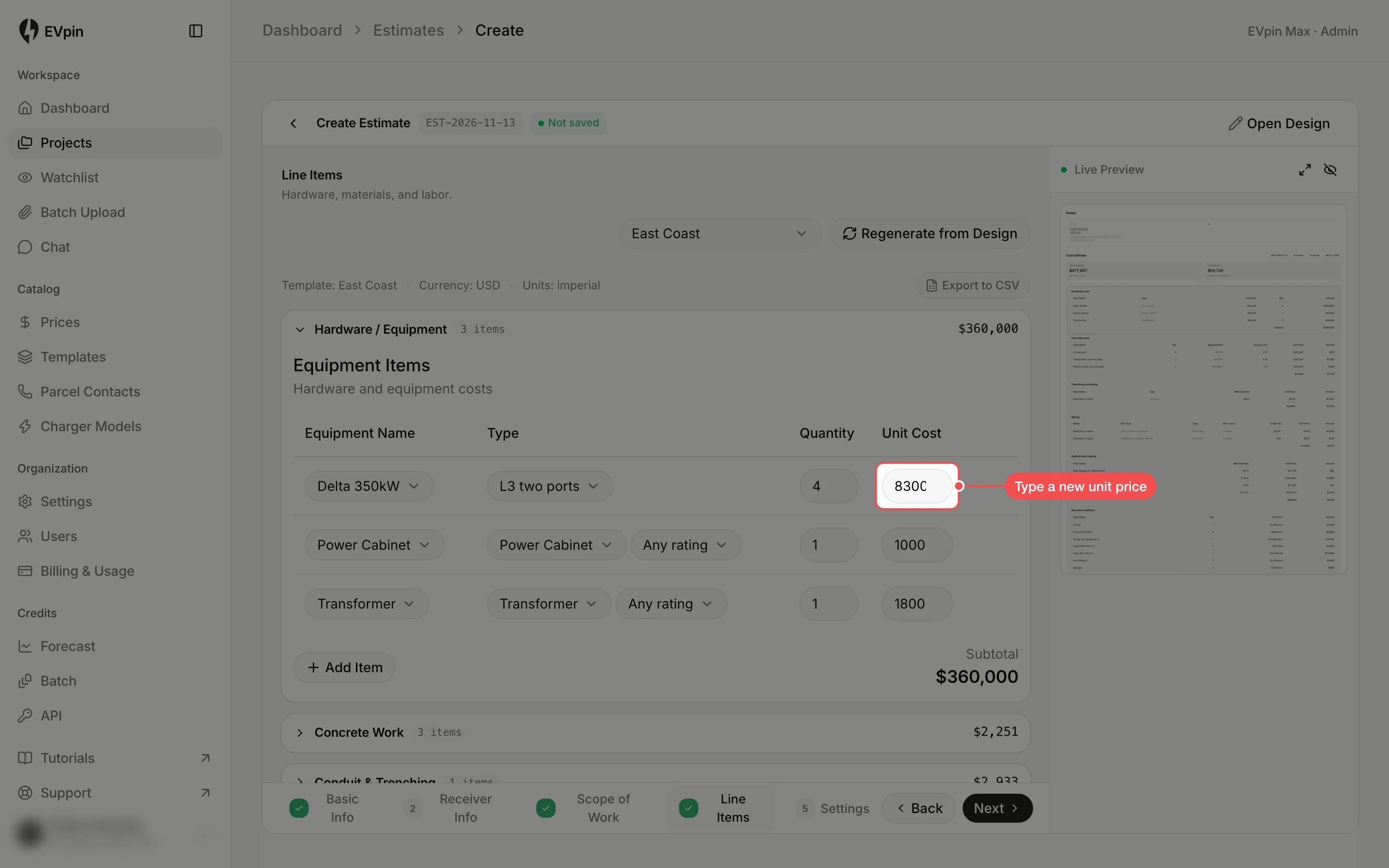
Every line is editable. Type a new quantity or unit price into a line and the subtotal and the live preview on the right follow.
Pull in design changes
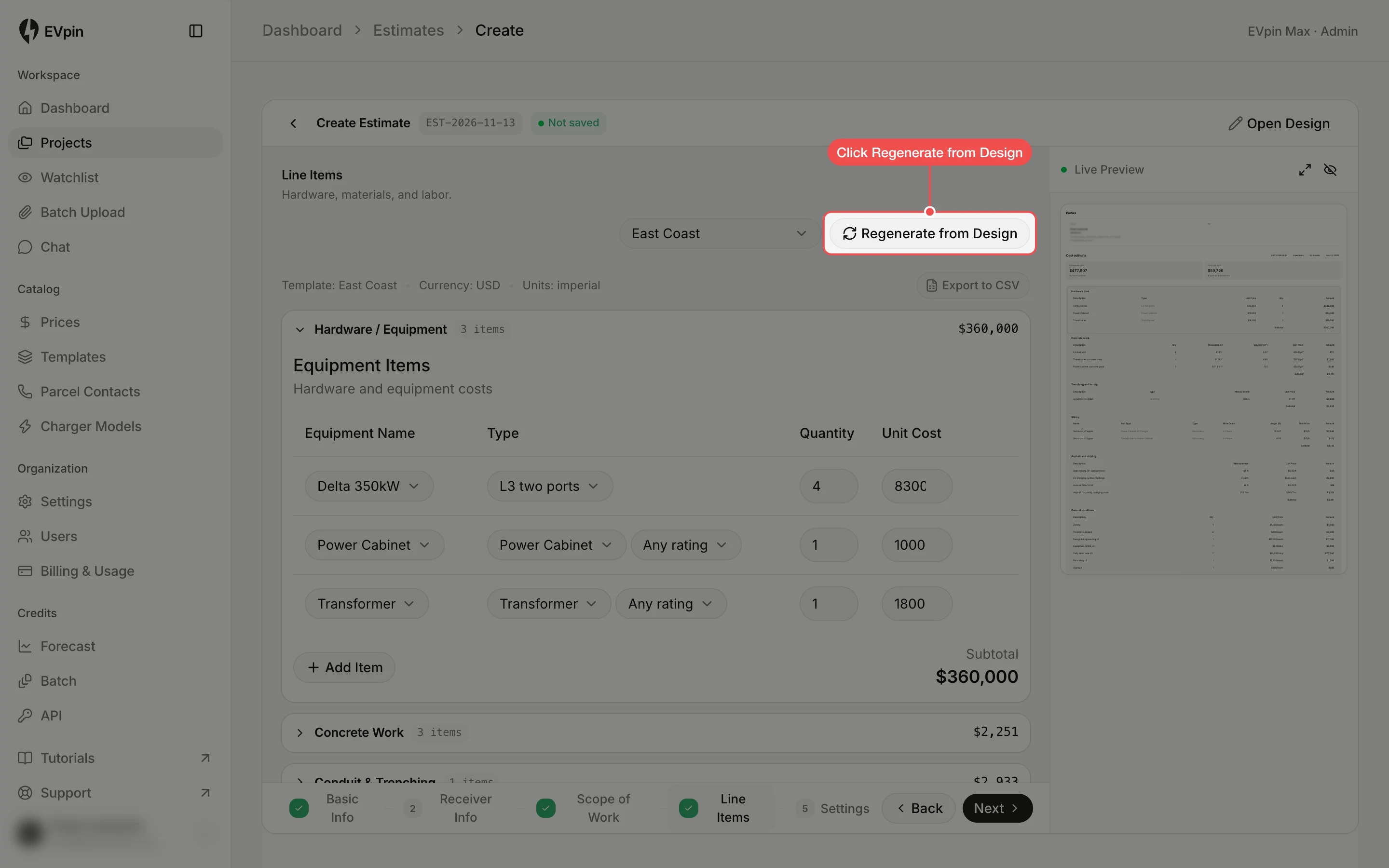
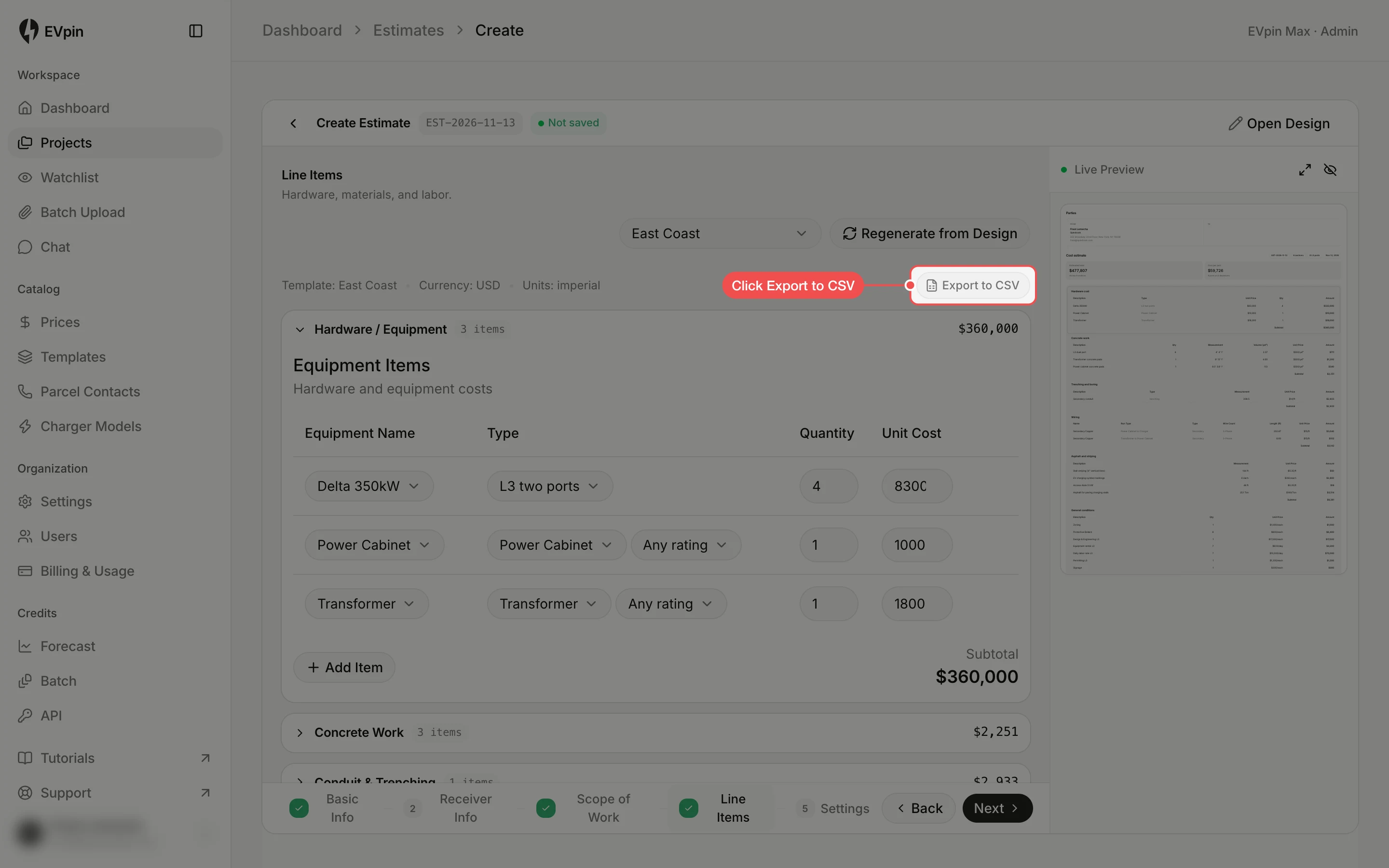
If the layout changed since you opened the estimate, click Regenerate from Design to rebuild the lines from it. When the design has options, the button reads Regenerate all.
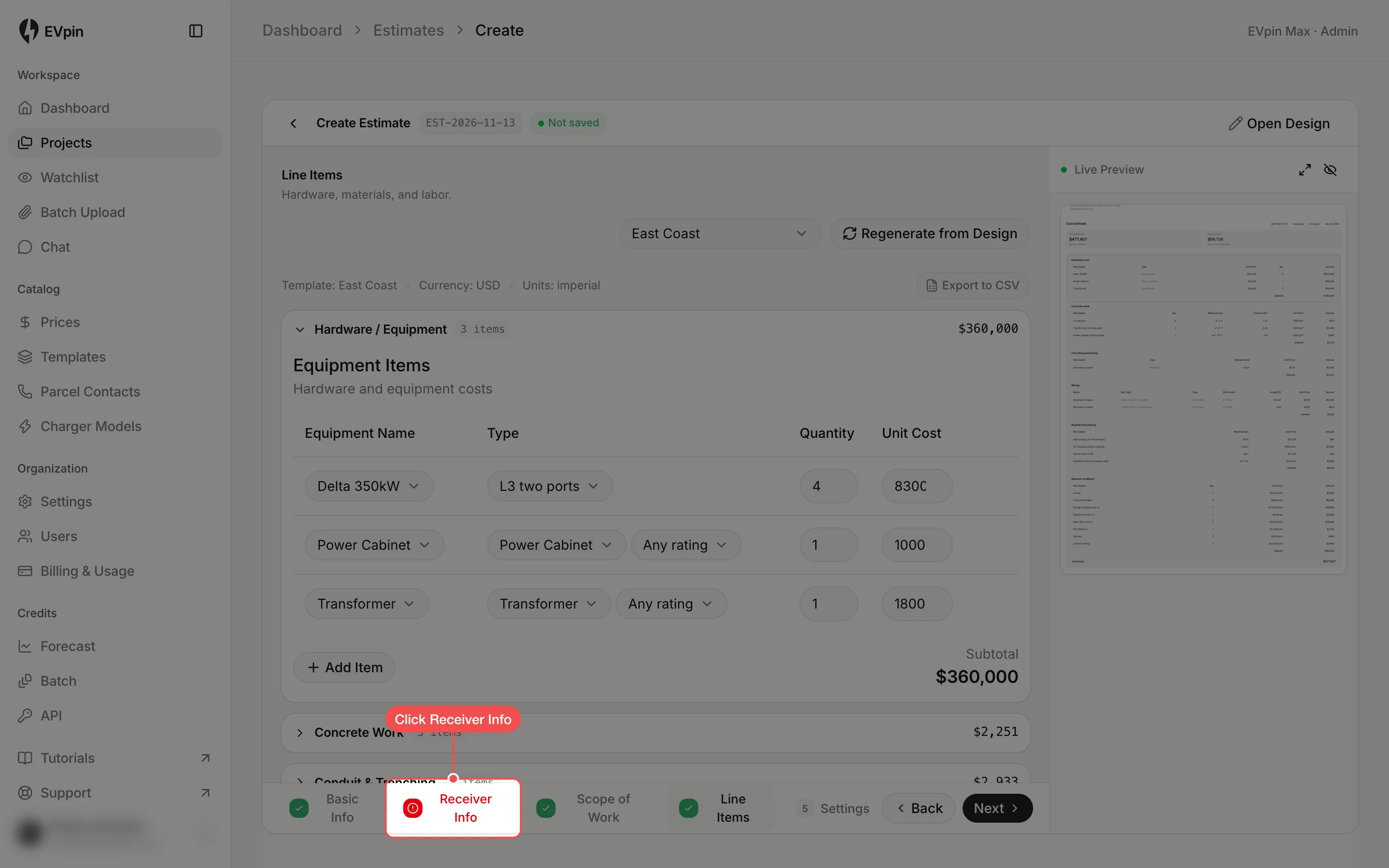
Open Receiver Info
The estimate is saved once it knows who it is for. Click Receiver Info in the steps at the bottom.
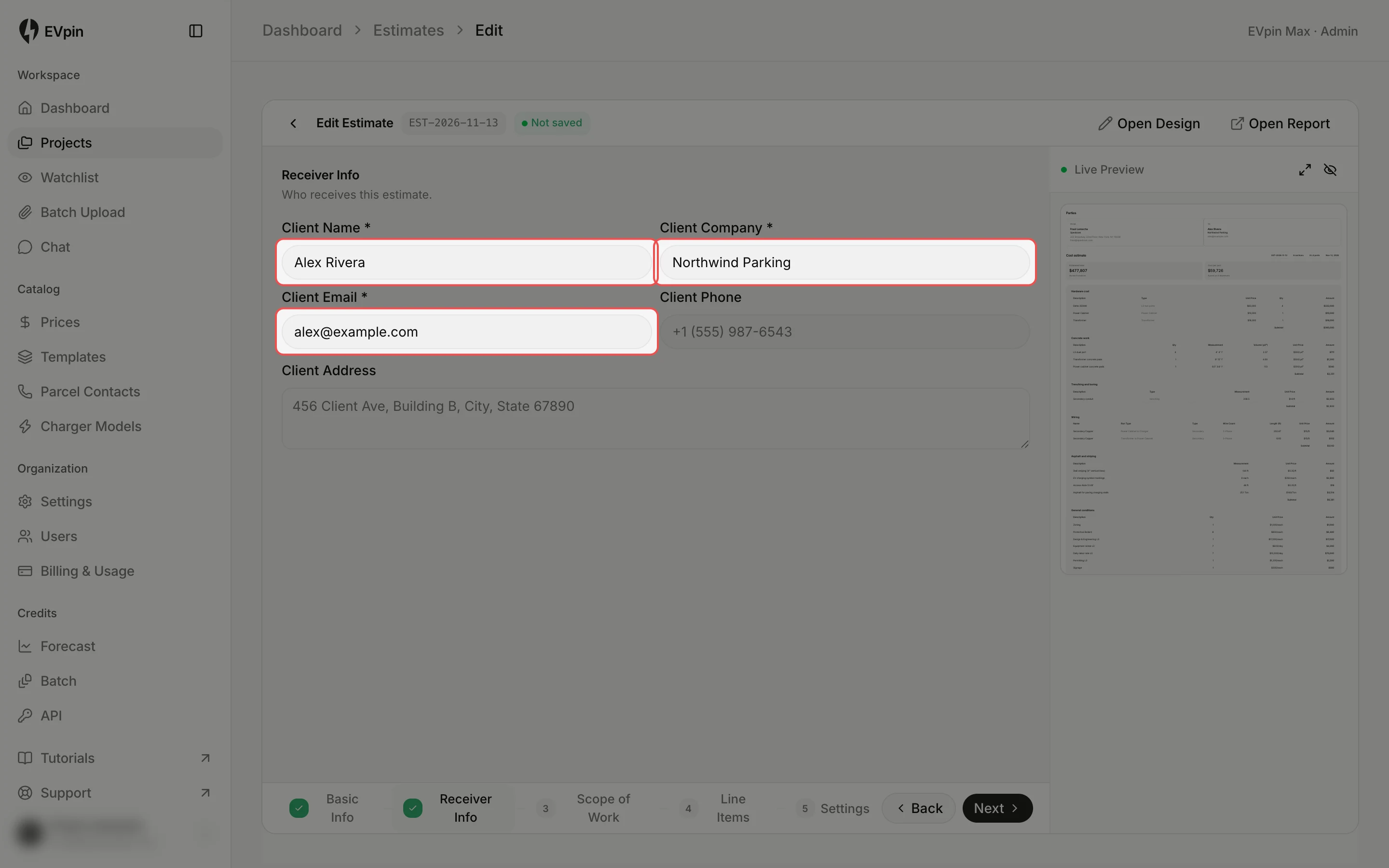
Type the client's details
Type the client's name, company and email. As soon as all three are filled in, the estimate is saved to the project and changes save as you make them.
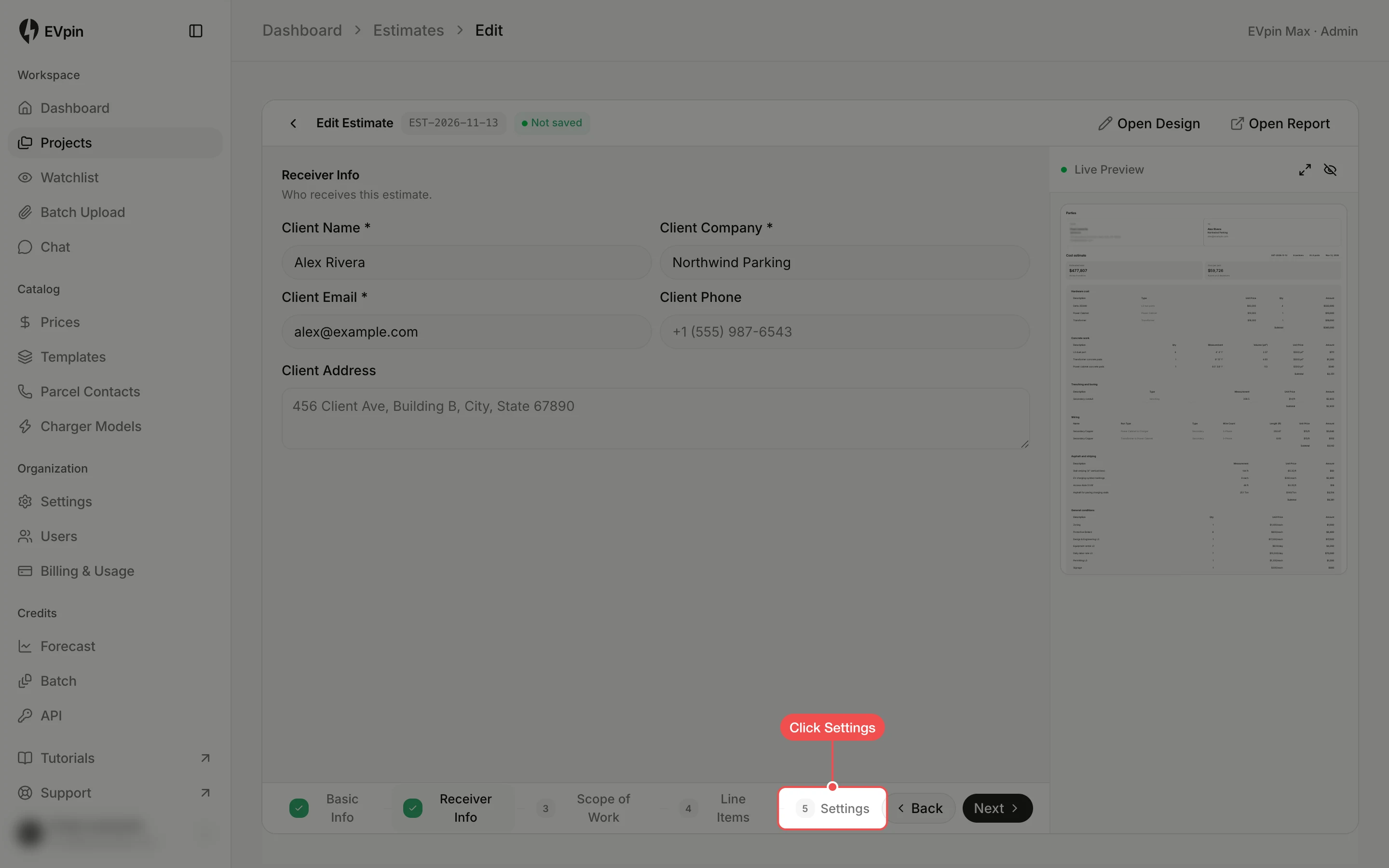
Open Settings
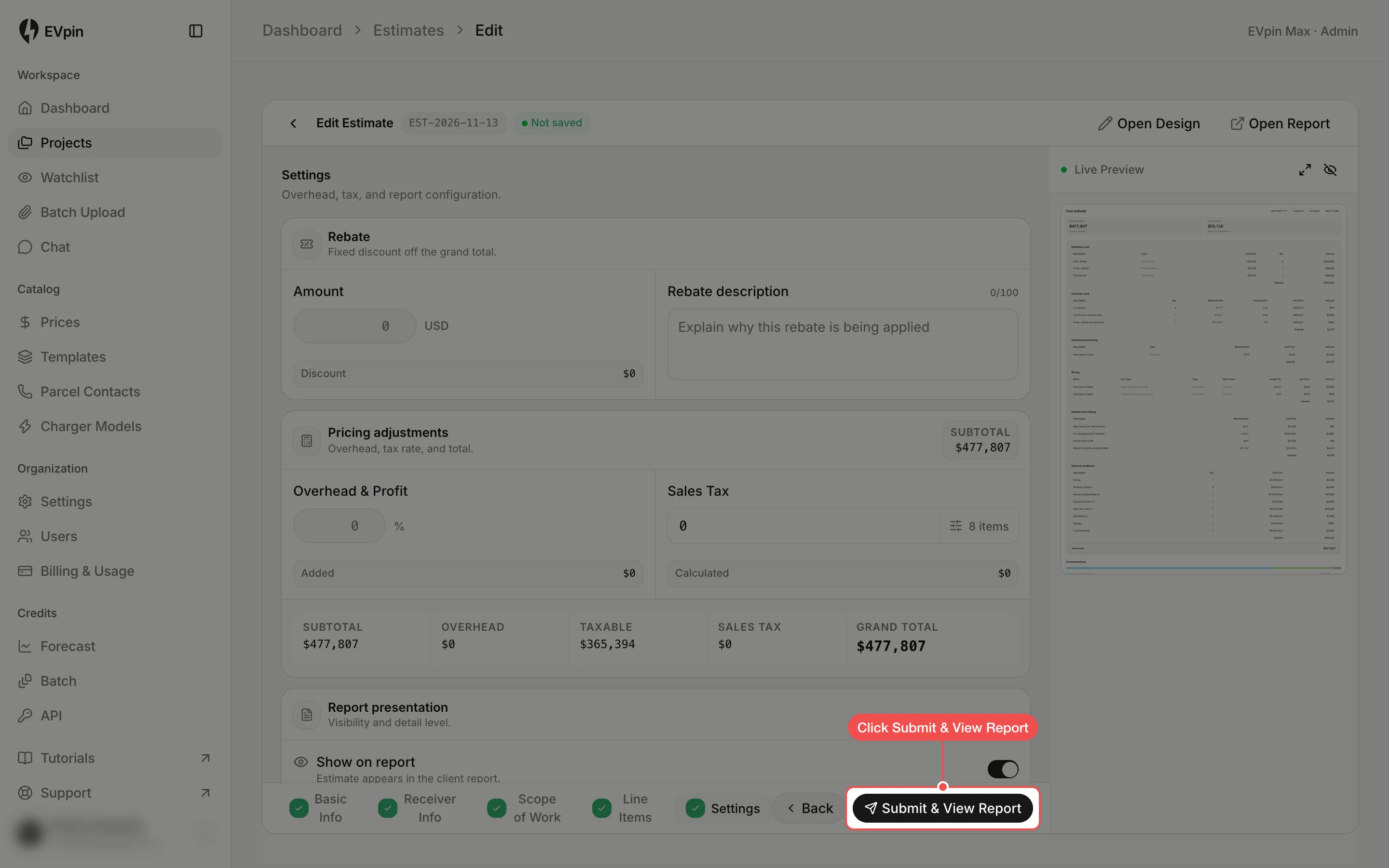
Click Settings in the steps at the bottom. Here you can add a rebate, overhead and sales tax, and choose whether the estimate shows on the report.
What's next
- How to share a report with a client to send them the estimate.
- How to change a price in a pricing template so the next estimate starts from the right numbers.