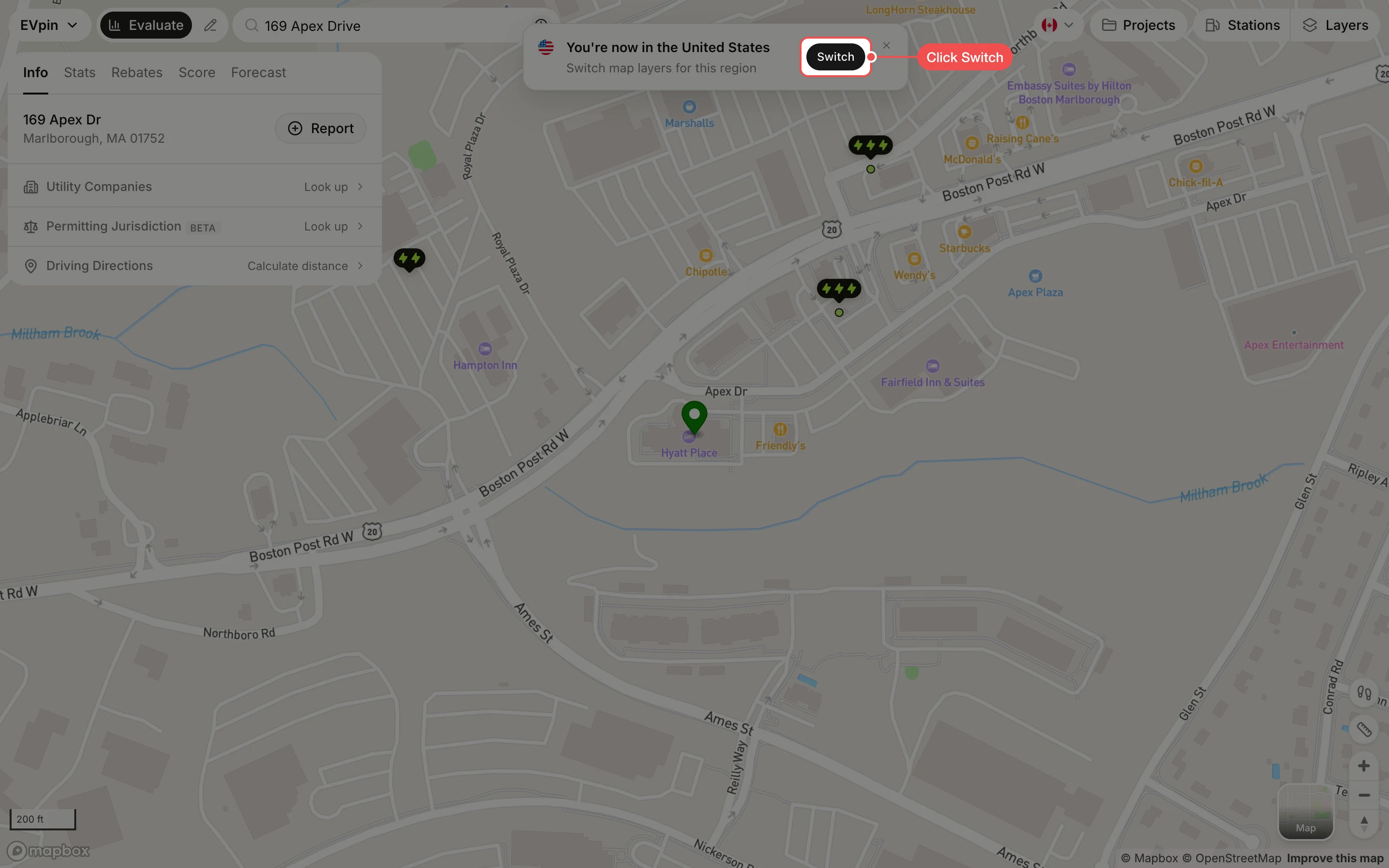
How to switch the Evaluate map between the US and Canada
Change the Evaluate map's region to Canada or the US so address search, layers and site data match the country.
The Evaluate map works on one country at a time. Its region sets which addresses search finds, which layers you can turn on and which data the site panel shows. By the end the map will be set to Canada, and you will know how to go back to the US.
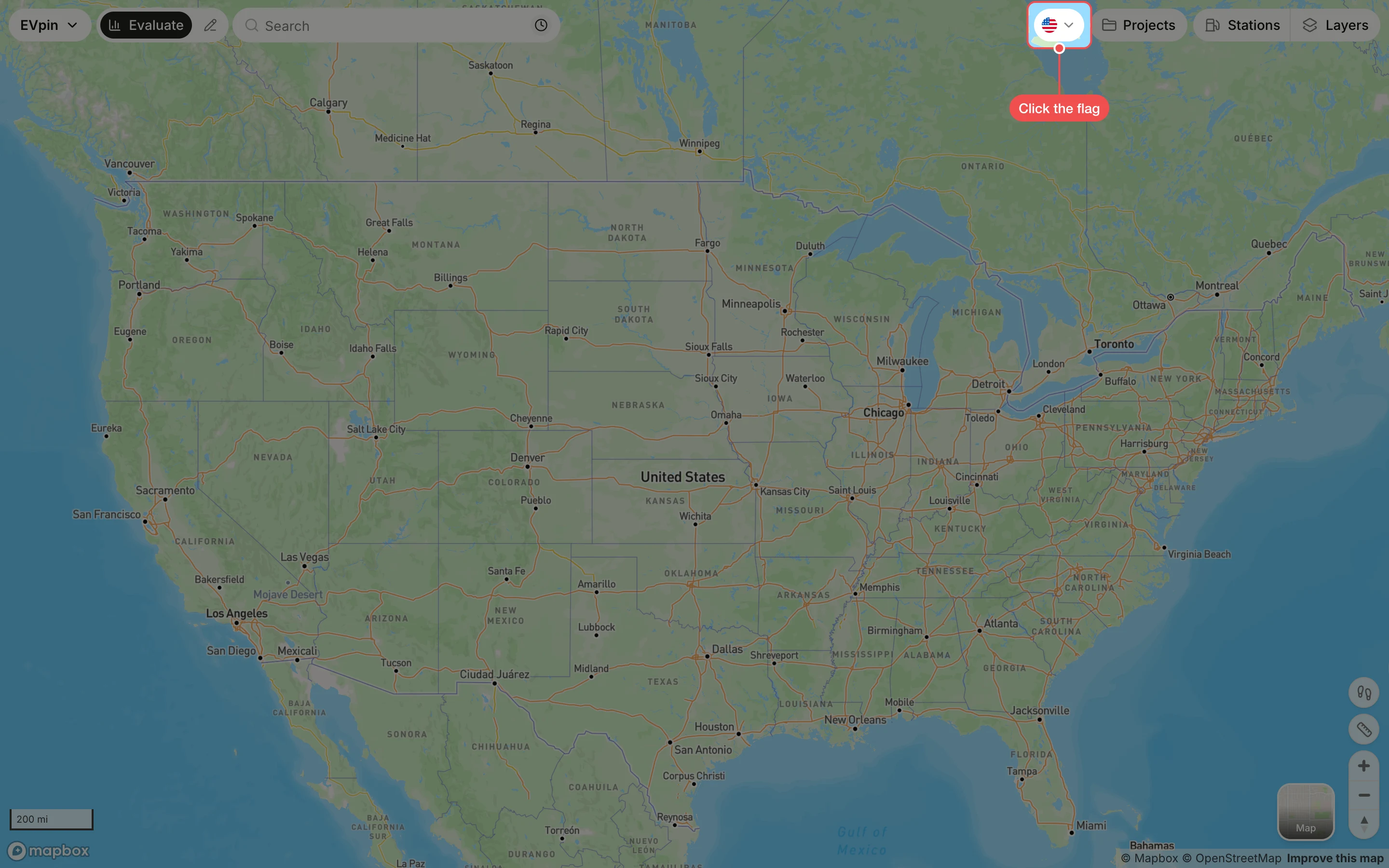
Click CA
Under Select Region, click CA. The tick marks the region in use. A lock next to a region means your plan doesn't include it.
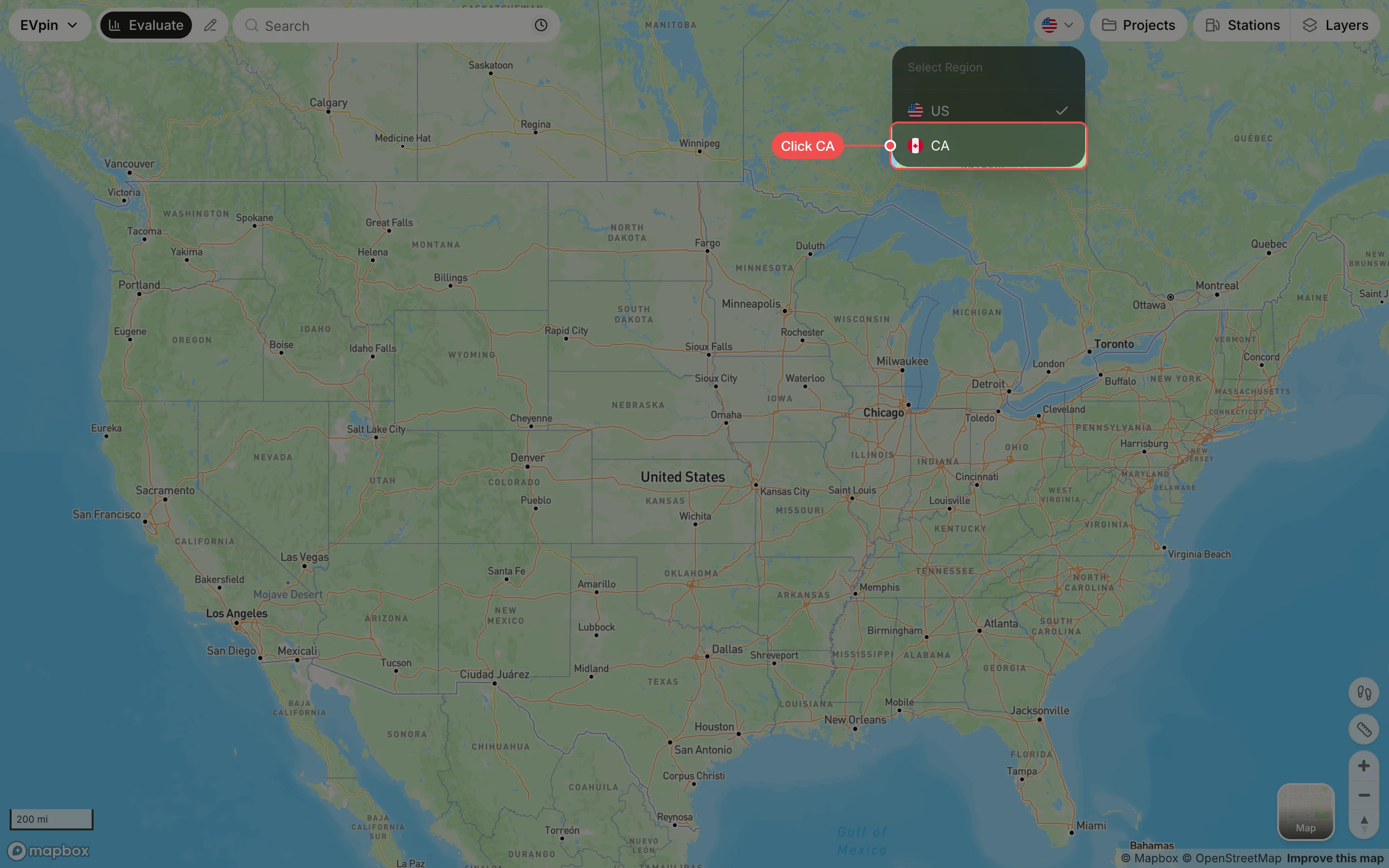
Check the layers
The flag turns Canadian. Click Layers: the panel now lists the layers available in Canada, such as Parcels, Median Income, EV Penetration and Traffic Volume.
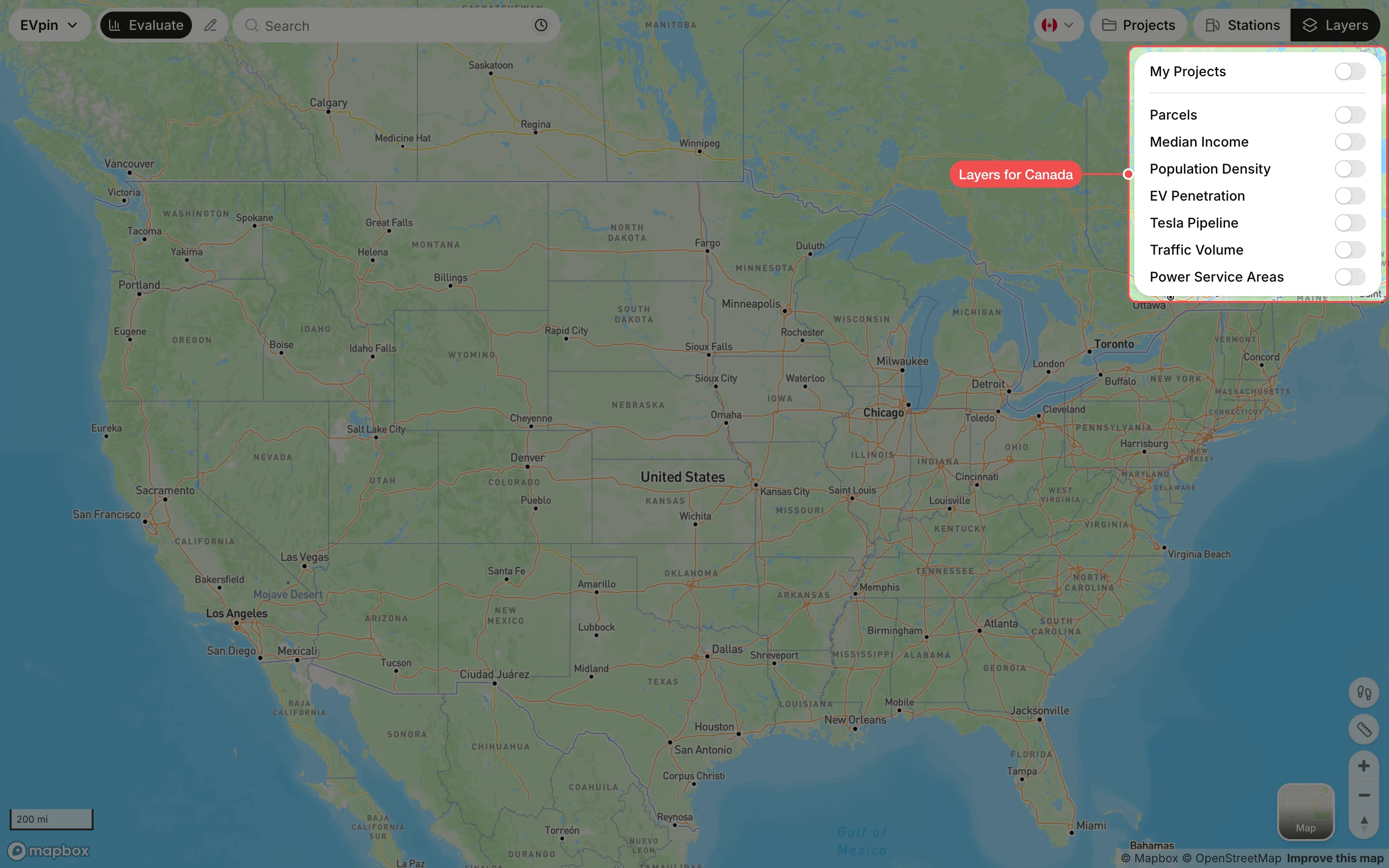
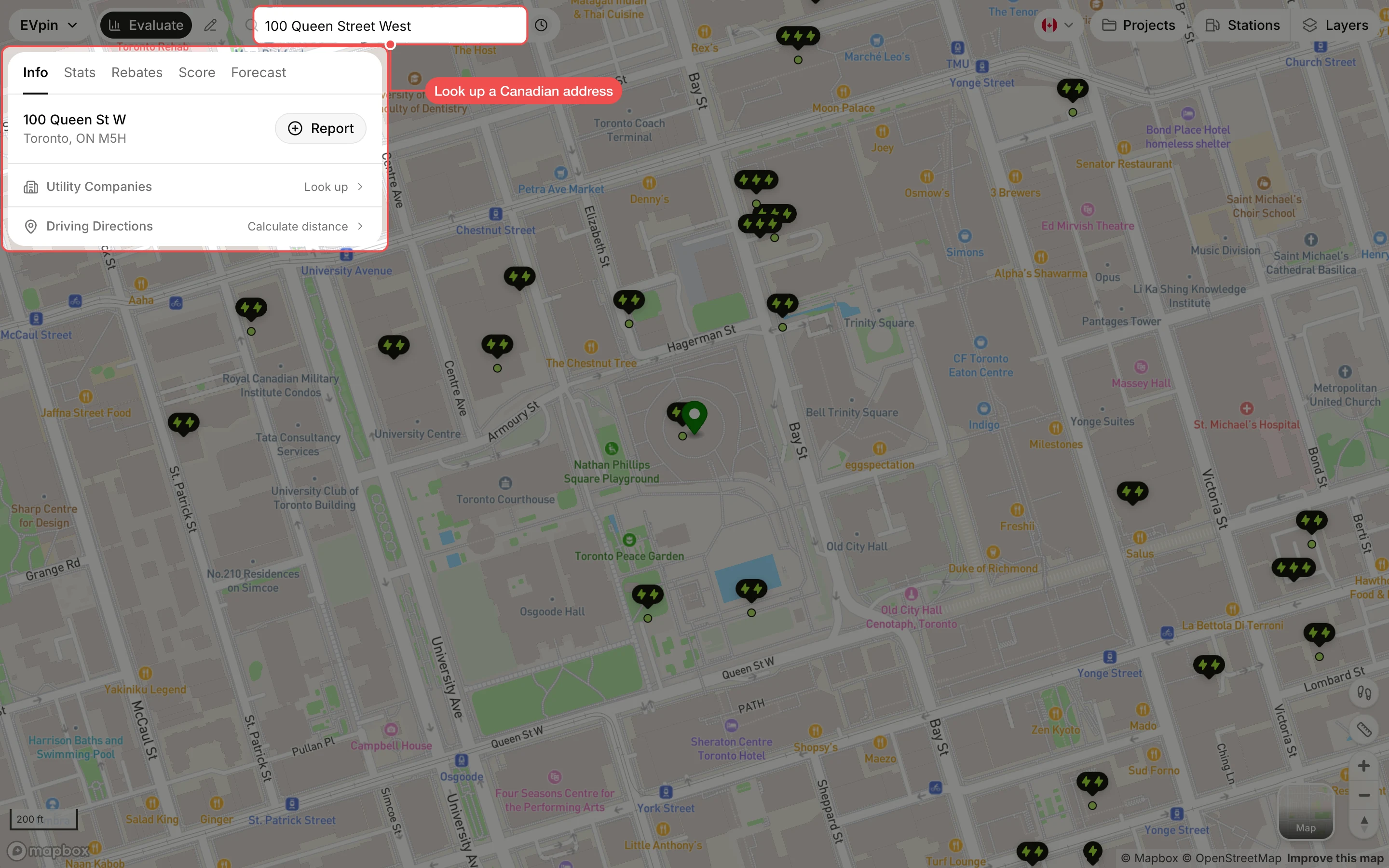
Look up a Canadian address
Type a Canadian address in the search box and click it in the suggestions. The map zooms to the site and the site panel opens with the Canadian data.
Click Switch to go back
To return to the US, click the flag and then US. If you look up a US address while the map is set to Canada, a banner reads You're now in the United States; click Switch to change the region for you.