How to go back to an earlier version of a design
Open a design's version history, preview any earlier save, and restore it.
By the end you will have replaced the current design of a project with an earlier save, without losing the version it replaced. You need a project whose design has been saved more than once.
Open the version history
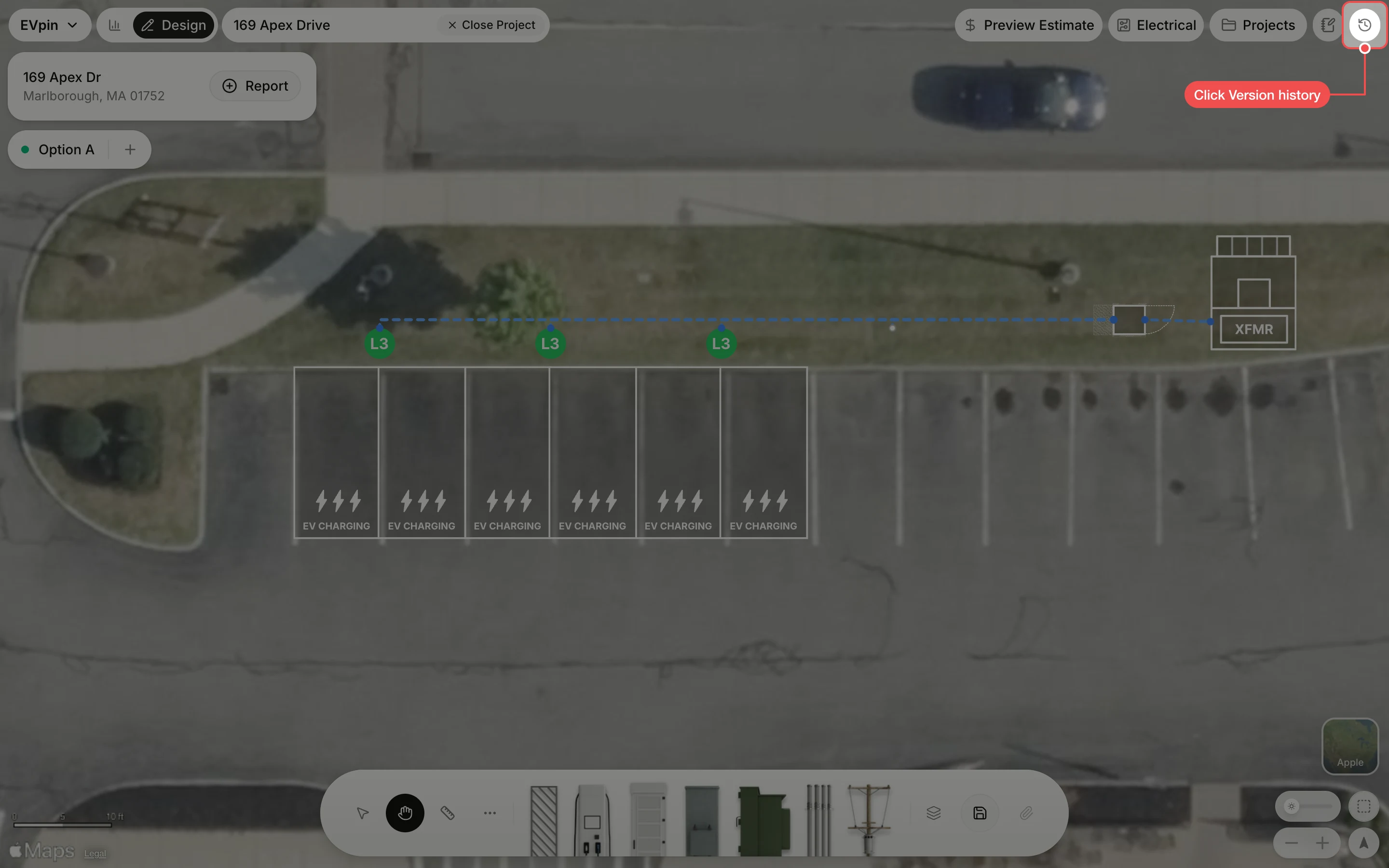
With the design open, click the clock button at the top right. The history is only available once the design has been saved at least once.
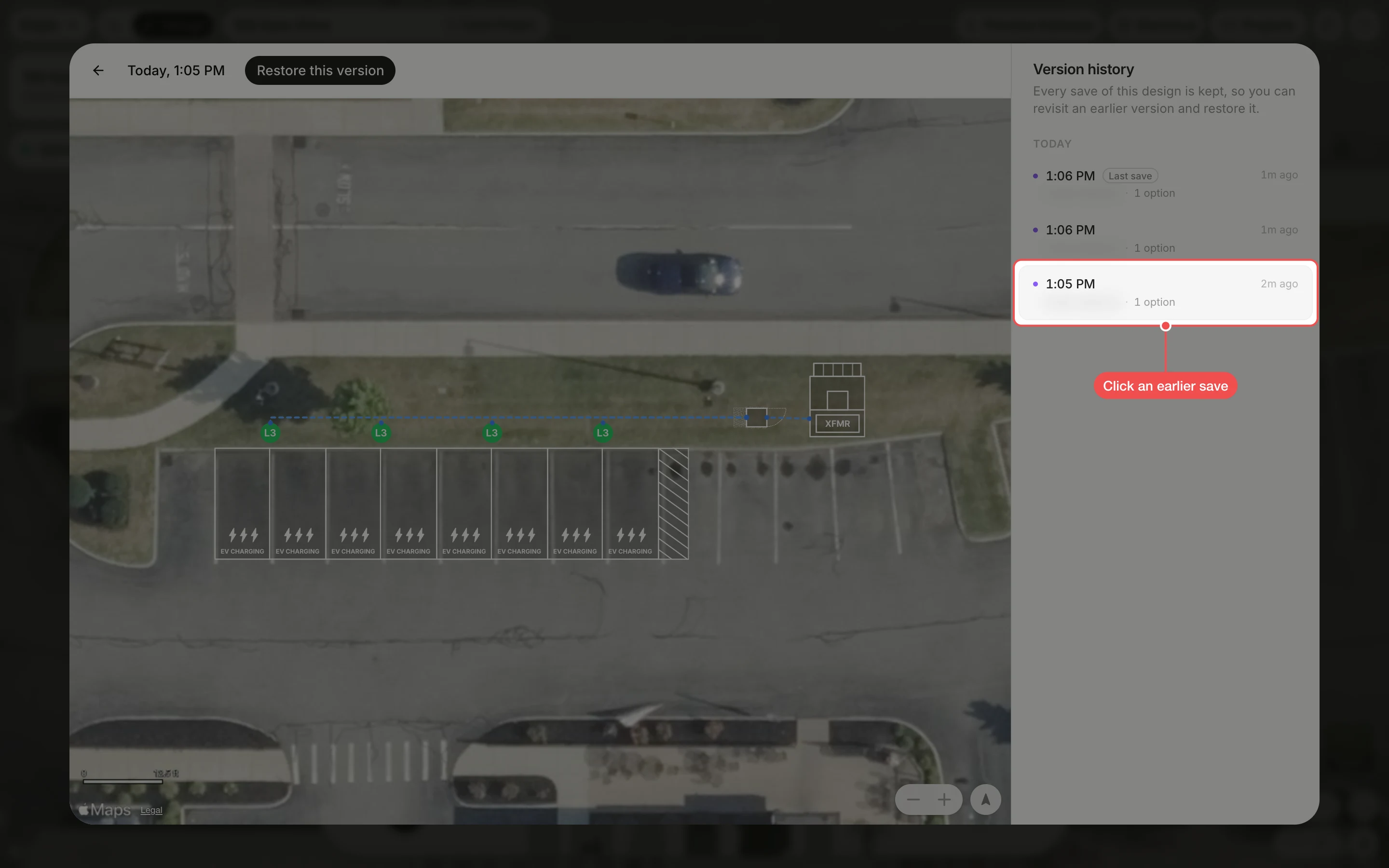
Click an earlier save
Every save is listed on the right, newest first, with who saved it and when. The one marked Last save is what the project holds now. Click an earlier row and the canvas shows the design exactly as it was then, here with the fourth charger pair that was deleted later. Zoom and pan to compare it with what you have now.
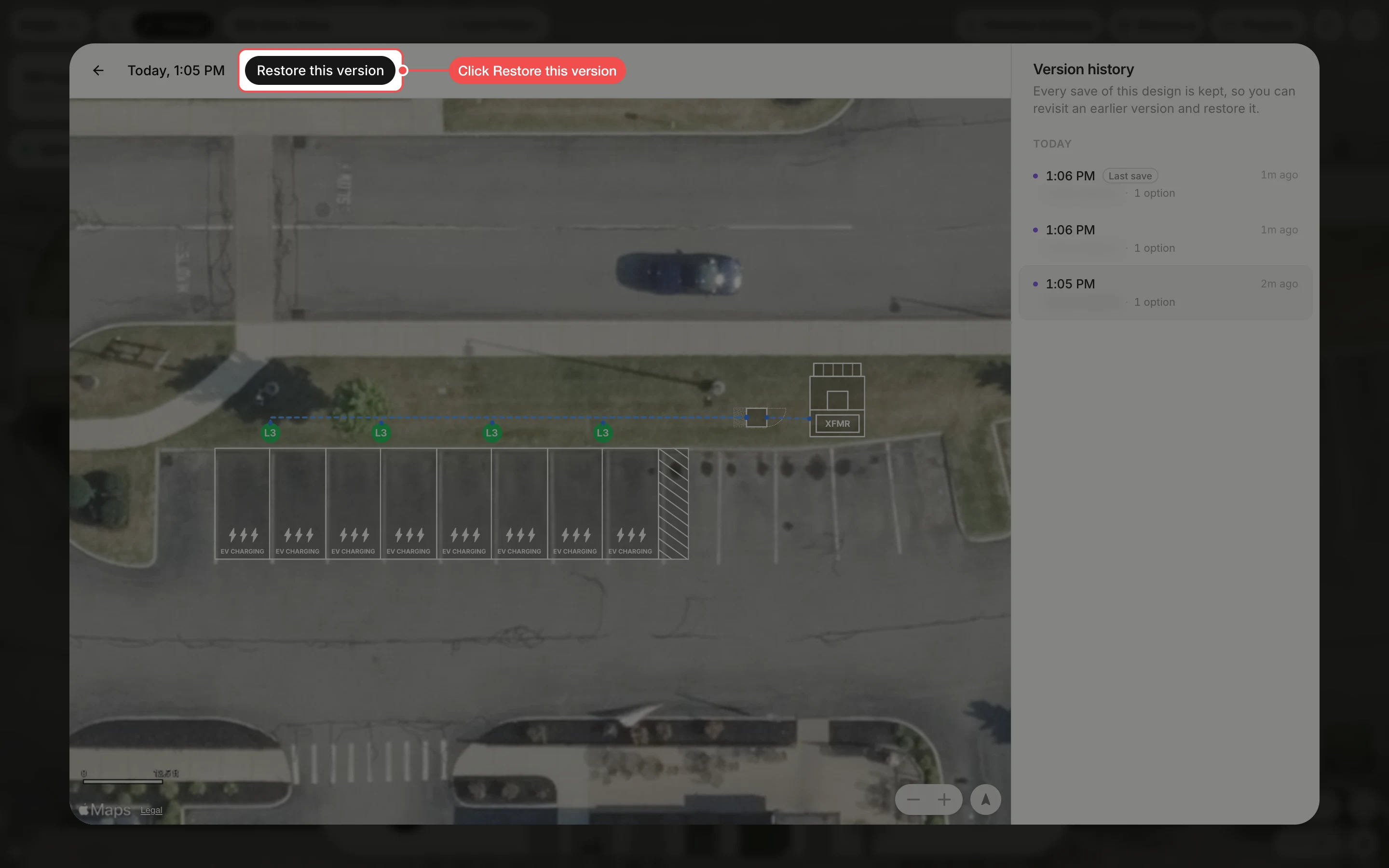
Click Restore this version
Once you have found the version you want, click Restore this version at the top of the dialog.
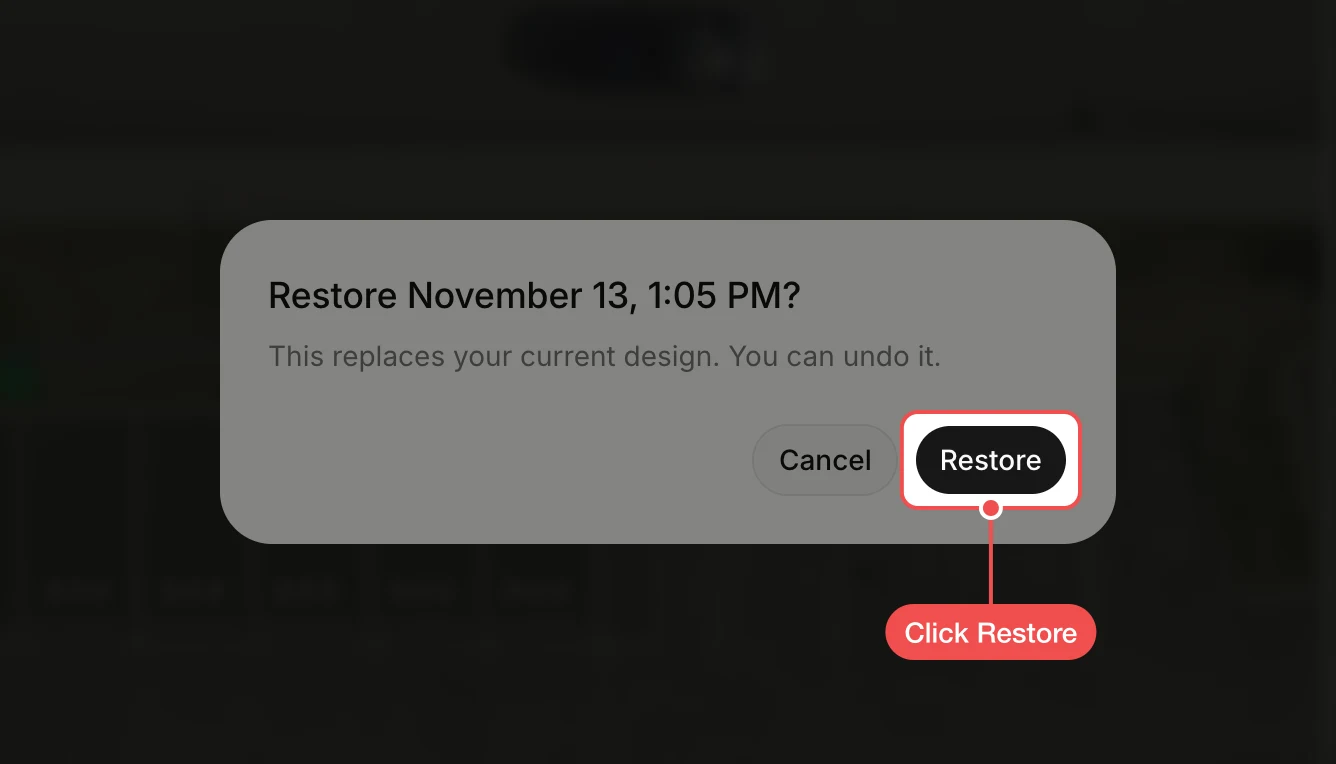
Click Restore
In the confirmation, click Restore. This replaces the current design for everyone on the project, but the design it replaces stays in the history, so nothing is lost.
Check the result
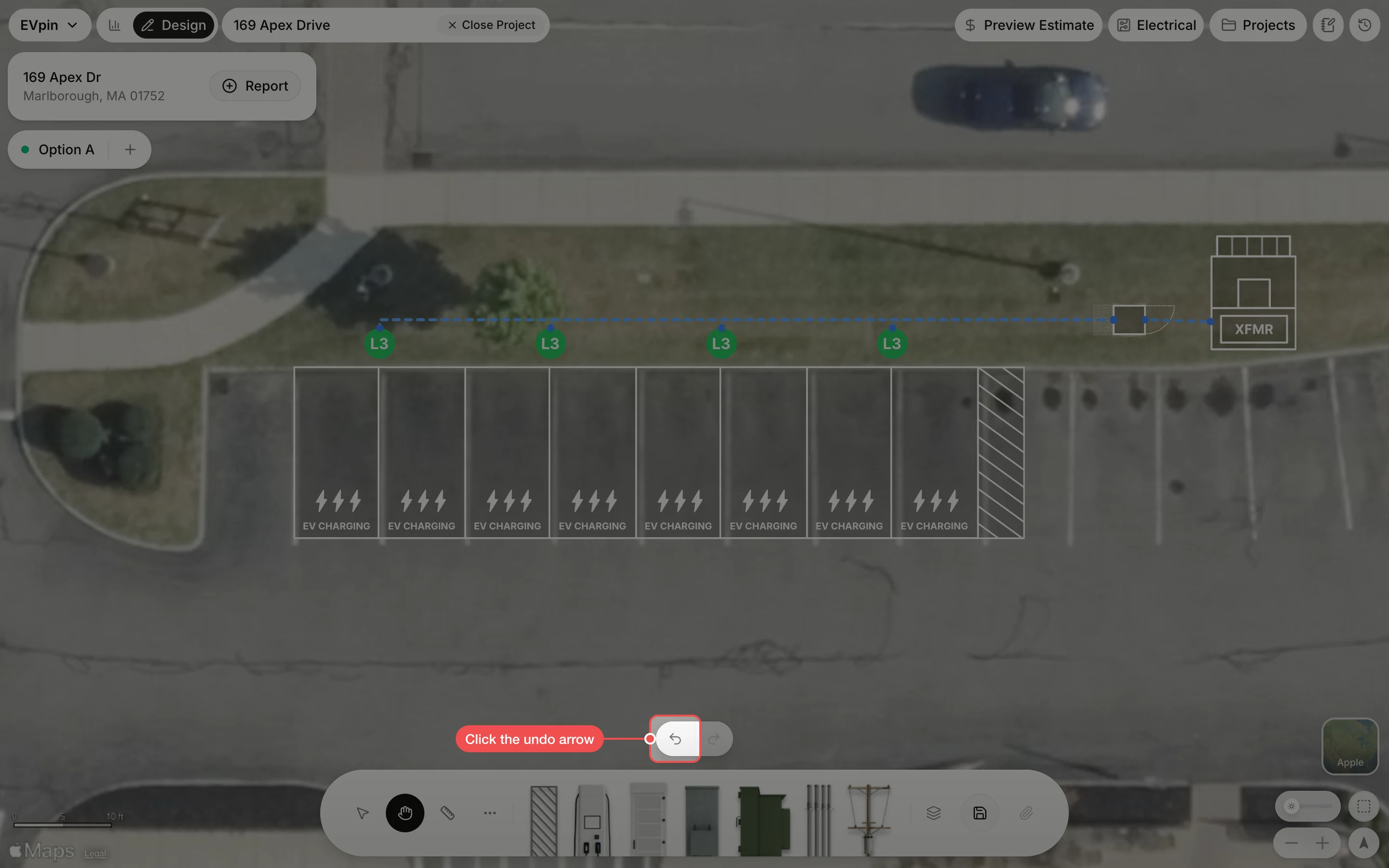
The restored design is on the canvas and saved to the project. If it is not the one you wanted, click the undo arrow just above the toolbar straight away, or open the history again and restore a different version.
What's next
- How to see a project's review log to see every save alongside reports, estimates and sign-offs, and restore from there too.
- How to add charging stalls to a design to keep building on the restored version.