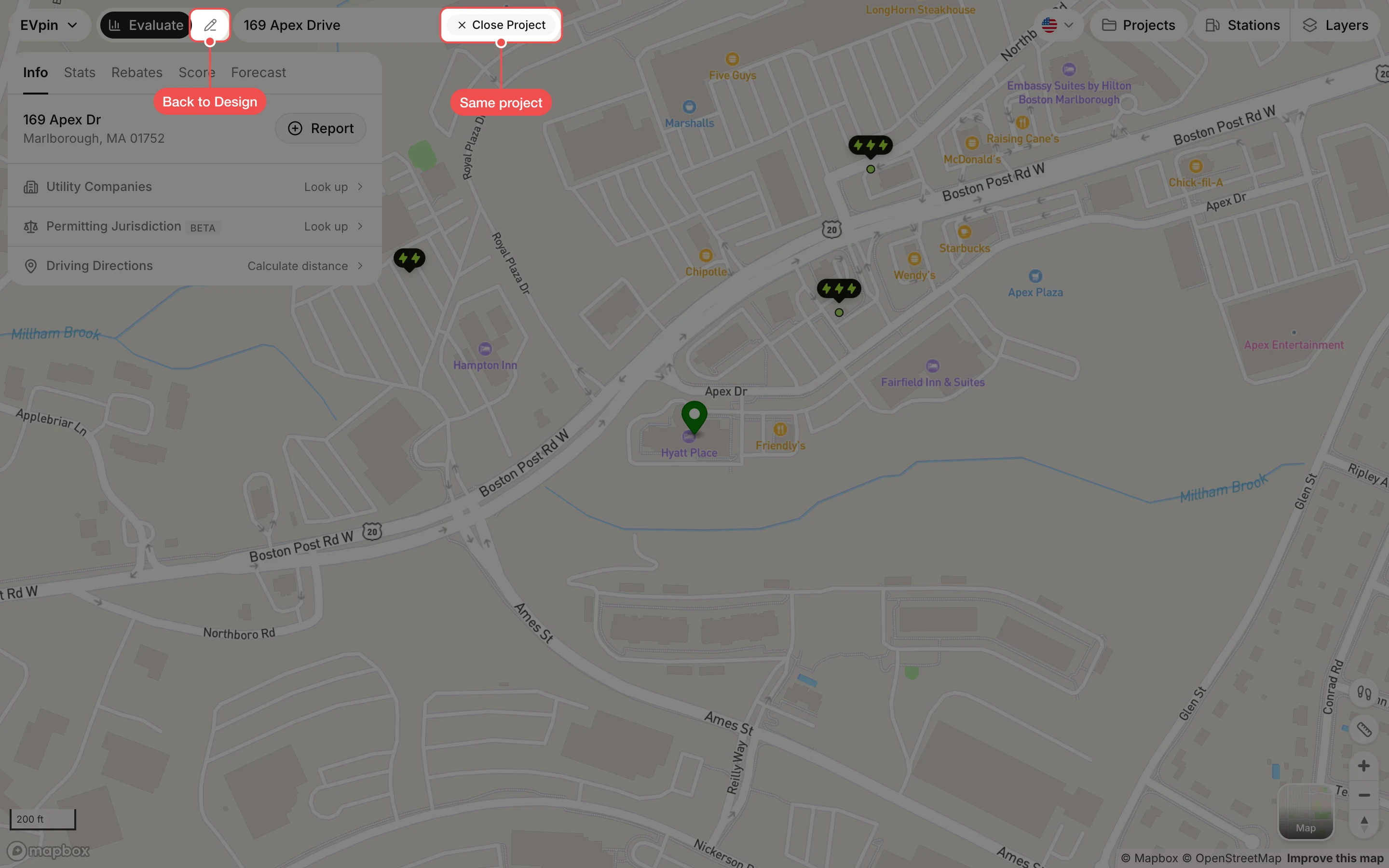
How to go from evaluating a site to designing it
Switch a site from the Evaluate map to the Design page, save it as a project and switch back.
Evaluate and Design work on the same site, so you can check an address and then lay out chargers on it without searching again. You need a site open on the Evaluate map; see How to evaluate your first site.
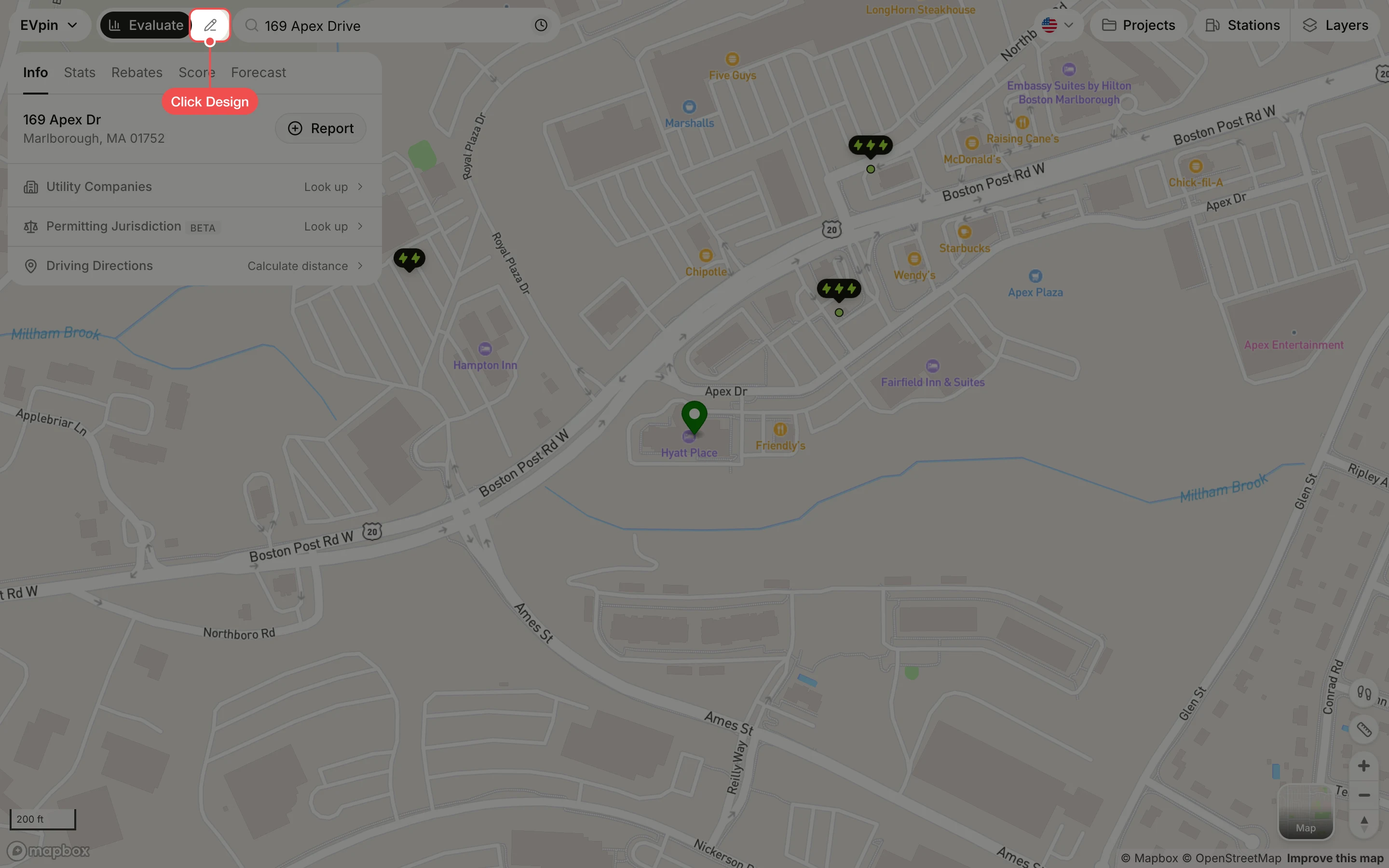
Click Design
With the site open on the Evaluate map, click Design, the pencil icon next to Evaluate at the top left.
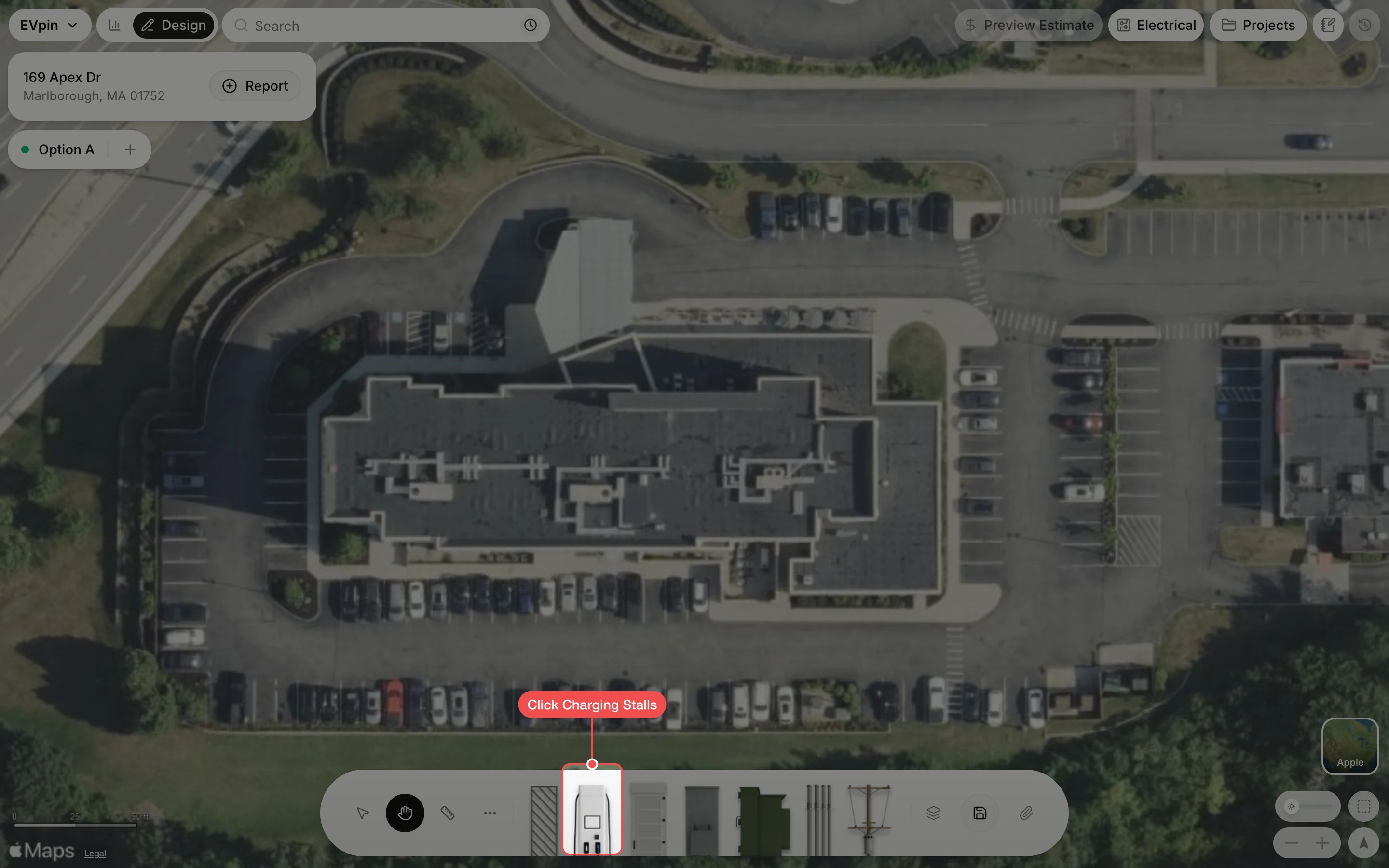
Open the Charging Stalls tool
The Design page opens over the same site in satellite view. In the toolbar at the bottom, click Charging Stalls.
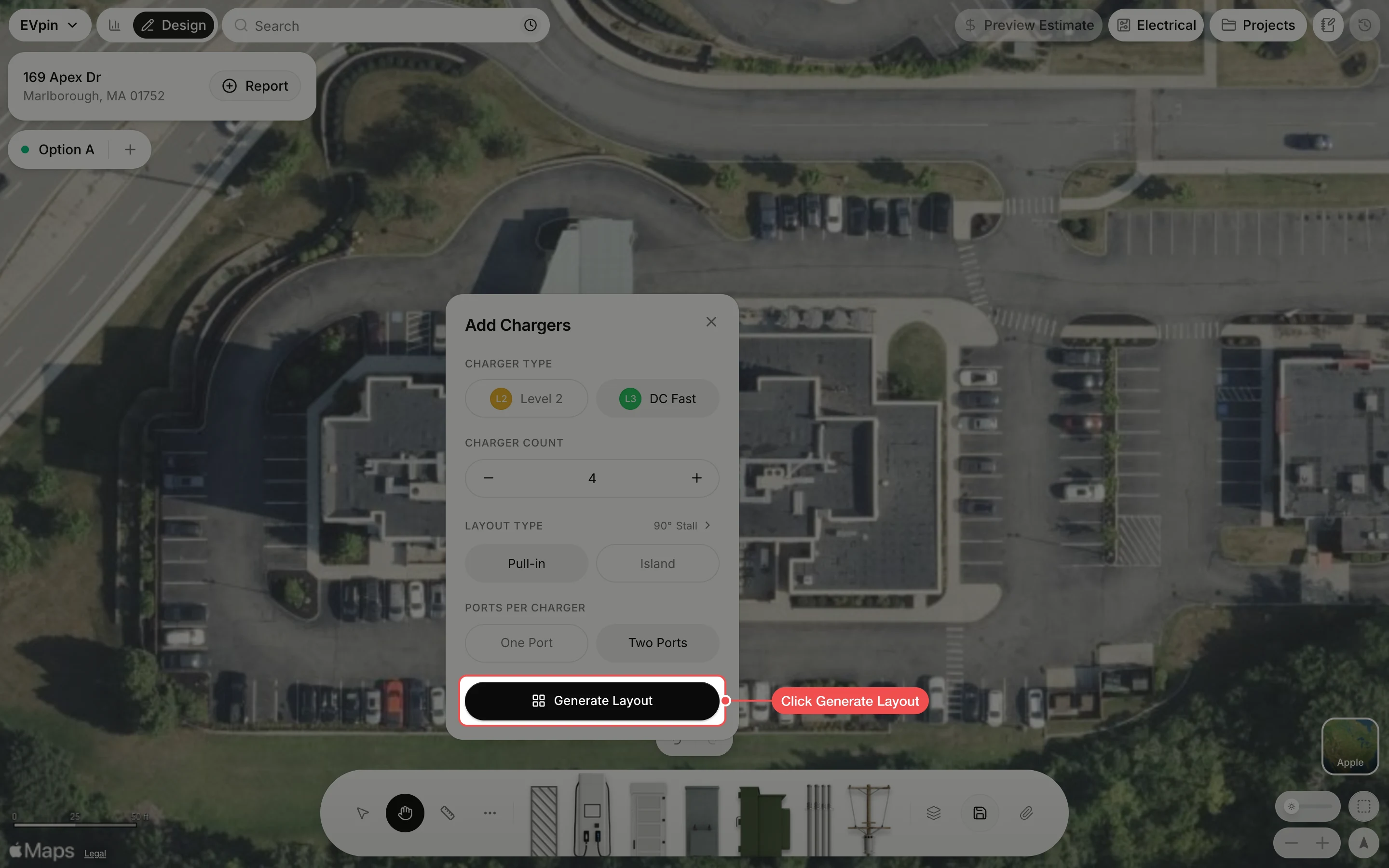
Generate the stalls
Set the Charger Count and ports, then click Generate Layout. Drag the stalls onto the parking row where they belong.
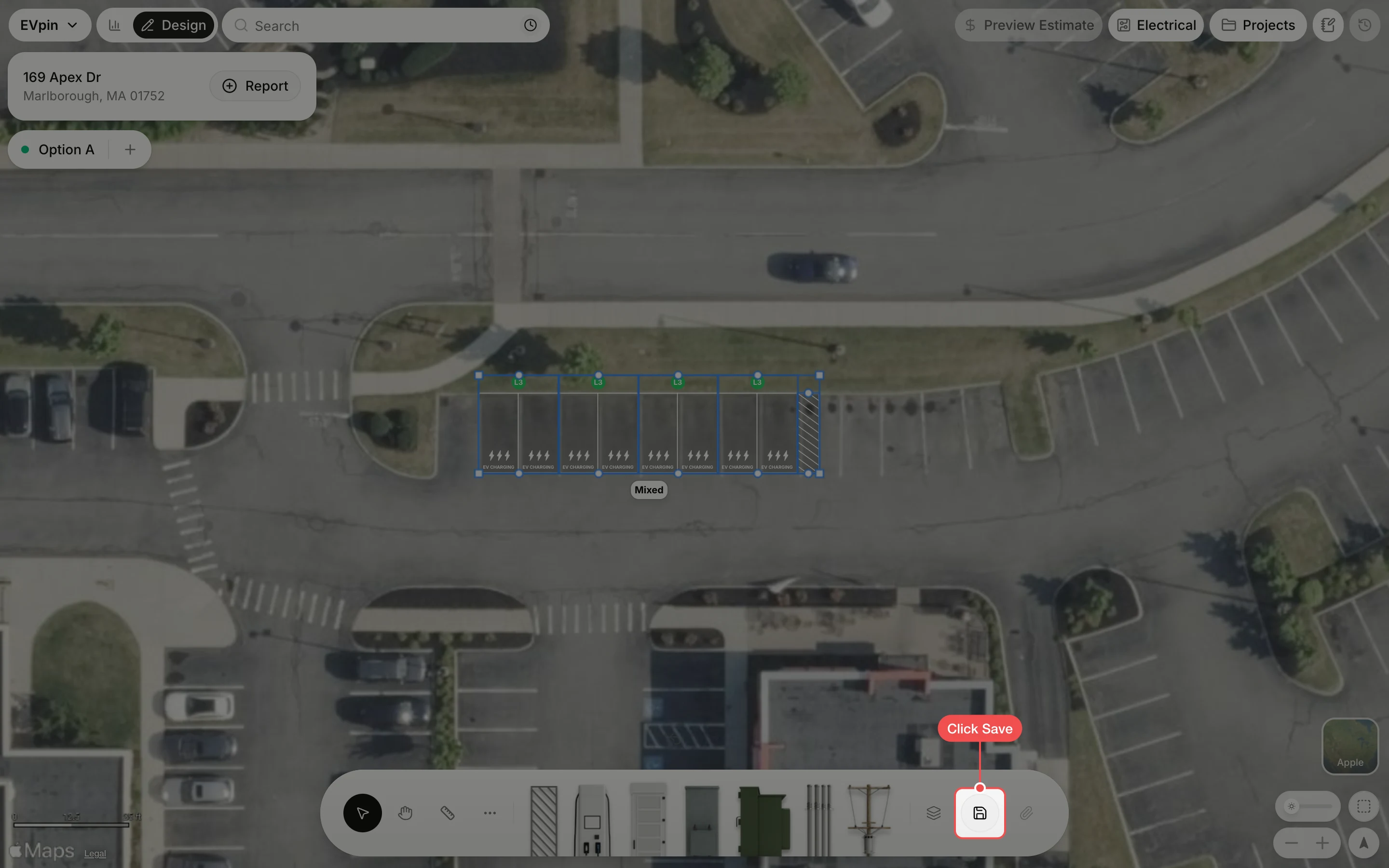
Save the design
Click Save in the toolbar. EVpin creates a project named after the address and keeps the design in it.
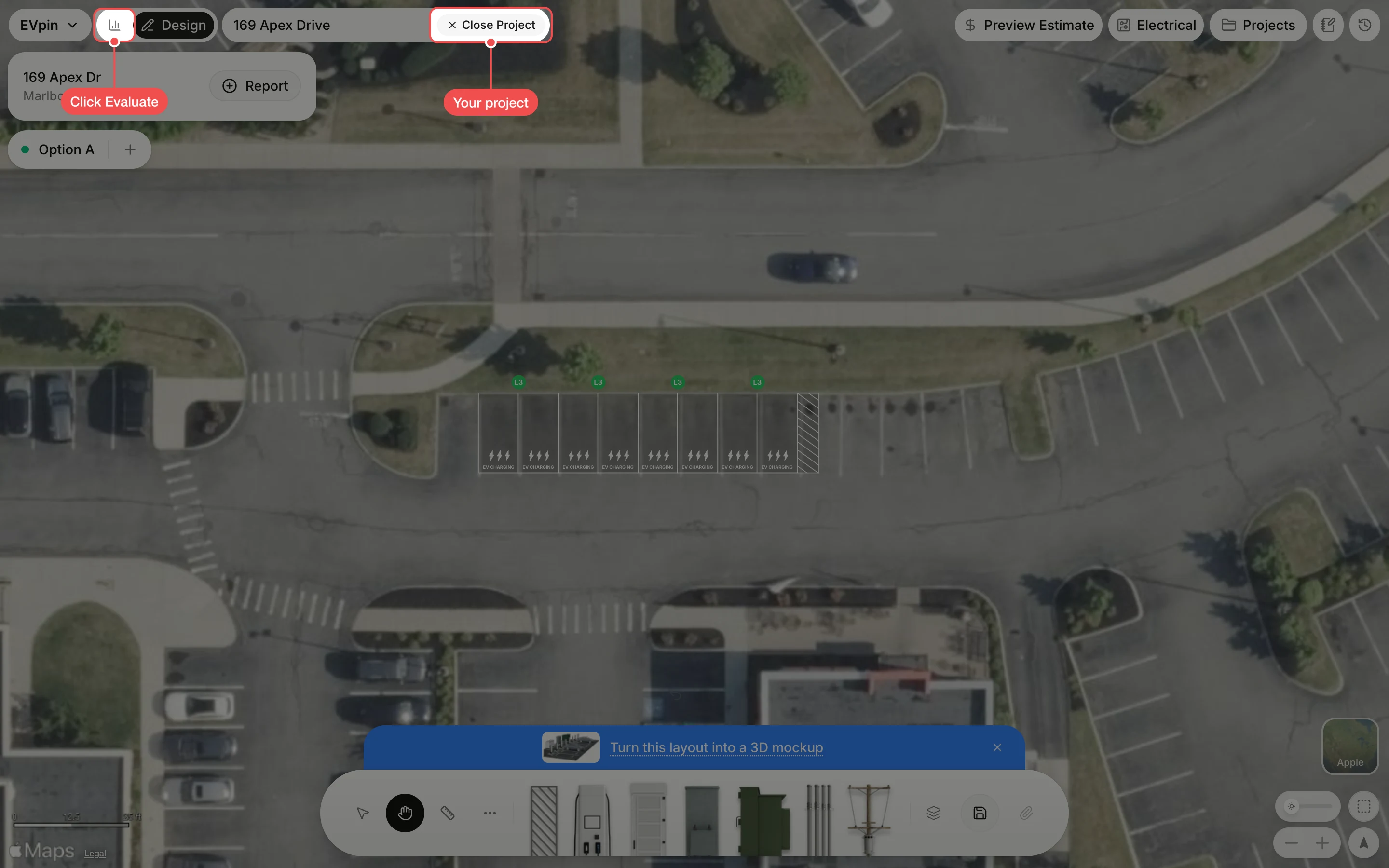
Click Evaluate
Close Project now shows next to the address, which means the project is open. Click Evaluate, the chart icon next to Design, to go back to the map.
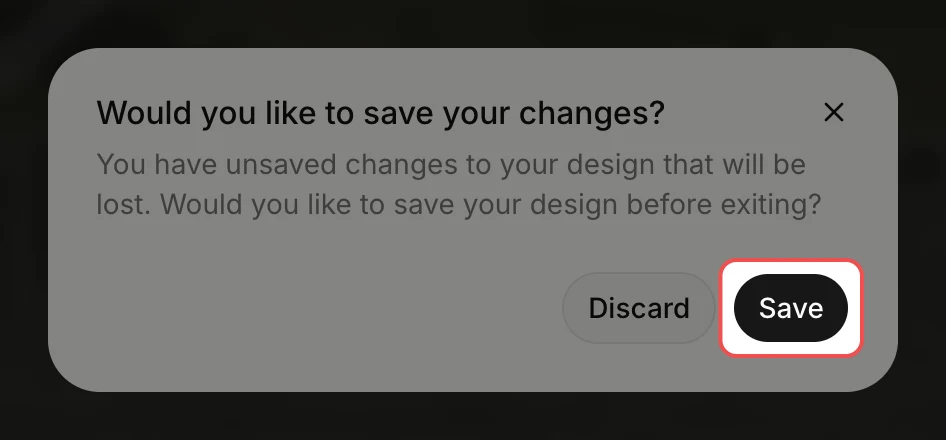
Save any last changes
If you changed the design after saving, EVpin asks Would you like to save your changes? Click Save to keep them.
Keep switching as you go
The Evaluate map opens with the same project. Its score, stats and reports belong to the project too. Click Design at any time to go back to the layout.