How to limit a teammate to their own projects
Set a teammate's project visibility to Restricted so they only see the projects they own, for a member or when you invite them.
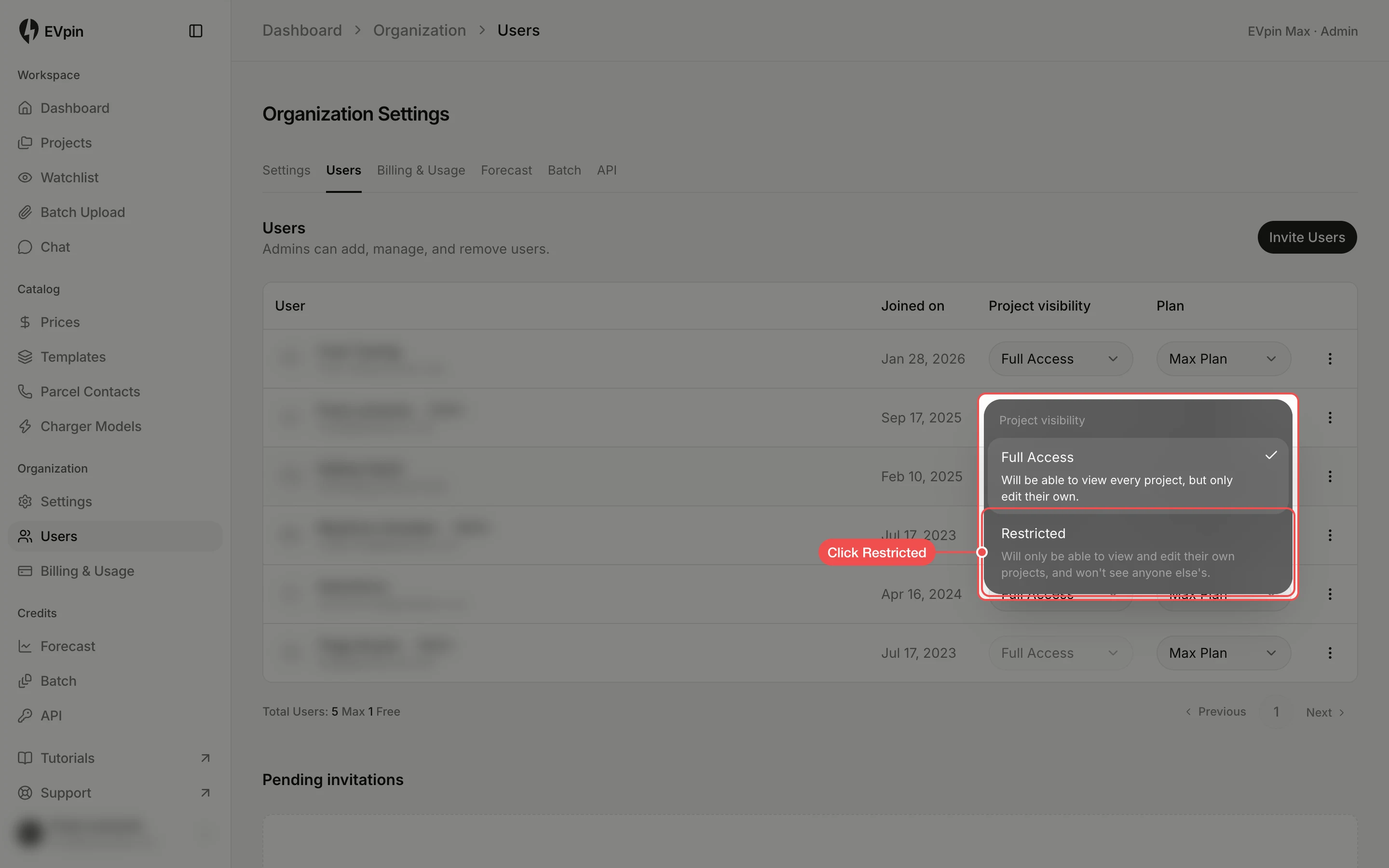
Every teammate has a project visibility. Full Access lets them see every project in your organization. They can edit other people's projects only on a paid plan; on the Free plan they can view them but only edit their own. Restricted limits them to the projects they own, including ones assigned to them, and hides everyone else's from the Projects page, the project filters and the map.
Only admins can change it. Owners and admins always have Full Access, so their dropdown is greyed out.
Open the teammate's Project visibility
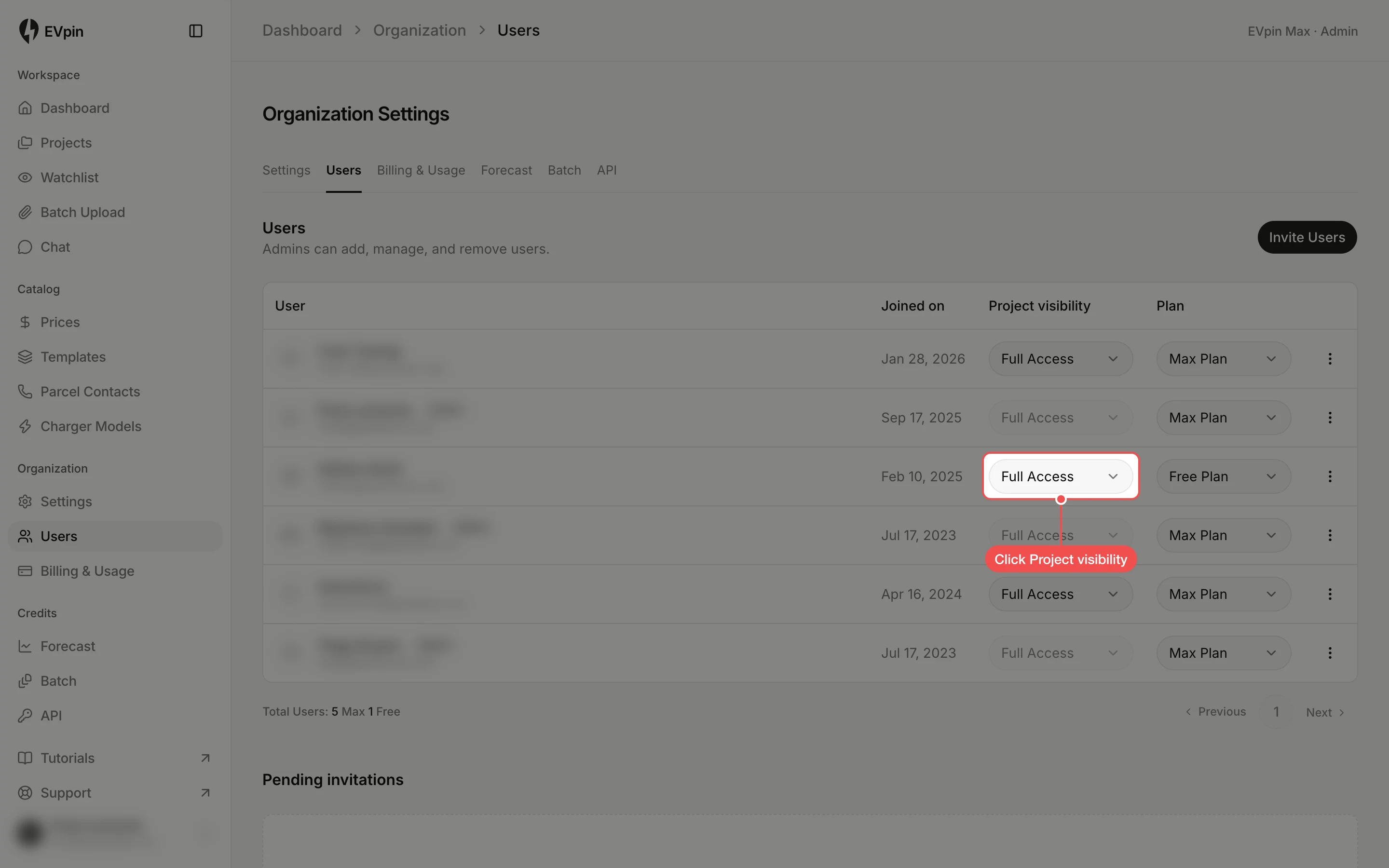
In the sidebar under Organization, click Users. Find your teammate in the list and click the dropdown in the Project visibility column of their row.
Or set it when you invite them
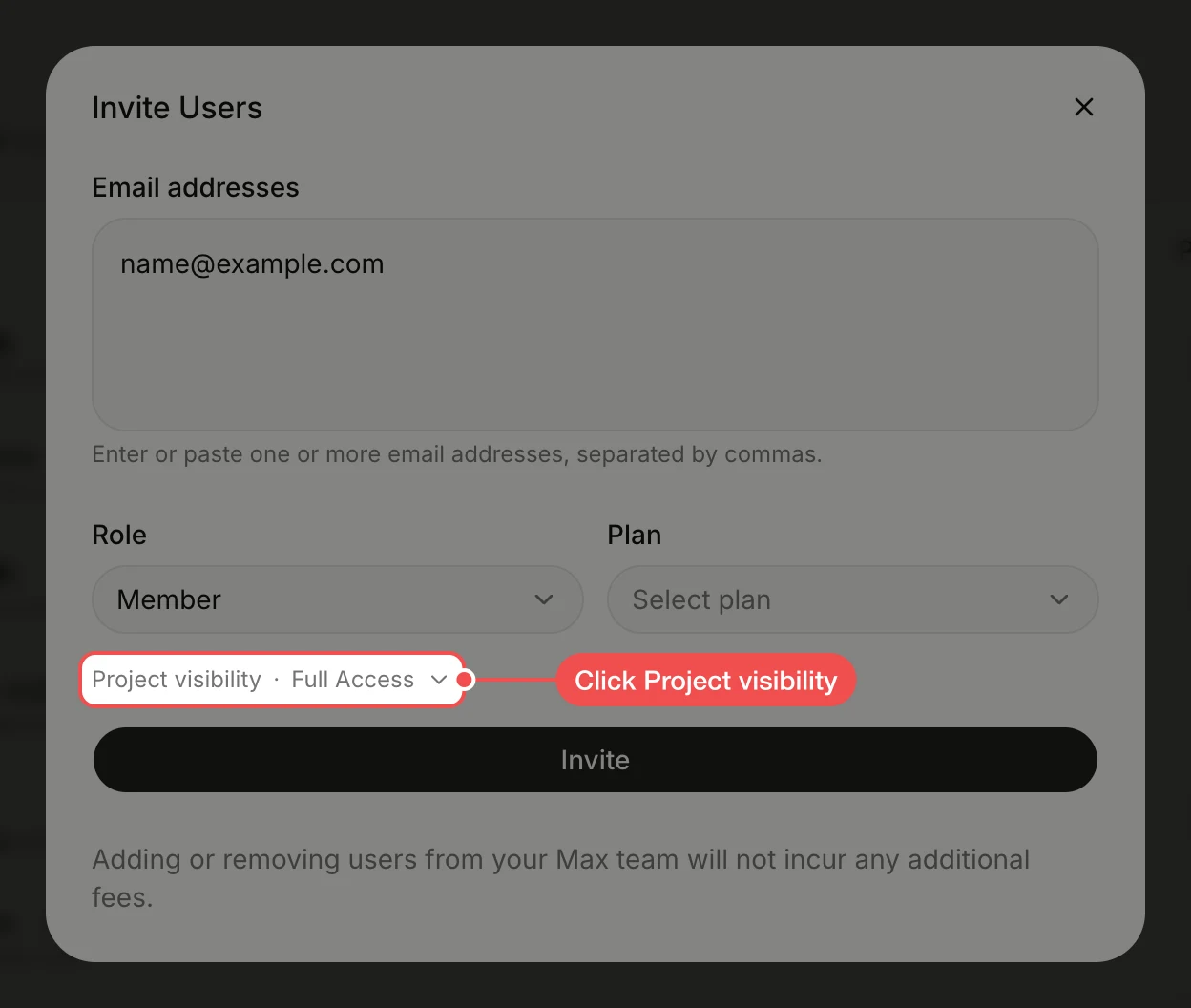
To restrict someone from the start, click Invite Users on the same page, fill in the email and set Role to Member. Then click Project visibility below Role.
Click Restricted in the invitation
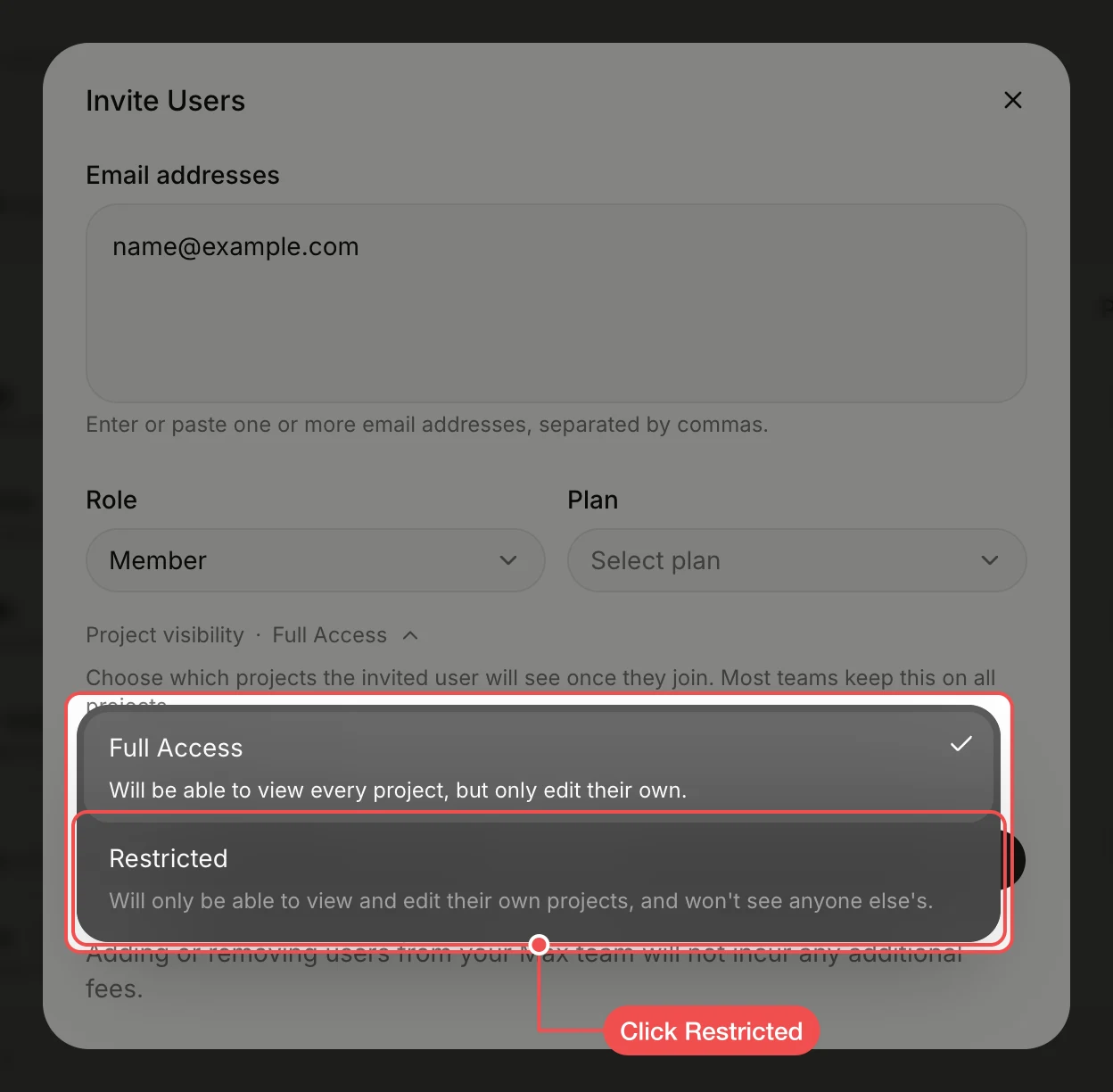
Click the dropdown that opens, click Restricted, then finish the invitation with Invite. Your teammate joins with Restricted visibility.
What's next
- How to invite a teammate for the rest of the invitation.
- How to assign a project to a teammate to give a restricted teammate a project to work on.