How to manage your organization's tags
Add, rename, recolour and delete the tags your team uses to track projects, from the board's Manage Tags panel.
Tags are shared across your organization, and each one is a column on the project board. Anyone can add a tag. Admins can change any tag; everyone else can change the tags they added.
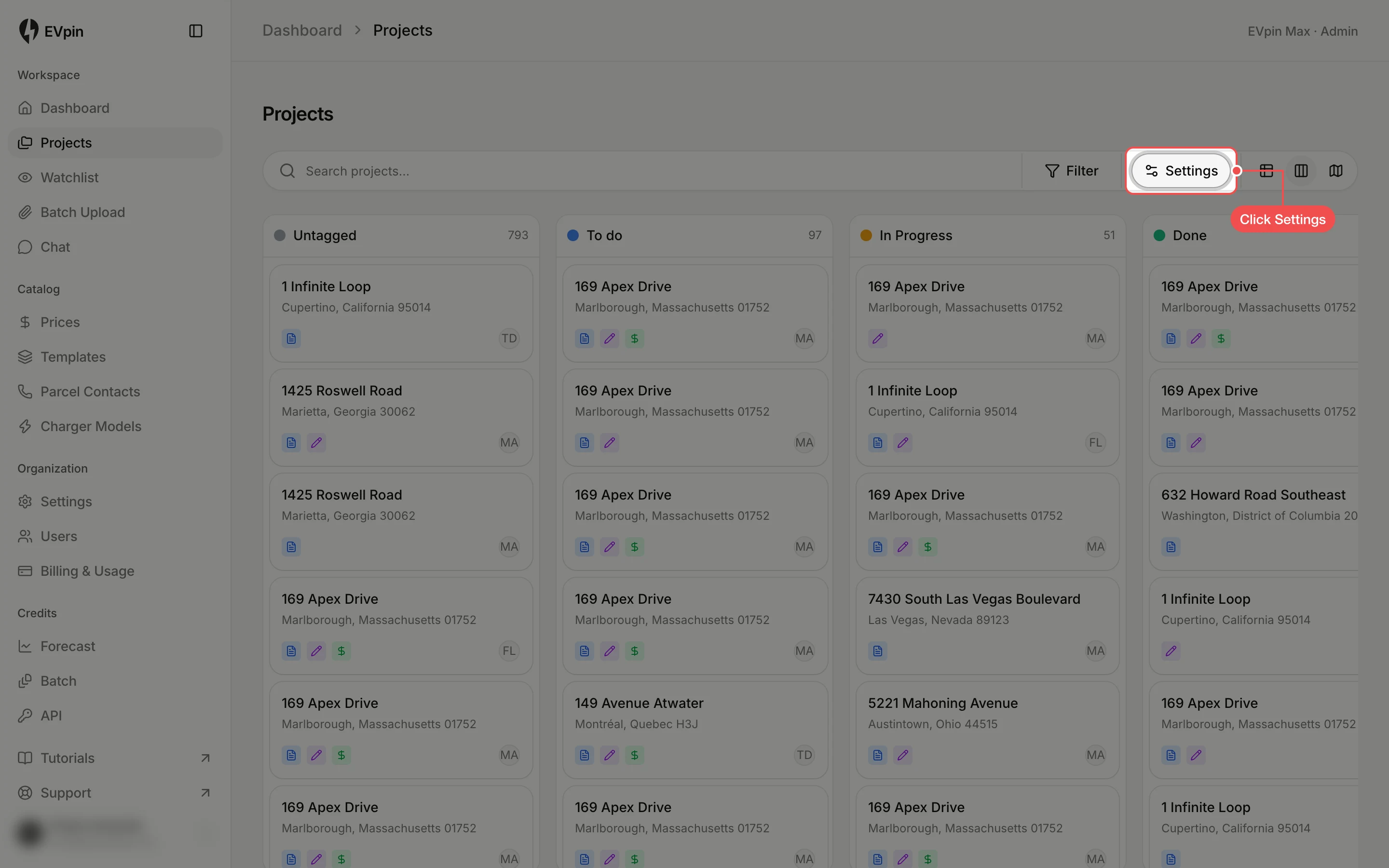
Click Settings
On the Projects page, switch to Kanban view and click Settings at the top right. The Manage Tags panel lists every tag with the number of projects it holds.
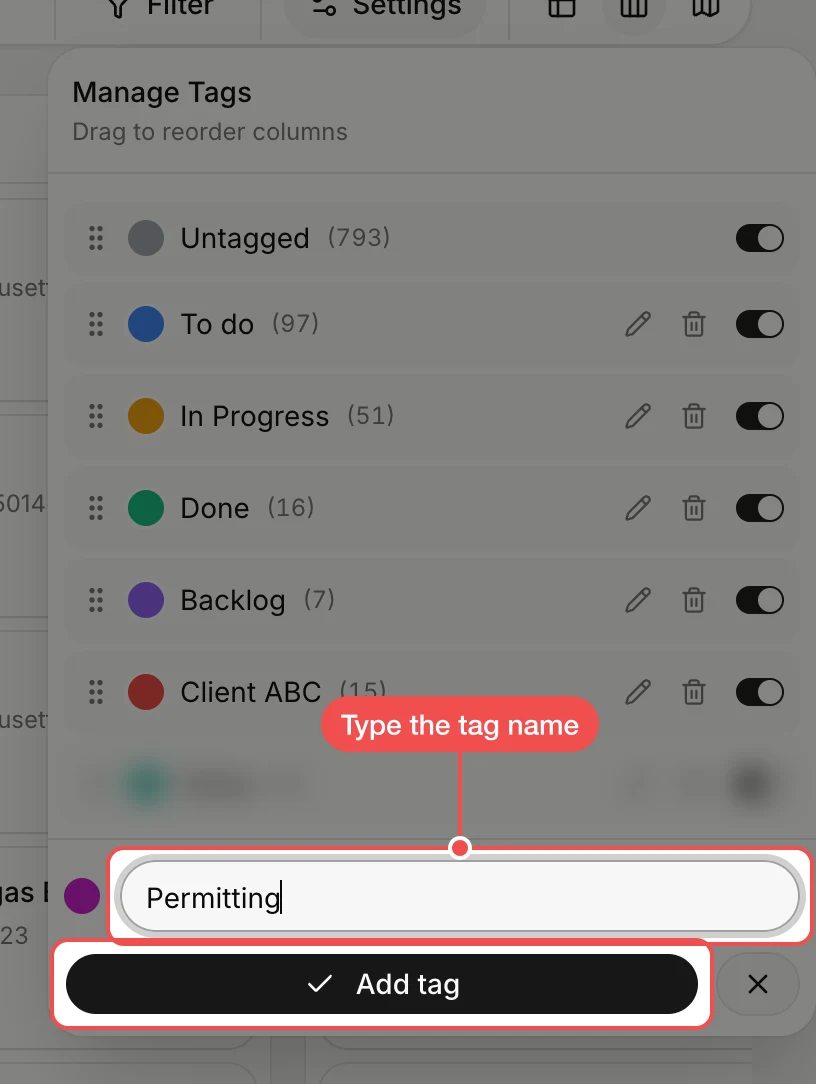
Add a tag
Click Add new tag at the bottom of the panel, type the tag name and click Add tag. Click the dot to the left of the name first to pick its colour.
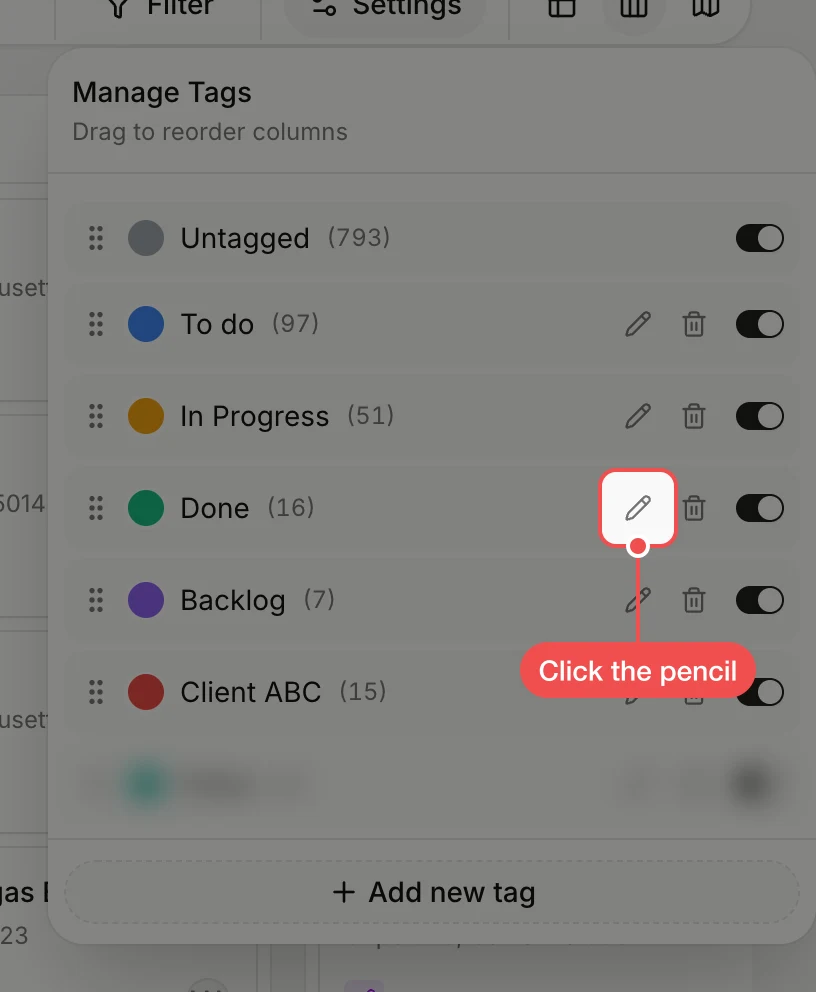
Rename a tag
Click the pencil next to a tag, type the new name and press Enter. Press Escape to keep the old name.
Change a tag's colour
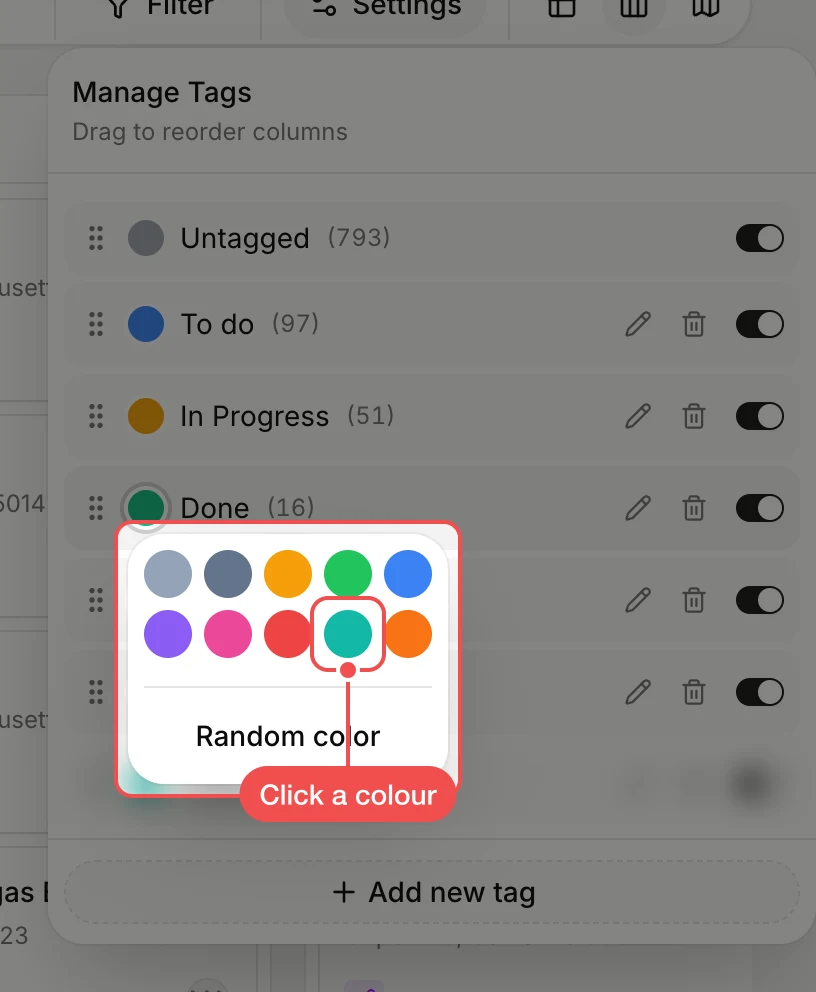
Click the coloured dot next to a tag and click a colour, or click Random color. The board column and every tagged project take the new colour.
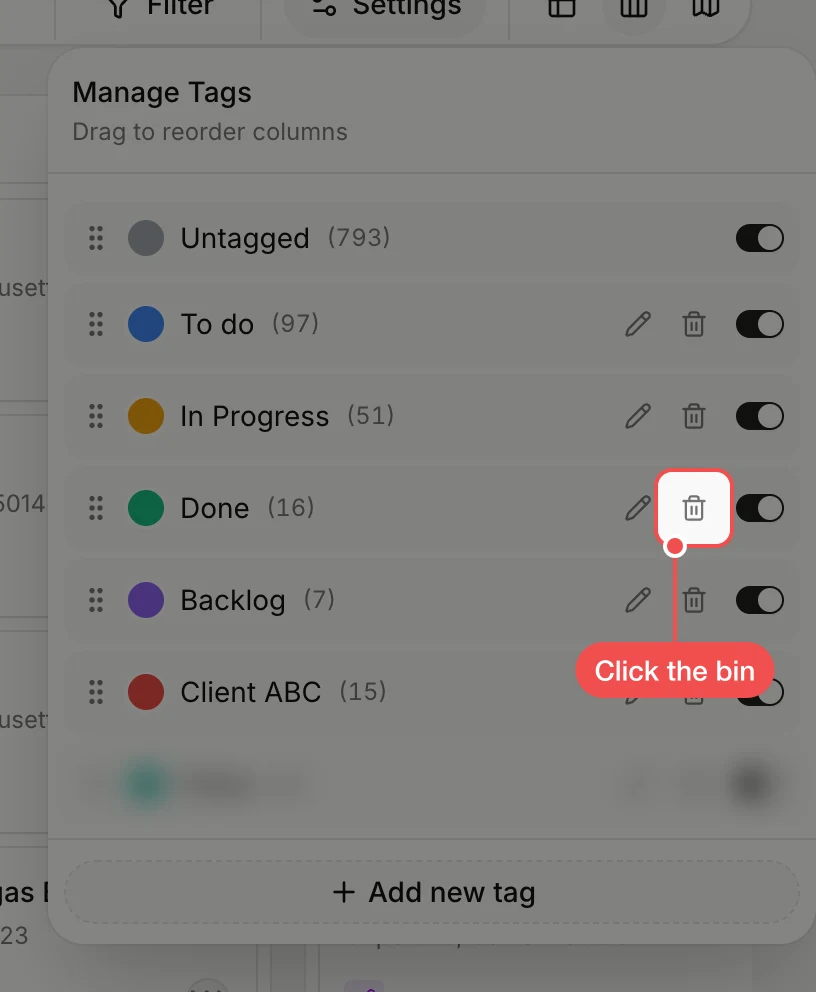
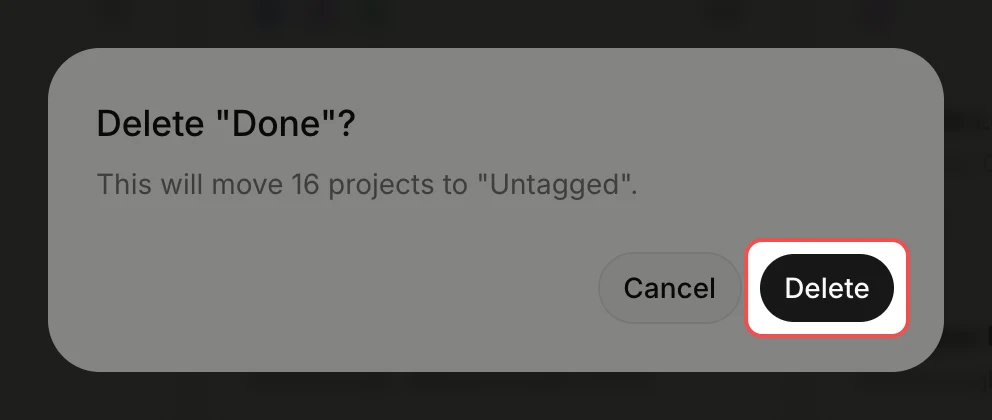
Click Delete
The dialog says how many projects use the tag. Click Delete; those projects move to Untagged.