How to connect Airtable to EVpin
Connect your Airtable account, pick the table your projects belong to and keep a single select field in sync with project tags.
Once Airtable is connected, each project can be linked to a record in one table, and the record gets links back to the project. You need to be an organization admin and have creator access to the Airtable base. The last three steps happen in Airtable or only show once it is connected, so they have no screenshots.
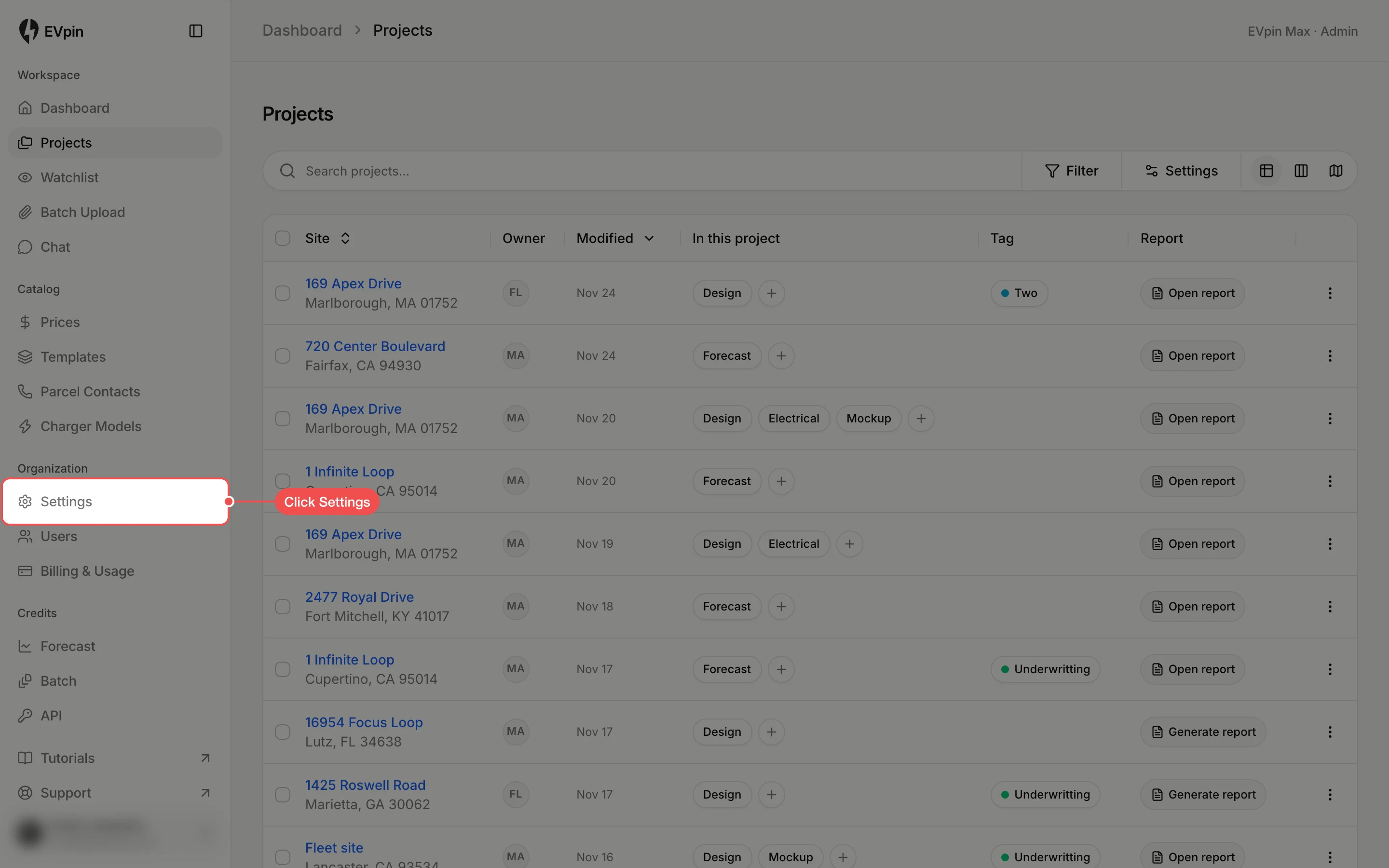
Click Airtable
Scroll to CRM and, under Connect your CRM, click Airtable.
An organization can have one CRM connected at a time. If monday.com is connected, it shows here instead of the list. Click Disconnect first, which unlinks every project from its monday.com item.
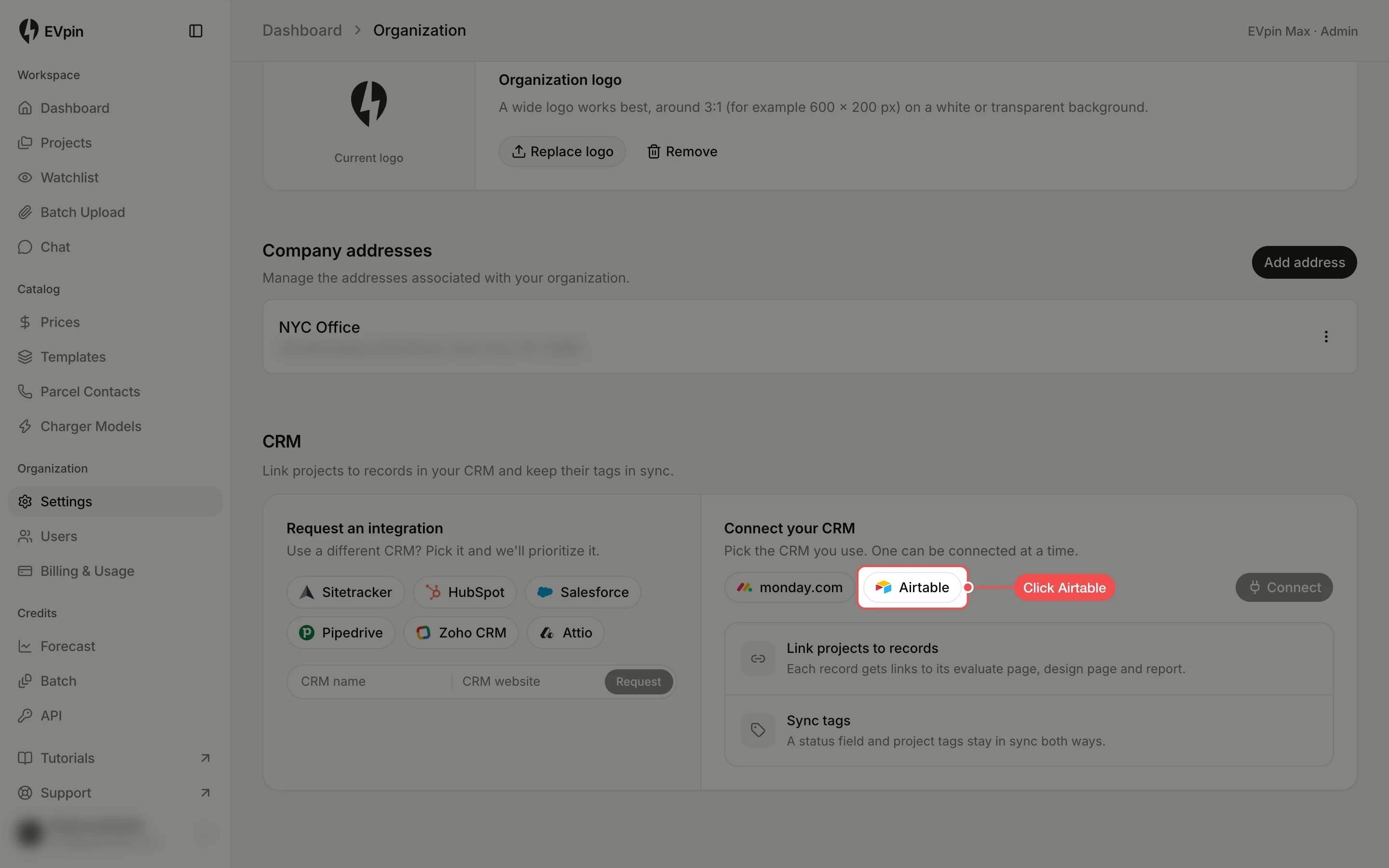
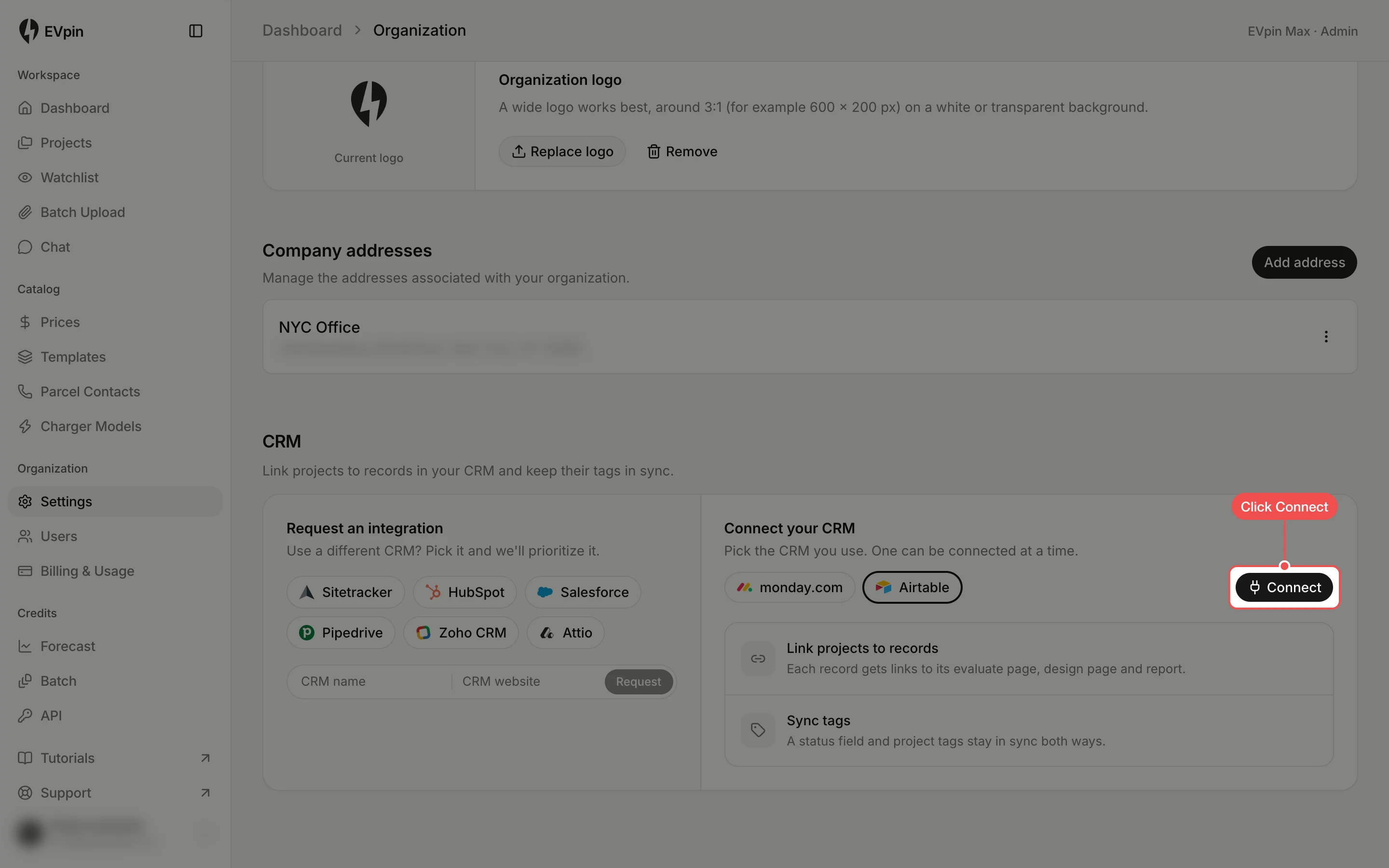
Grant access
Leave Everything you have access to on, or click Custom access and add the base that holds your sites. Click Grant access and you come back to this page with Airtable marked Connected.
Choose a table
Under Table, click Choose a table and click the table that holds your sites. Tables are listed with their base, as in "Sites / Pipeline". EVpin adds three link fields to it: EVpin Evaluate Page, EVpin Design Page and EVpin Report.
If it says No tables found, EVpin has no base it can use. In Airtable, open Integrations in your account menu, give EVpin access to a base where you are a creator, then reload this page.
Turn on tag sync
Under Sync tags, click Off and click the single select field that tracks each site's stage. Its options become project tags, and the chips below show which tag each option maps to. A change to the field in Airtable moves the project on the board, and a tag change in EVpin updates the field. A linked project can only be given a tag that matches one of the field's options.
To link a project to a record, open the project's menu on the Projects page and click Link to Airtable.